Table of Contents
Connecting multiple calendars to Todoist is now possible through OneCal
Sign up for a free OneCal account to sync all your calendars with Todoist.
In our previous article, we explained how to sync iCloud Calendar with Todoist, and one of the limitations of Todoist, besides the lack of support for iCloud Calendar, was that users could only connect one calendar to Todoist.
This issue is also highlighted in the Todoist Reddit community, where users are asking how to sync multiple Google Calendars to Todoist. The user says:
I would LOVE the option to sync multiple Google calendars to my ToDoist. When I try to click "Add another Google Calendar to your Todoist account", I get the error message "Only one Google calendar can sync to all Todoist projects." Is there a workaround for this? What am I missing? Ideally, I'd love to connect every event in every calendar to my ToDoist daily feed.
In this article, we’ll show you how to connect multiple calendars to Todoist, including iCloud Calendar, Google Calendar, and Outlook Calendar.
After you finish this article, you’ll be able to connect multiple calendars to Todoist and view all your availability in Todoist.
What calendar providers can I connect to Todoist?
Currently, Todoist only integrates with Google Calendar and Outlook Calendar.
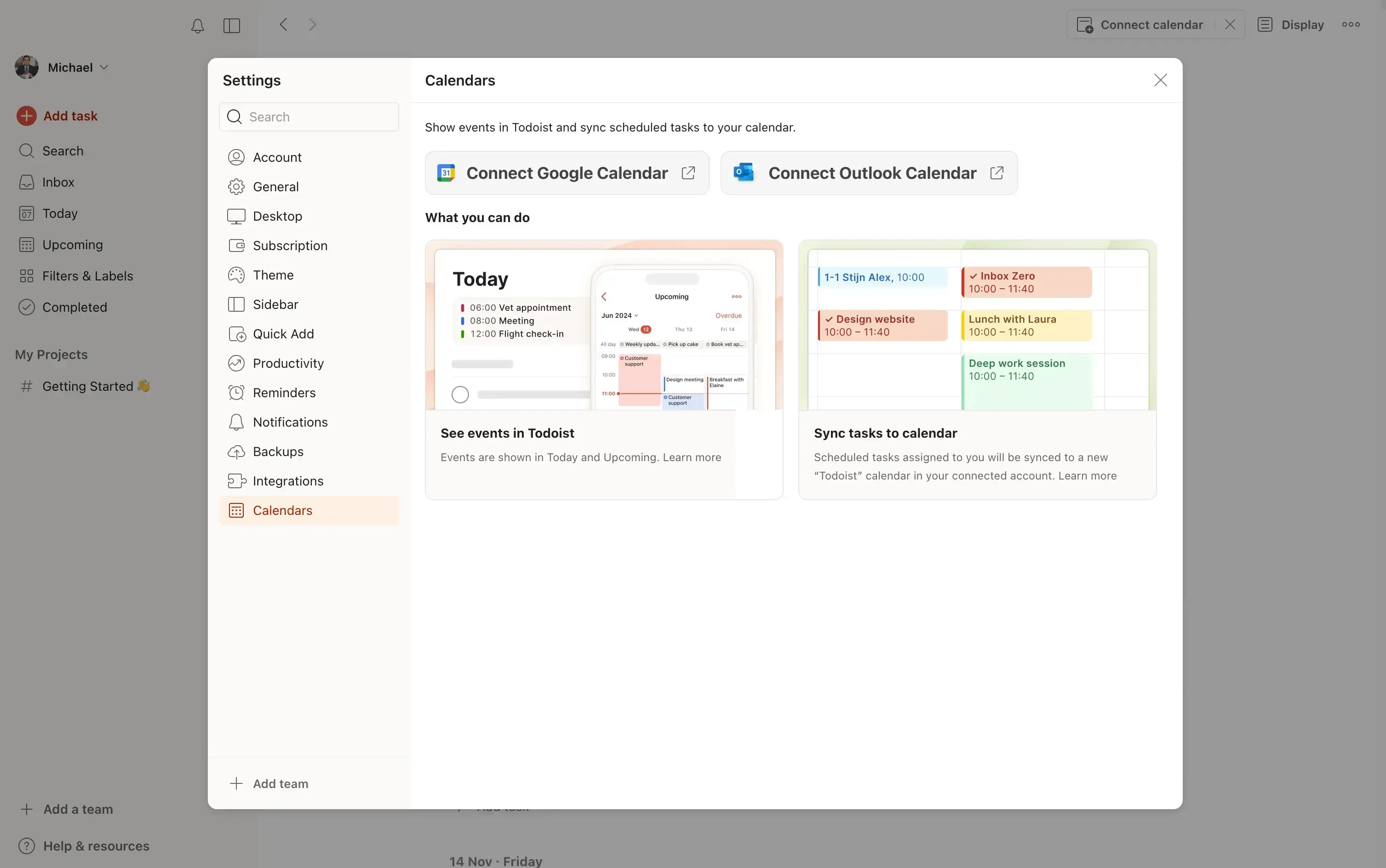
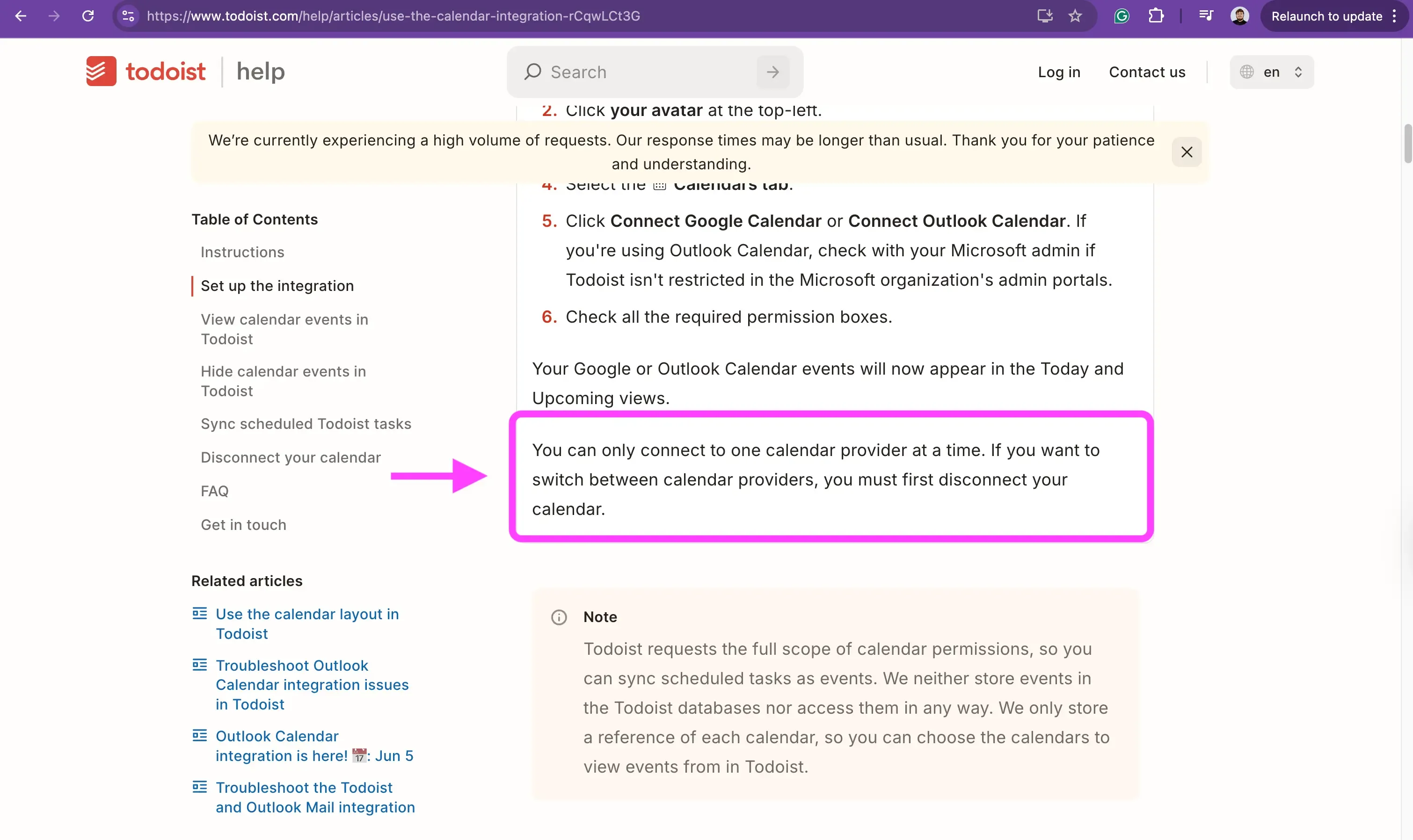
This sounds great, but the caveat is that you can only connect one calendar provider at a time. Connecting a Google Calendar and an Outlook Calendar is not possible, you can only connect one of them. This is not very handy for a lot of people, as usually availability is scattered across multiple calendars, and you can't switch from one calendar to another without losing a part of the availability.
How to Connect Multiple Calendars to Todoist?
Considering that Todoist syncs with Google Calendar and Outlook, and you can only connect one calendar to Todoist, we’ll use a calendar sync tool to sync all of our calendars to a Google Calendar. We’ll then connect that Google Calendar to Todoist.
As the calendar sync tool, we’ll use OneCal because of its reliable and secure calendar synchronization features. OneCal can sync Outlook, iCloud Calendar and Google Calendar in real-time, automatically.
Why does this work?
This works because we’re essentially populating the Google Calendar with the events from our other calendars. As soon as an event gets created, updated, or deleted in one of our calendars, OneCal will automatically reflect that change to the Google Calendar.
OneCal can sync multiple calendars in real-time, regardless of the calendar provider or the number of calendars you have. It can sync two Google Calendars, a Google Calendar and four Outlook Calendars, and so on.
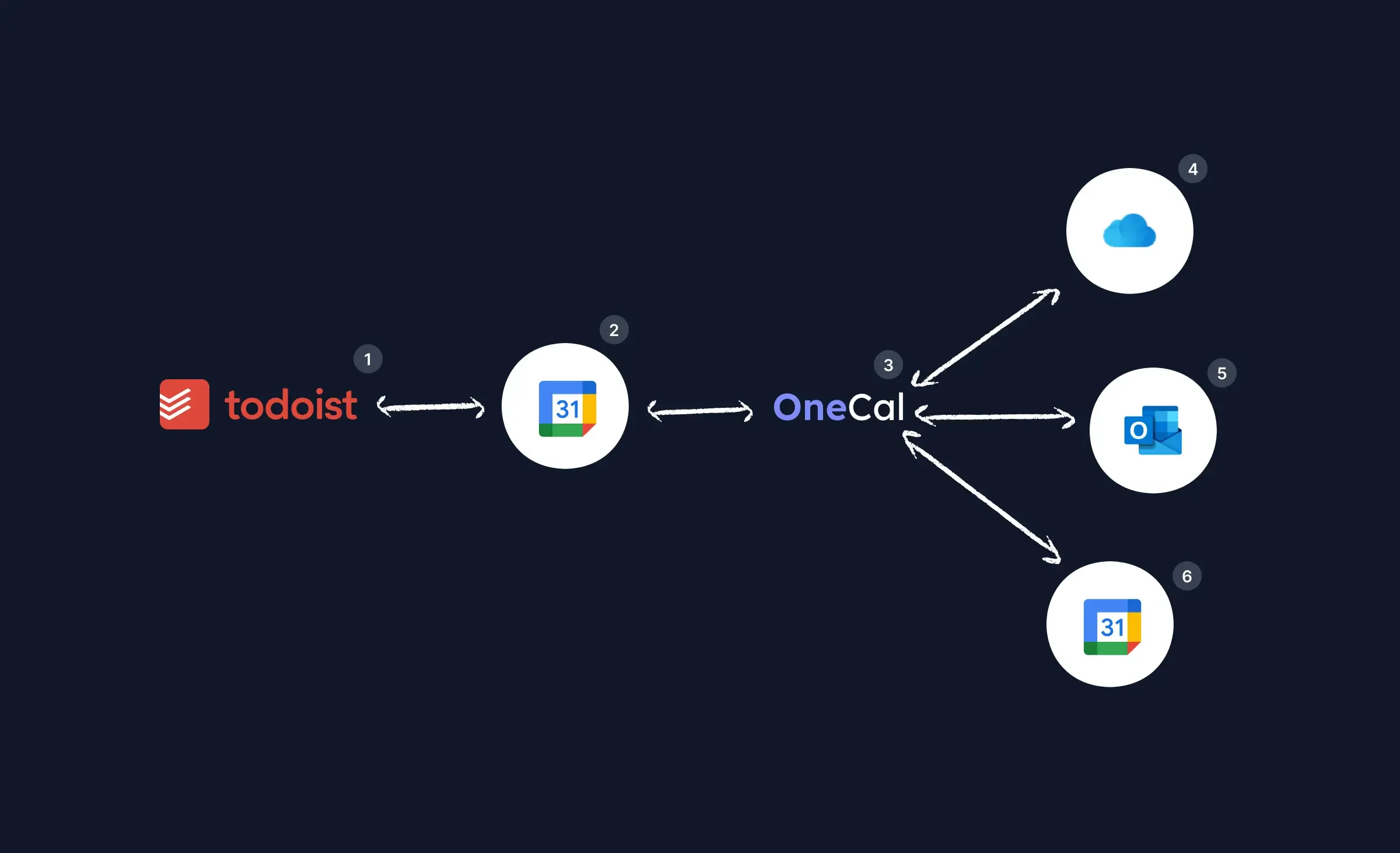
The illustration above shows how you can use OneCal to sync all your calendars with Todoist.
Step 1: Sync all your calendars with Google Calendar, using OneCal
This step is the most important step to syncing all your calendars with Todoist, as it syncs all calendar events to a single Google Calendar.
- Sign up for OneCal for free.
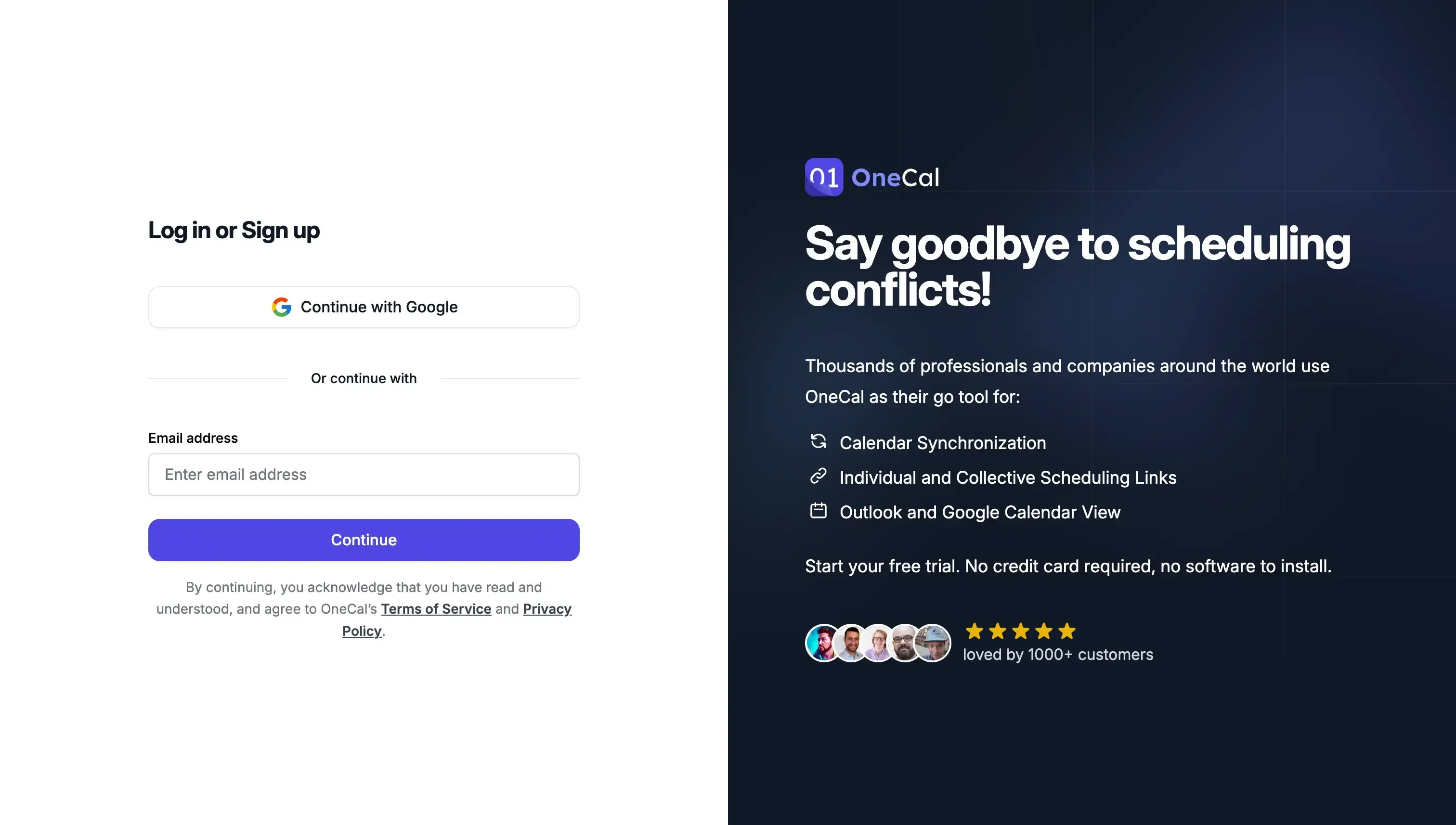
- Connect all your calendars to OneCal, including the Google Calendar we’ll connect to Todoist.
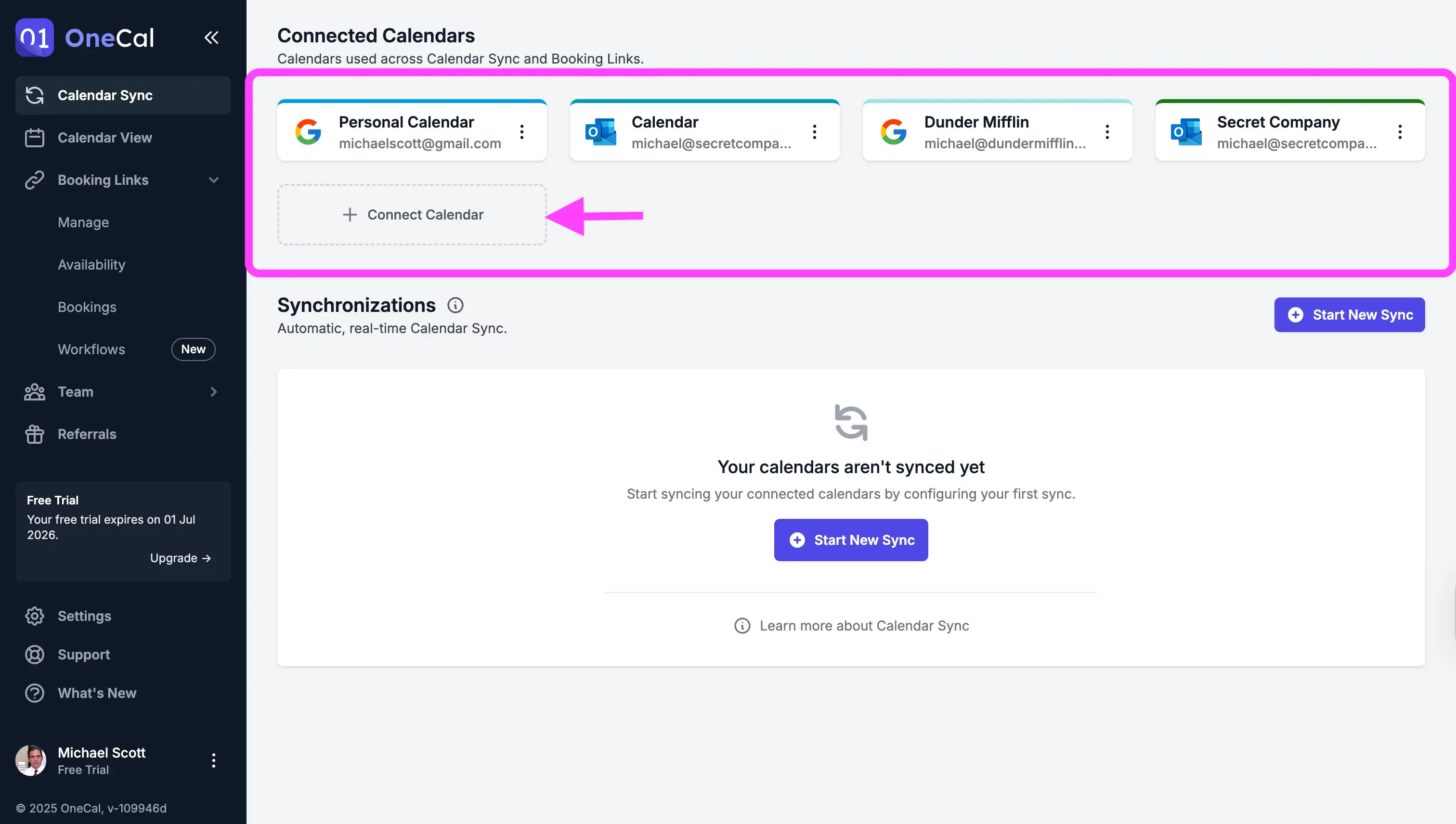
- Click the “Start new Sync” button.
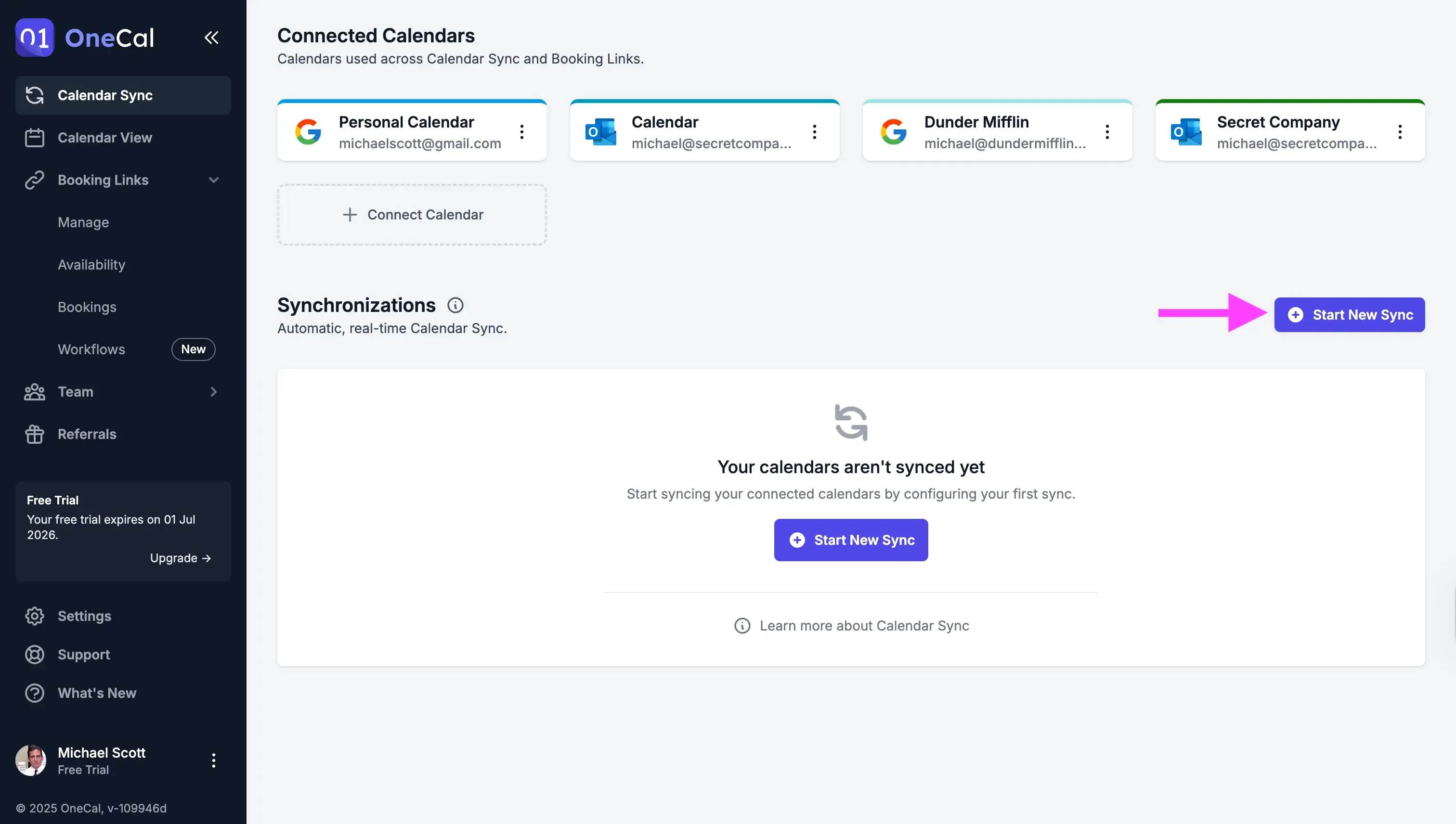
- Select “Multi-way” as the calendar synchronization direction. Multi-way means that OneCal keeps all calendars in sync, in all directions.
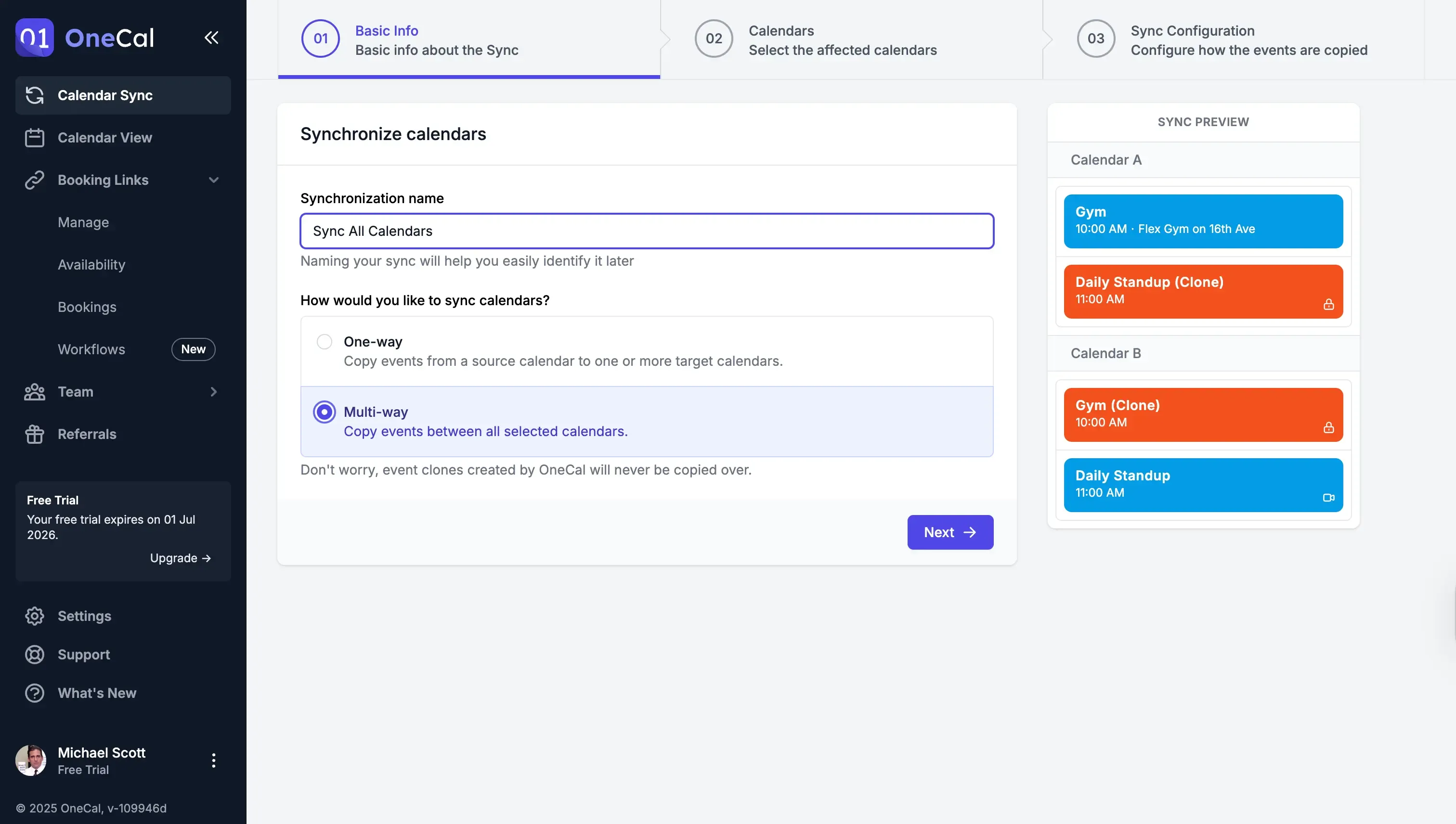
- Select all the calendars you want to keep in sync. Please include the Google Calendar that will hold all calendar meetings.
- Select what event properties to propagate to the other calendars. If you want to see event details in Todoist, we recommend syncing at least the event titles.
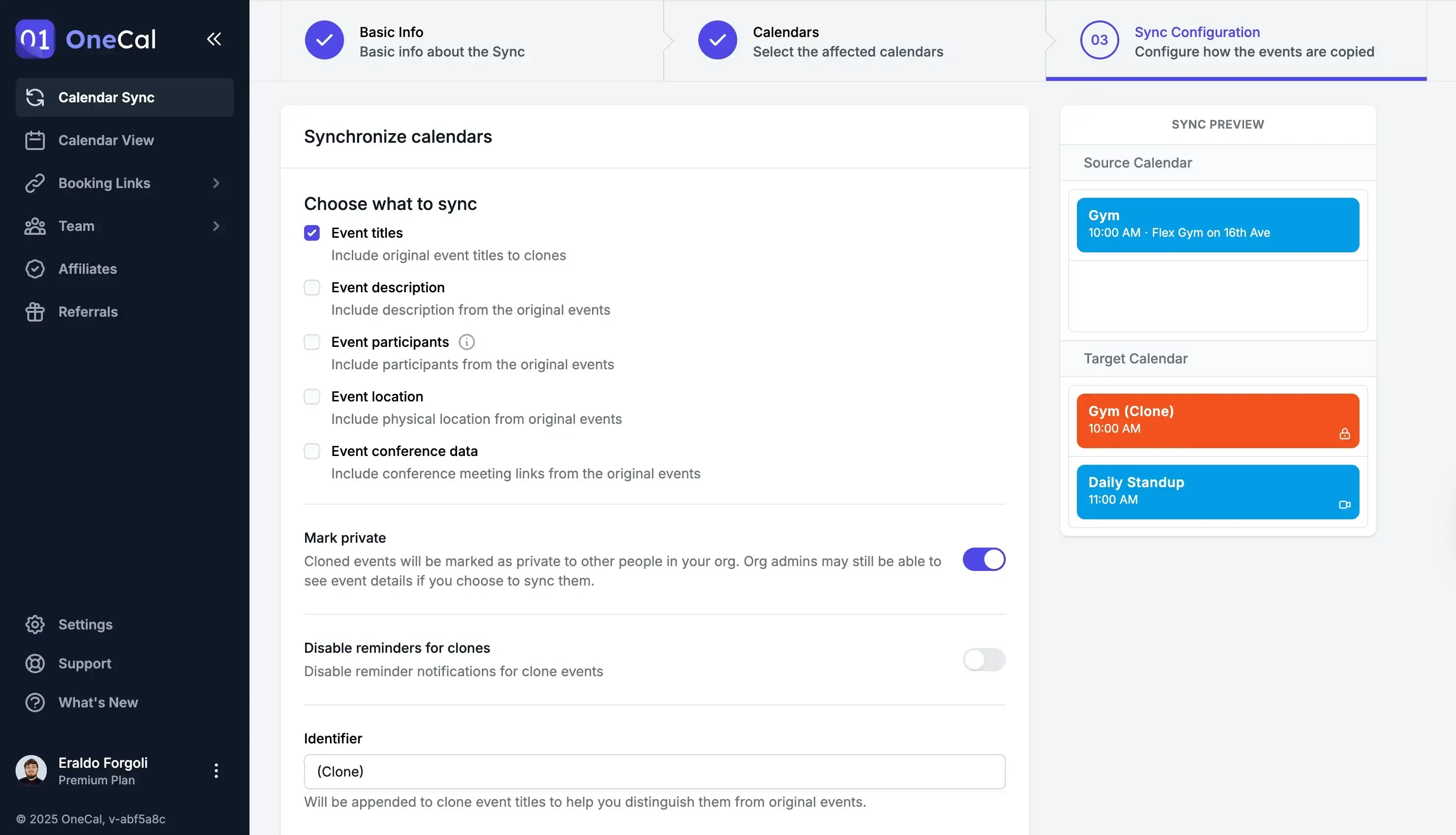
All your calendars are now in sync with your Google Calendar. If you open the Google Calendar, it should include the events from all the other calendars.
Step 2: Connect the Google Calendar to Todoist
After syncing all of our calendars to the Google Calendar, we should connect the Google Calendar to Todoist.
- Open the Todoist App (on desktop or web).
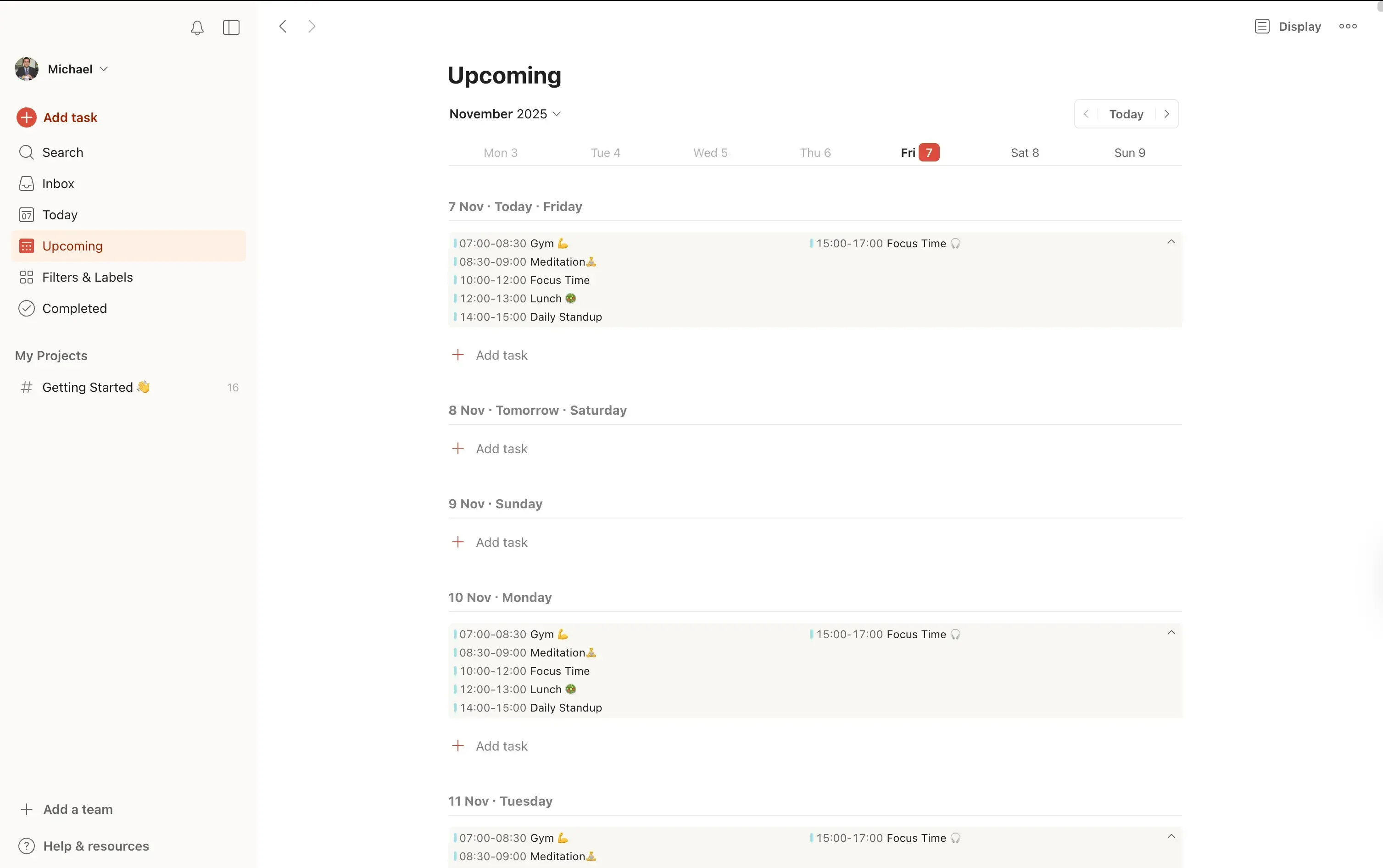
- Click the Profile Picture on the top-right of the screen.
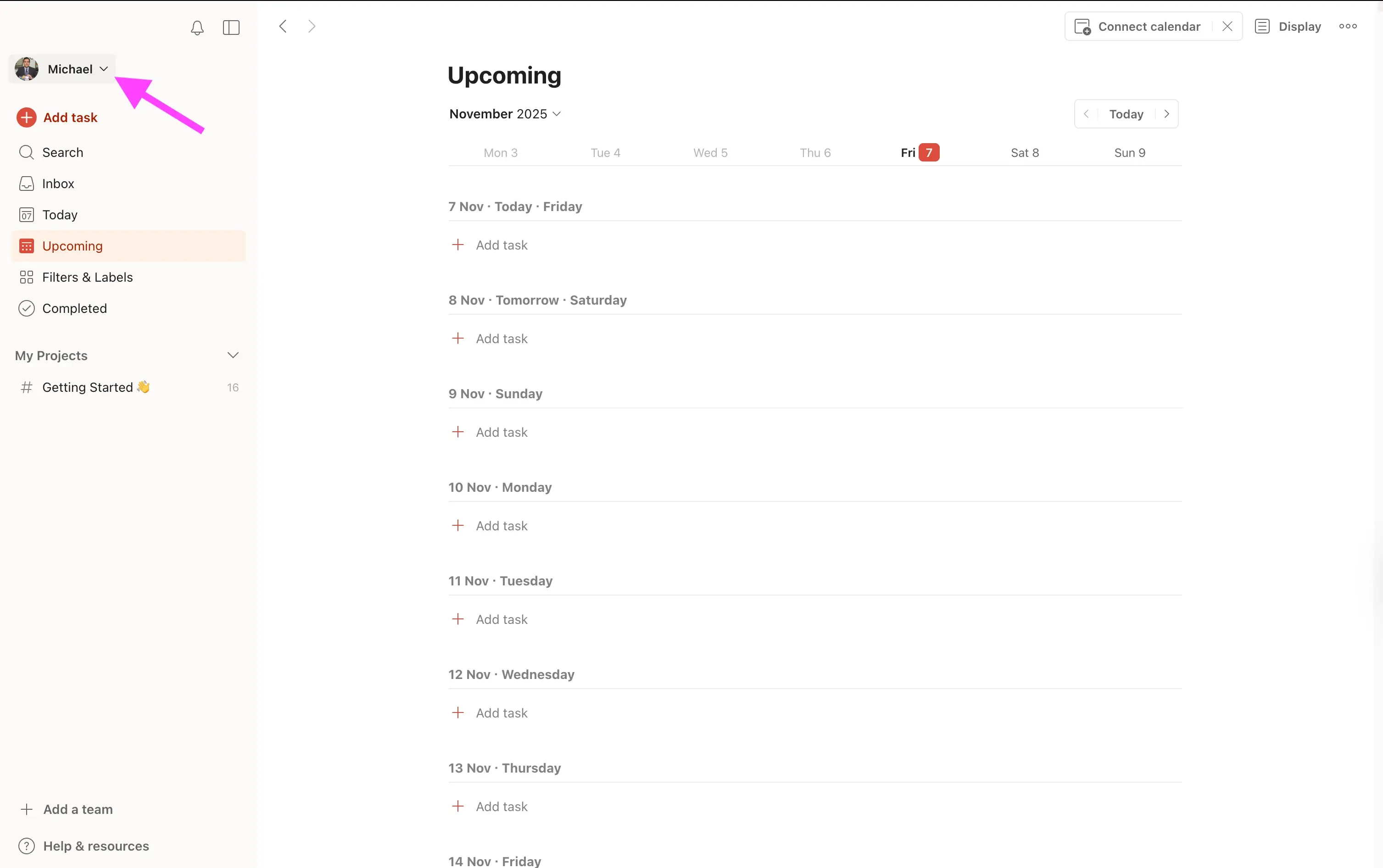
- Click “Settings”
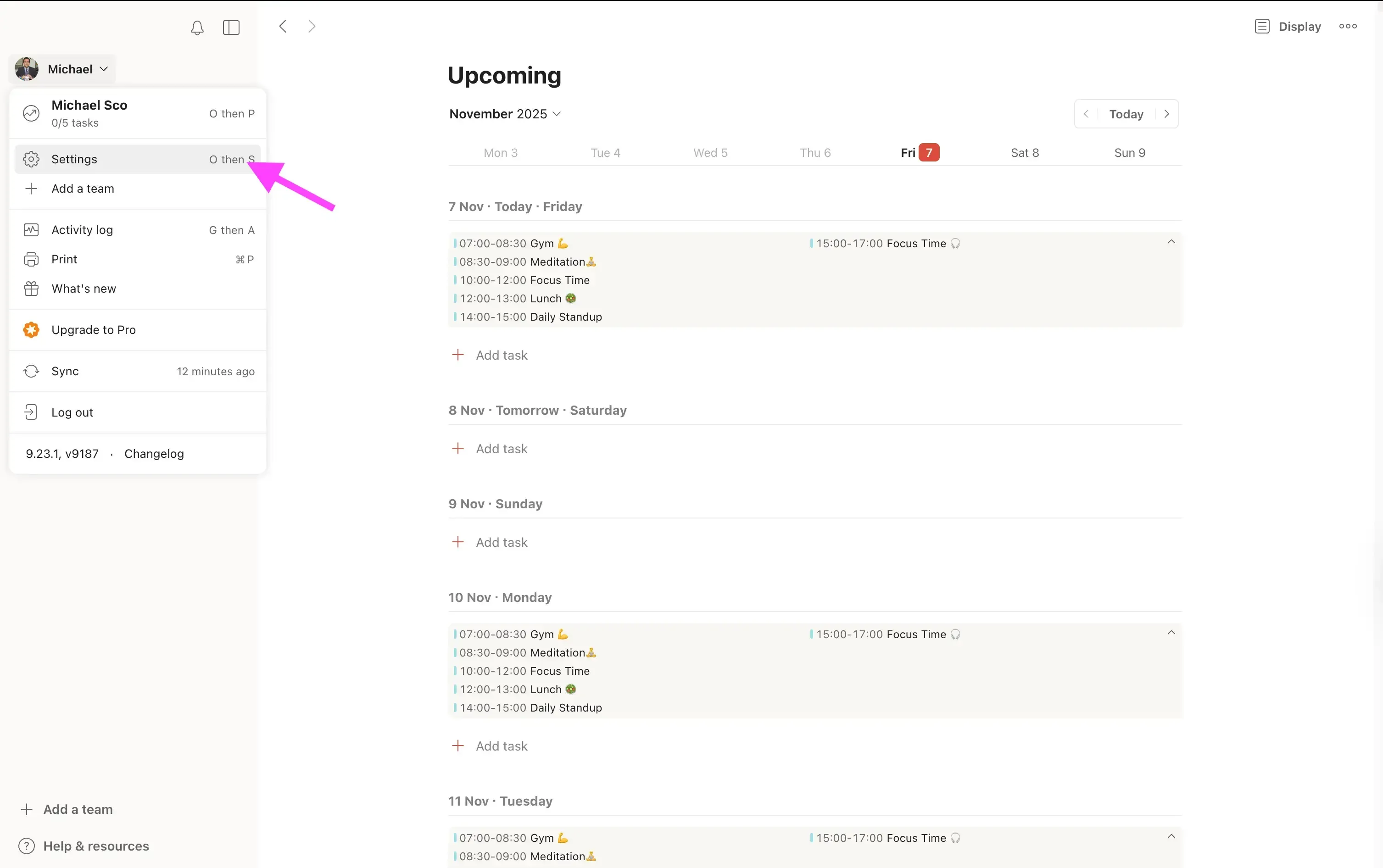
- Click “Calendars”
- Click “Connect Google Calendar” and follow the steps on screen to finish the calendar connection.

After connecting the Google Calendar to Todoist, you will be able to see all your calendar events in Todoist.
Step 3: Optional, enable the “Sync tasks to calendar” option
Todoist has a feature called “Sync tasks to calendar”, which is used to sync the tasks you create to Todoist in your Google Calendar.

The amazing thing about using OneCal is that the tasks that Todoist creates in your Google Calendar are reflected in all your calendars, because we created a multi-way sync.
If an event gets created in Google Calendar, it will be automatically created in all the other calendars. The same goes for the other calendars, as soon as an event gets created, it gets propagated to the Google Calendar (thus the Multi-way name).
OneCal also supports One-way calendar synchronizations, in case you don’t want events flowing from the Google Calendar to your other calendars. Instead of creating a single multi-way calendar synchronization (step 1), you would create multiple one-way calendar synchronization configurations. Please read our one-way calendar sync docs for more.
Connect Multiple Calendars to Todoist using OneCal
Through OneCal, you can connect as many calendars to Todoist, regardless of the calendar provider.
This makes working in Todoist so much easier, as you get to see your full availability and avoid double bookings.
Sign up for a free OneCal account, no credit card is required, and you can cancel anytime.
FAQ
1. Can I connect more than one calendar to Todoist?
No, Todoist only lets you connect one calendar at a time, either Google Calendar or Outlook Calendar. But you can use a tool like OneCal to merge multiple calendars into one Google Calendar, which you can then connect to Todoist.
2. Does syncing with OneCal update automatically?
Yes. OneCal keeps your calendars in real-time sync. When you add, edit, or delete an event in one calendar, it updates automatically in all connected calendars.
3. Can I choose what information gets synced?
Yes. When setting up the sync in OneCal, you can choose which event details to copy, such as titles, times, and locations, so you control how much data appears in Todoist.
4. Will my Todoist tasks show up in my other calendars?
If you enable the “Sync tasks to calendar” option in Todoist and use OneCal’s multi-way sync, your Todoist tasks will appear in all your connected calendars automatically.
5. Is OneCal safe to use with Todoist?
Yes. OneCal uses secure authentication and never stores any calendar event data. It’s designed to keep your calendar data private and synced reliably. Please visit the OneCal data security page for more.
6. Can I stop or payse the calendars from syncing?
Yes. You can pause or delete your syncs in OneCal at any time. Once stopped, new events will no longer update across your calendars.