Microsoft Is Retiring Its Google Workspace and Teams Calendar Sync: Best Alternative - OneCal
Table of Contents
Keep Microsoft Teams and Google Calendar in Sync
Sign up for OneCal for free to sync your Microsoft Teams and Google calendars automatically, in real time.
Since 2025, businesses whose primary email service provider was Microsoft and relied on Google Workspace for email and calendaring could enable bidirectional syncing between Microsoft Teams and Google Workspace within Microsoft Teams. This setup was only available to administrators with a Microsoft Teams license who were using Google Workspace with a custom domain for email and calendaring.
On August 26, 2026, Microsoft announced that starting in October 2026, calendar syncing between Google Workspace and Microsoft Teams will no longer be supported using their dedicated sync tool. The announcement tells admins that syncing will stop working, but doesn't offer alternatives to keep the Google Workspace and Microsoft Teams calendars in sync.
In this article, we'll go over what's changing, who is affected, and most importantly, how to continue keeping your Microsoft Teams and Google Calendars in sync after October 2026.
What is Microsoft actually retiring?
Microsoft is retiring its bidirectional calendar sync between Google Workspace and Microsoft Teams. This feature was built for businesses that use Google Workspace for email and calendars, and Microsoft Teams for meetings.
Here is how it worked: An admin would set it up in the Admin app in Teams by installing the Microsoft 365 Mail Migration and Calendar Sync app in Google Workspace, then signing in as a Google Workspace super admin, and matching each Google user with a Microsoft user. After that, events and meeting responses created in Google Calendar or in Teams appeared in both calendars.
The official Microsoft article now shows a retirement notice instead of the setup steps.
When does the sync stop?
Microsoft says that calendar syncing will no longer be supported beginning October 2026. The Message Center post lists October 1, 2026 as the date to act by.
Microsoft had already paused the onboarding of new customers before the announcement, so if you did not set up the sync before, you can no longer set it up.
Who is affected?
You are affected if all of these are true:
- Your business uses Google Workspace with a custom domain for email and calendars.
- Your team uses Microsoft Teams for meetings, often with a Teams Essentials license.
- An admin set up calendar synchronization in the Admin app in Teams. (this is the deciding part)
If you only use the Microsoft Teams Meeting add-on for Google Workspace, nothing changes for you, the add-on keeps working.
What happens when the sync stops?
Microsoft lists three changes:
- Calendars stop syncing. Calendars that were previously set up for syncing will no longer sync.
- The setup screen goes away. Admins will no longer be able to manage calendar sync from the Admin app in Teams.
- Domain management moves. Admins will no longer be able to manage their custom domain from the Admin app in Teams. They can still manage it in the Microsoft Admin Center.
For your users, this means the following:
- Meetings that someone schedules in Teams will not appear in Google Calendar.
- Events in Google Calendar will not appear in the Teams calendar.
- Colleagues who check your availability in Teams will not see your Google Calendar events, so double bookings and missed meetings can happen.
What does Microsoft recommend?
Microsoft asks admins to do three things:
- Notify users that calendars will no longer sync.
- Retrieve any account-matching information they want to keep from the Admin app in Teams.
- Point users to the Microsoft Teams Meeting add-on for Google Workspace if they want to schedule Teams meetings from Google Calendar.
What is important to understand is that the add-on that Microsoft recommends using IS NOT a calendar sync tool. The add-on only allows you to create and join Teams meetings from Google Calendar, it does not copy events between Google Calendar and the Teams calendar, nor does it keep them in sync. Meetings created with the add-on only appear in Google Calendar.
What are your options after October 2026?
There are four ways to move forward, and the right one depends on how much your team relied on the calendar sync provided by Microsoft.
|
Option |
Syncs both ways |
Real-time |
Effort |
|---|---|---|---|
|
Microsoft Teams Meeting add-on |
No, it only creates Teams meetings in Google Calendar |
Not a sync |
Low |
|
Publish and import calendars with ICS links |
No, one-way only |
No, updates can take up to 24 hours |
Medium, per user |
|
Move email and calendars to Microsoft 365 |
Not needed, you use one calendar |
Yes |
High, it is a full migration |
|
Calendar sync tool like OneCal |
Yes |
Yes |
Low |
1. Use only the Teams Meeting add-on. This works if your team lives in Google Calendar and only needs to create Teams meetings. It does not help when other people schedule meetings with you in Teams.
2. Publish and import calendars manually. You can publish your Teams calendar in Outlook and import it in Google Calendar by using an ICS link. This sync is one-way, it can take up to 24 hours to update, and the imported calendar does not block your availability. We explain this method in our guide on how to sync Microsoft Teams Calendar with Google Calendar.
3. Move everything to Microsoft 365. If you move your email and calendars to Microsoft 365, you do not need a sync anymore. This is a large effort, and it is not a good fit for teams that want to stay on Google Workspace.
4. Use a calendar sync tool. A calendar sync tool keeps both calendars up to date automatically, the same way the Microsoft sync did. This is the closest replacement for the retired feature.
How to keep Microsoft Teams and Google Calendar in sync with OneCal
A Microsoft Teams calendar is an Outlook calendar, the same calendar shown on your Microsoft 365 account. This means that a tool that syncs Outlook and Google Calendar in both directions can replace the retired sync.
OneCal is a calendar management platform that offers the best calendar synchronization software in the market, and it supports real-time syncing between Google Calendar and Microsoft Teams calendars.
|
Feature |
Retired Microsoft sync |
OneCal |
|---|---|---|
|
Who sets it up |
A Microsoft Global Admin with a Google Workspace super admin account |
Each user, or a team admin |
|
Setup requirements |
Custom domain, domain verification, a Google Workspace app, and user matching |
Sign in with Microsoft and Google |
|
Sync direction |
Two-way |
One-way or two-way, you choose |
|
Calendars per user |
One Google calendar and one Teams calendar |
Multiple Google, Outlook, iCloud, and CalDAV calendars |
|
Personal Gmail accounts |
Not supported |
Supported |
|
Privacy controls |
None |
Choose which event details are synced |
|
Price |
Included with a Teams license |
Paid, with a 14-day free trial |
|
Available after October 2026 |
No |
Yes |
Step-by-step instructions
- Create a free OneCal account. You can sign up for OneCal for free, with no credit card required.
- Connect your Microsoft account and your Google account. OneCal uses secure sign-in with Microsoft and Google, so OneCal never sees your passwords. If your Microsoft 365 organization requires admin consent for new apps, your admin can review the permissions on our admin approval page.
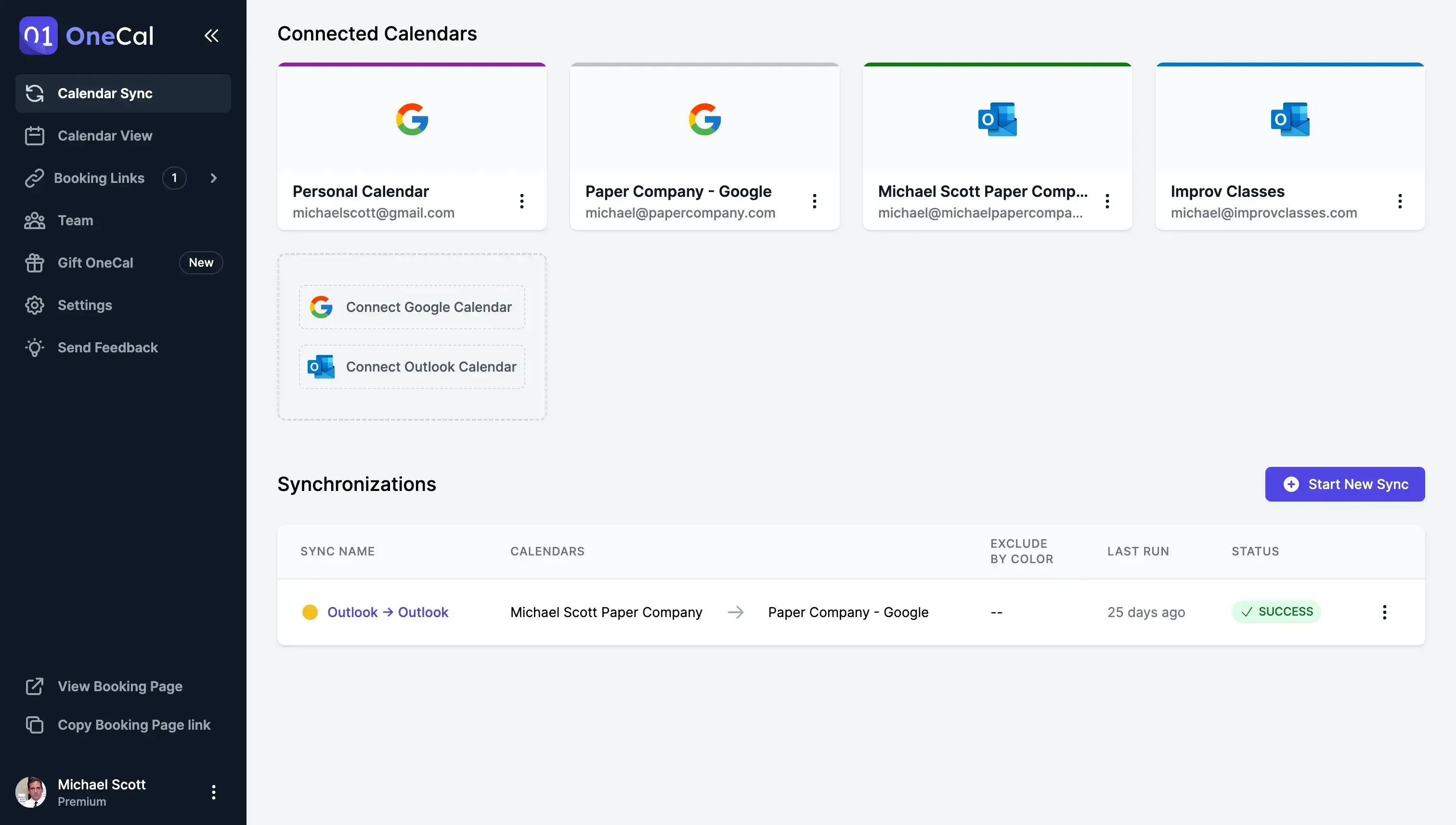
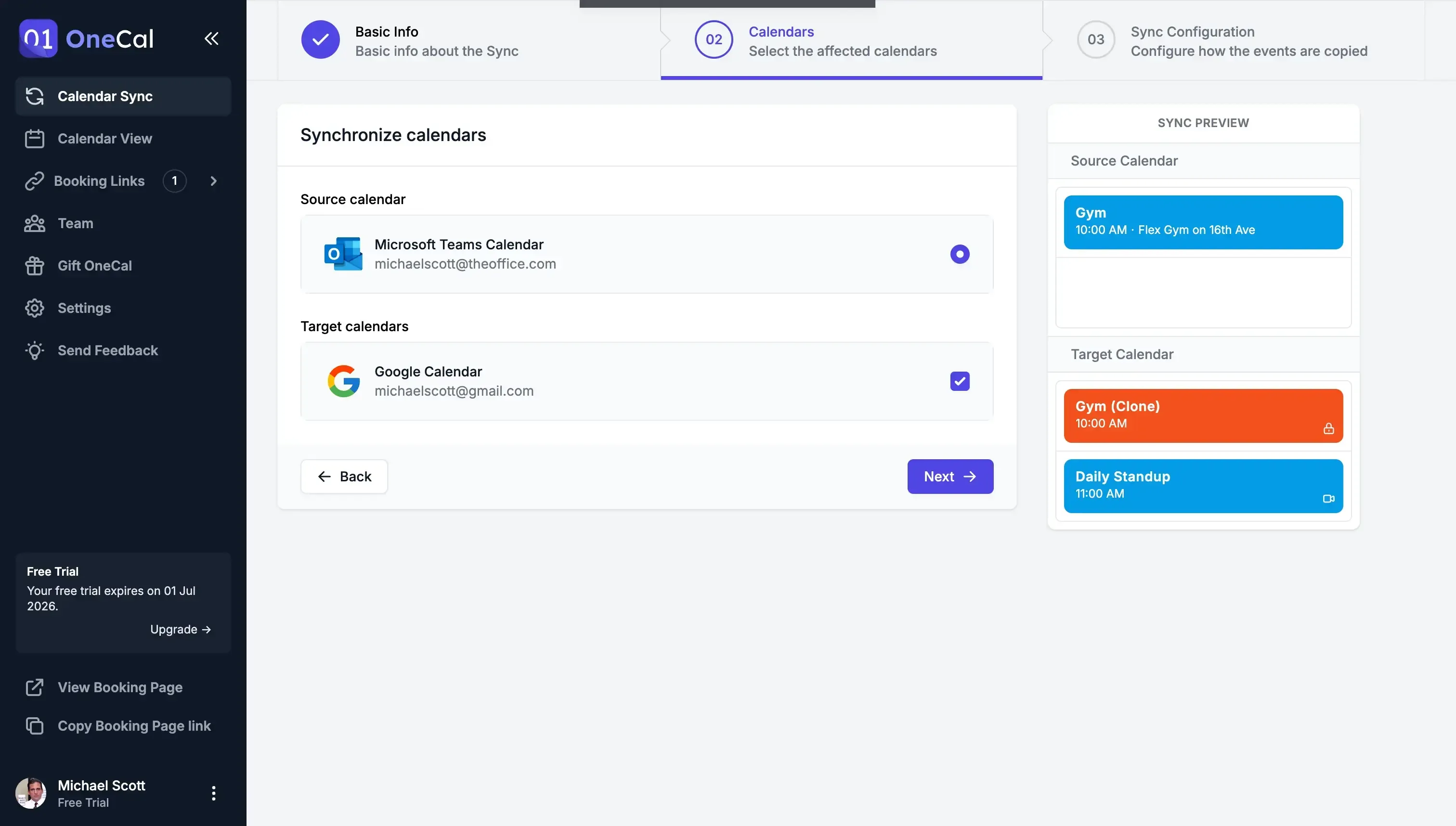
- Choose which calendars to sync. Select your Microsoft Teams calendar, which is your Outlook calendar, and your Google Calendar. Choose a two-way sync, so events are synced in both directions, the same way the Microsoft sync worked.
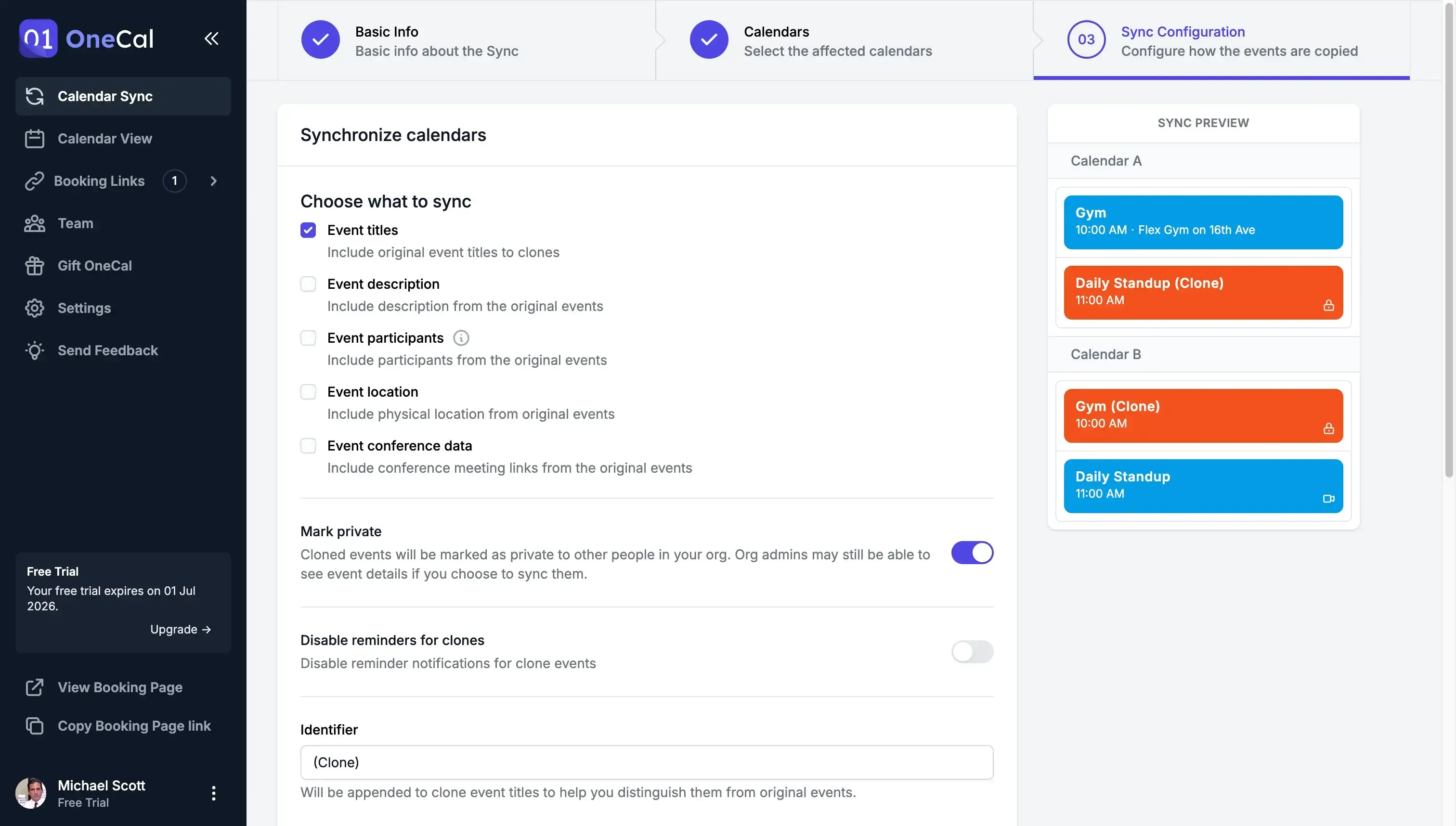
- Configure how events are synced. You can sync everything, or you can hide details like the title and description and only block the time.
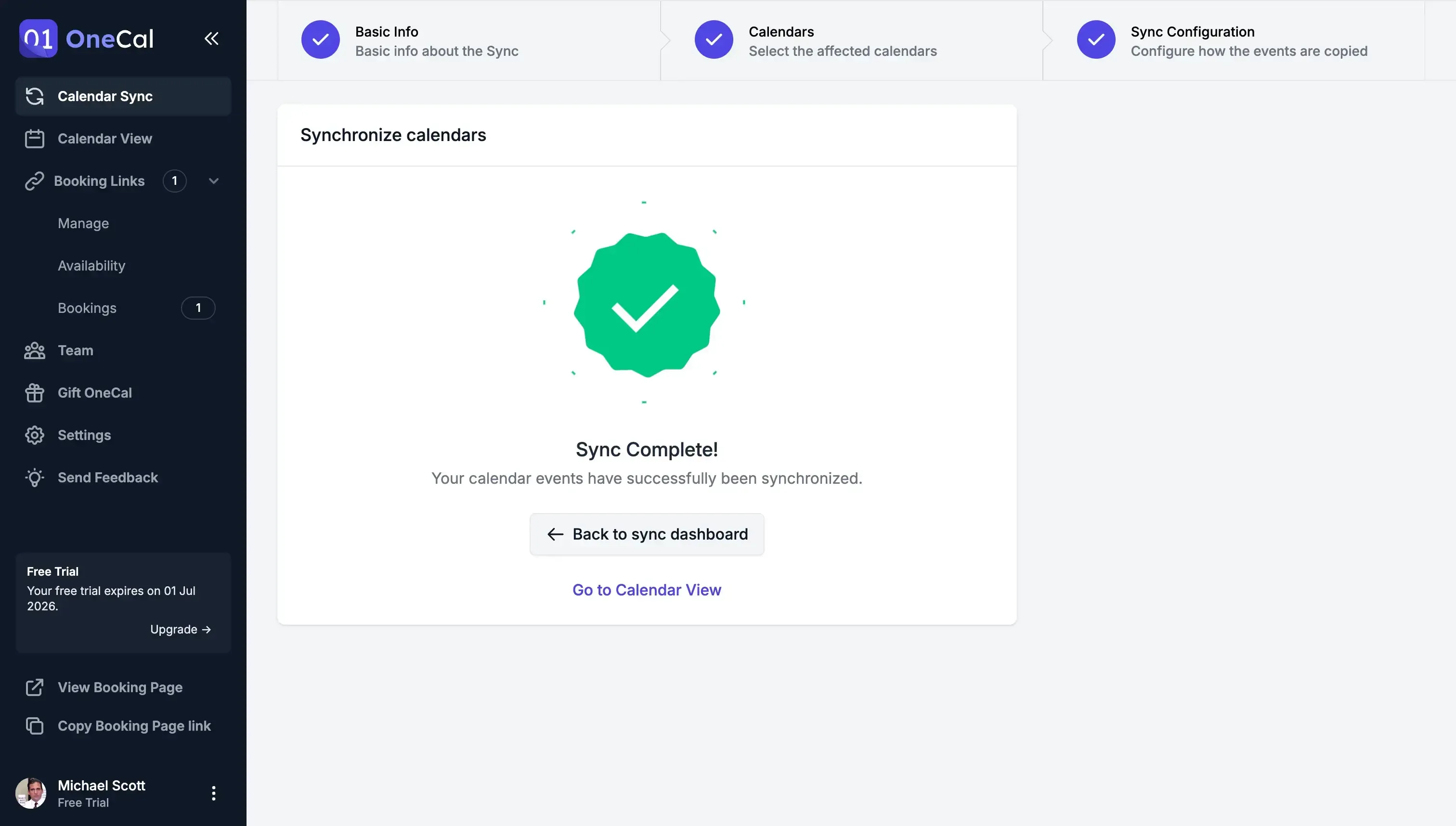
- Your calendars are synced! Events from your Teams calendar are automatically copied to your Google Calendar, and the other way around. OneCal keeps them up to date in real time.
For a detailed guide with screenshots, please read How To Sync Microsoft Teams Calendar With Google Calendar.
Do not run the Microsoft sync and a OneCal sync for the same user at the same time. Two tools that sync the same calendars can create duplicate events. Before you create a OneCal sync for a user, open the Users page in the Admin app in Teams, open the menu for that user, and select Turn off Google sync.
How to roll out OneCal to your whole team
The Microsoft sync was managed by an admin, so you may want the same level of control. OneCal has Admin Management features built for this:
- Invite your team. Invite members by email, or bulk invite everyone with a CSV file. The account matching information that you saved from the Admin app in Teams tells you who needs an invite.
- Assign roles. Choose who is an Owner, an Admin, a Member, or a Billing Only user.
- Monitor usage. The Team Dashboard shows the connected calendars and active syncs of each member.
- Manage accounts for your users. When a member allows it, an admin can set up their calendars and syncs for them.
- Track changes. Audit Logs show who did what, and you can export them to CSV.
What should admins do before October 2026?
Here is a short checklist:
- Open the Users page in the Admin app in Teams and check which users have the sync turned on.
- Save the account matching information. You lose access to it when the sync is retired.
- Tell your users that the Microsoft sync stops in October 2026, and explain what they will use instead.
- Decide if your team only needs to create Teams meetings from Google Calendar, or if it needs a real calendar sync.
- If you need a real calendar sync, test OneCal with a small group first. Turn off the Microsoft sync for these users, create their OneCal syncs, and check that events appear in both calendars.
- Invite the rest of your team, and update your internal documentation.
FAQ
When does the calendar sync between Google Workspace and Microsoft Teams stop working?
Microsoft says that the sync will no longer be supported beginning October 2026. Calendars that were set up for syncing will stop syncing.
Will my existing events be deleted?
Microsoft only says that calendars will no longer sync and has not specified whether events will be removed or not. After October 2026, you should not expect the synced copies to stay up to date.
Is the Microsoft Teams Meeting add-on for Google Workspace a replacement?
No. The add-on lets you schedule and join Teams meetings from Google Calendar, it does not sync events between Google Calendar and the Teams calendar.
Is Microsoft releasing a new calendar sync tool?
Microsoft has not announced a new calendar sync took. The Message Center post only mentions the Teams Meeting add-on for Google Workspace.
Can I still manage my custom domain?
Yes. You can manage your custom domain in the Microsoft Admin Center. You will no longer be able to manage it from the Admin app in Teams.
Can OneCal sync Microsoft Teams and Google Calendar in both directions?
Yes. OneCal supports one-way and two-way syncs. A two-way sync keeps your Teams calendar and your Google Calendar up to date with each other, in real time.
Do I need to be an admin to use OneCal?
No. Any user can connect their own Microsoft and Google accounts. Some Microsoft 365 organizations require an admin to approve new apps first.
Can I sync a personal Gmail calendar with Microsoft Teams?
The Microsoft sync did not support personal Gmail accounts. OneCal does, so you can sync a personal Google Calendar with your Teams calendar.
Is OneCal secure?
Yes. OneCal uses official Calendar APIs, is SOC 2 Type 2 Certified, doesn't store any calendar event information, data is encrypted in transit and at rest, and you can revoke access at any time. Please visit the OneCal data security page to learn more.
Keep your Teams and Google calendars in sync with OneCal
The Microsoft sync stops in October 2026, but your team can keep one complete schedule. OneCal syncs Microsoft Teams and Google Calendar automatically, in real time, and the setup takes a few minutes.
Sign up for a 14-day free trial, with no credit card required.