Scheduling Links Get New Layouts and a Calendar Overlay
Table of Contents
Ready to Sync Your Calendars?
Create a OneCal account to sync multiple Outlook, iCloud and Google Calendars, create Booking Links, and much more.
Today we are releasing two major updates to our scheduling links: Layouts and Calendar Overlay. Scheduling Link Layouts allow schedulers to choose between a Monthly View, a Weekly View, and a Column View, and you choose which one each link opens with. With Overlay my calendar, schedulers can see their own free and busy times right next to your available times, so they can pick a time that works for both of you.
Both updates are live for everyone, available on all plans, there is no need to do anything to get the updates.
This release also makes calendar sync errors much clearer. When a sync fails, OneCal now tells you why, and it emails you when a sync is paused. You can read more about it, and a few other improvements, at the end of this post.
Three layouts for your scheduling links
Until now, every scheduling link showed a month calendar, where the scheduler could pick a day, and a list of all available slots for that day would appear. This works well, but it is not the best way to see a whole week at once, or to compare a few days side by side. So we added two new layouts.
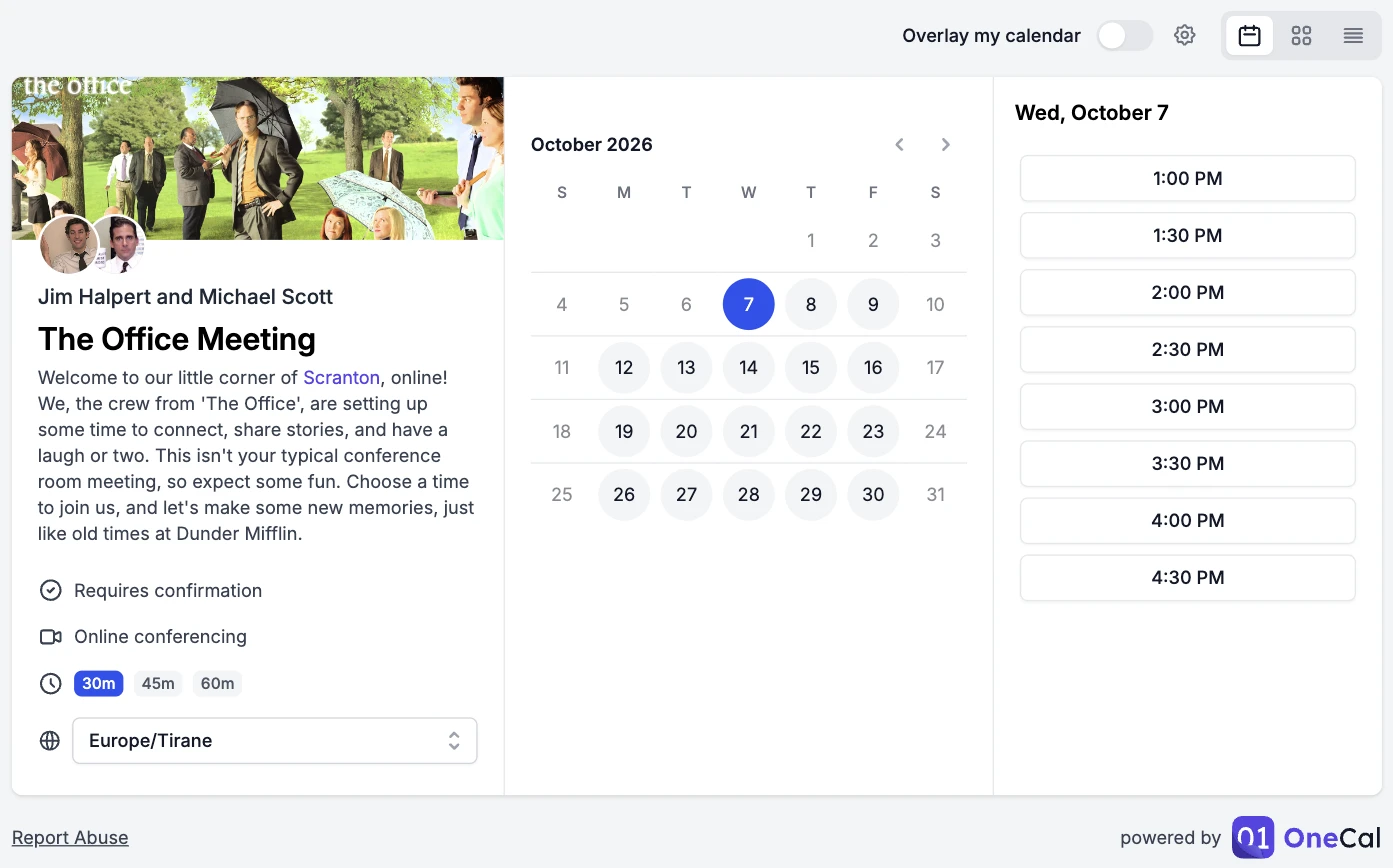
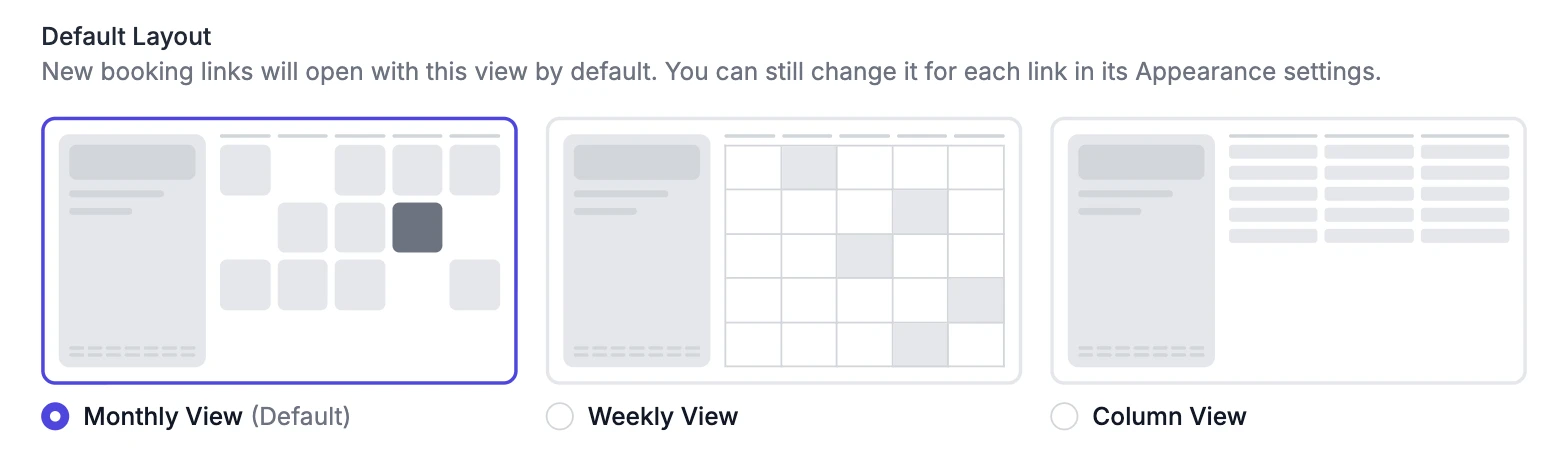
Monthly View is the layout you already know. It shows the whole month, and the scheduler picks a day, and the available times for that day appear on the right.
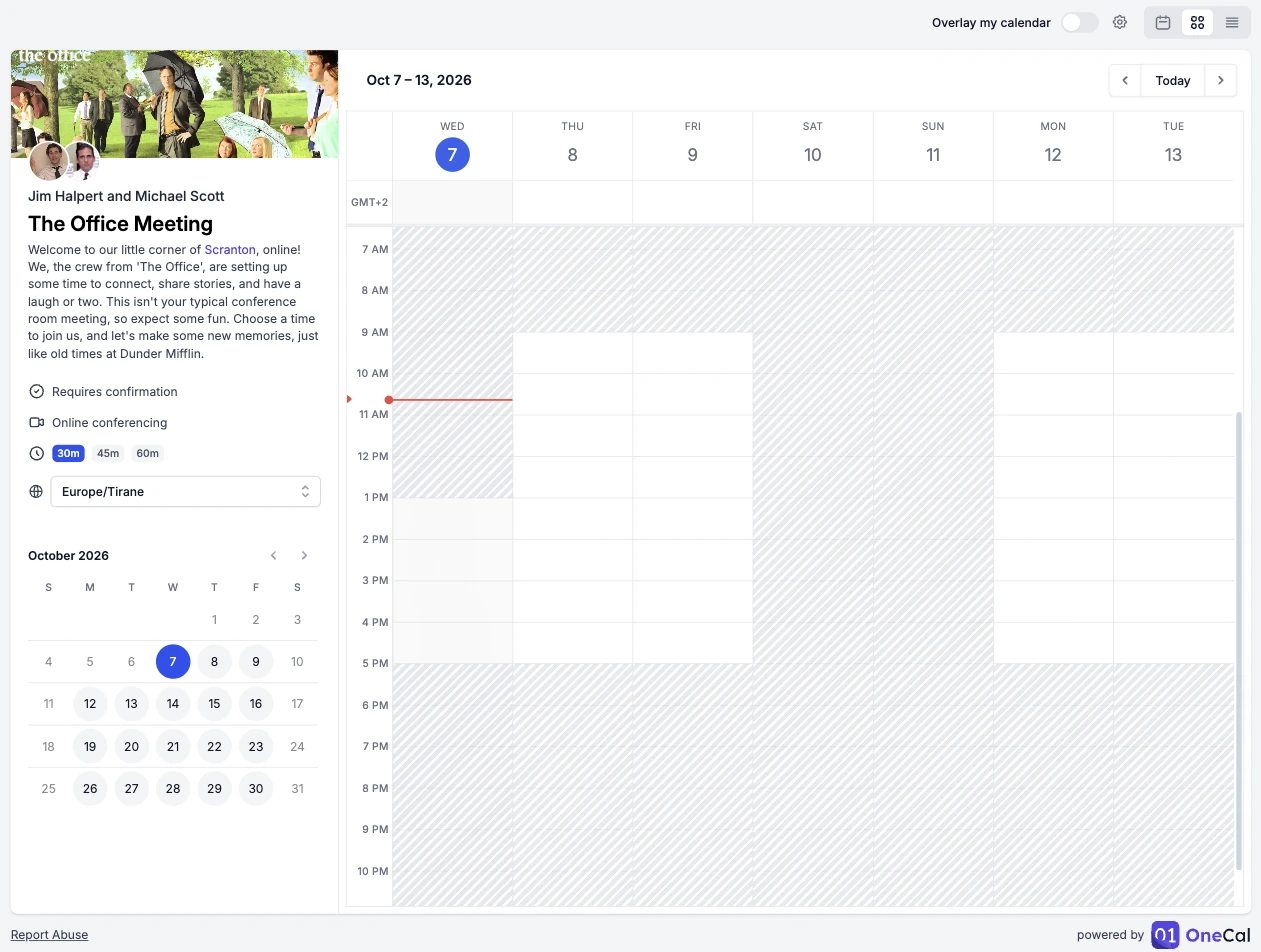
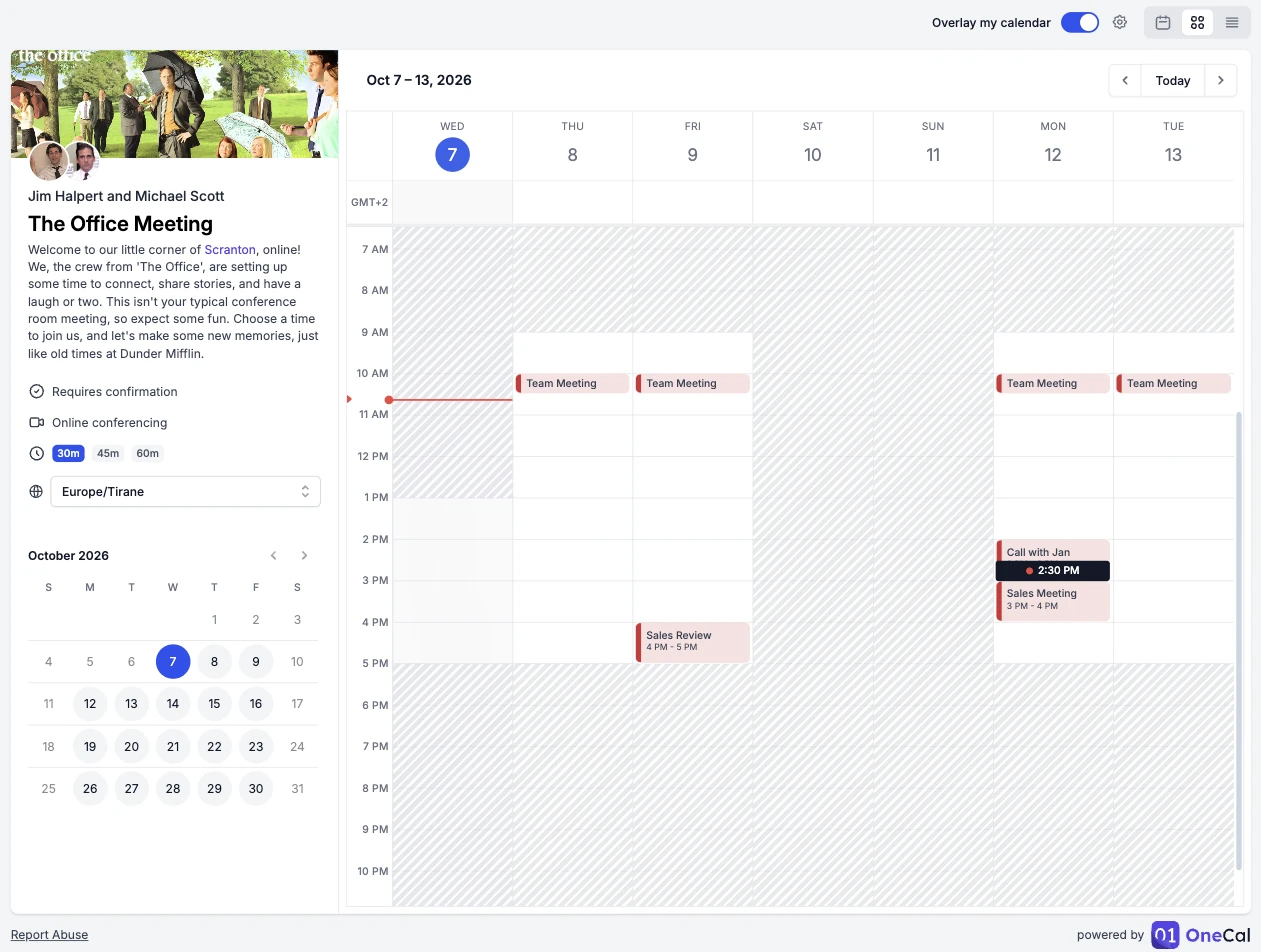
Weekly View shows a full week, like a calendar app. Times that are not available are shaded, so the open parts of the week stand out right away. The scheduler clicks a free spot to pick a time.
Column View shows the available times of the next few days side by side, one column per day. Days without any available times are left out. This is the fastest way to compare several days and pick a time.
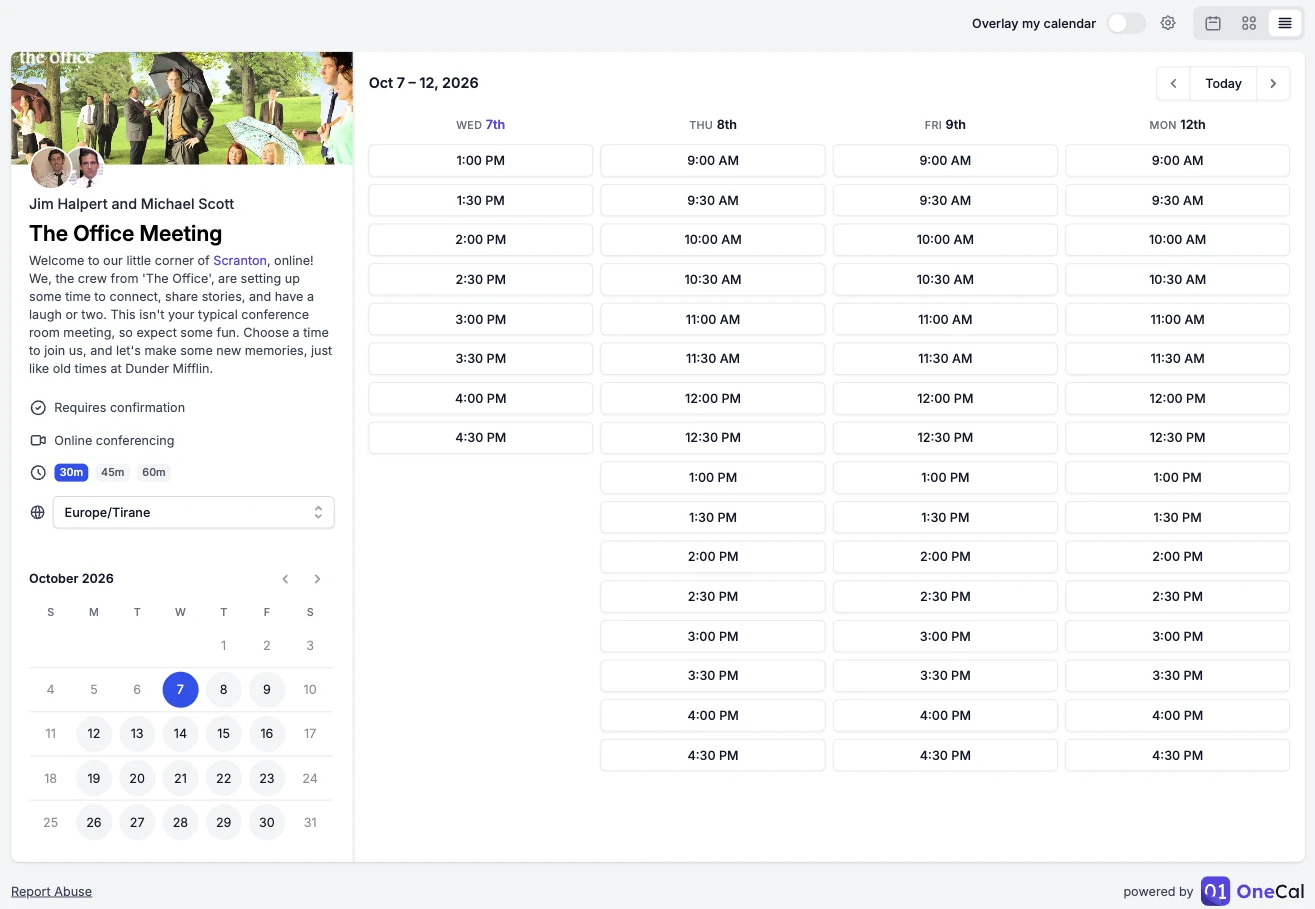
Schedulers can switch between the three layouts at any time with the buttons in the top right corner. The selected date, duration, and time zone stay the same when they switch. On phones, scheduling links always use the Column View and show one day at a time, because it is the easiest layout to use on a small screen.
You choose the default layout
Every scheduling link now has a Default Layout setting. This is the layout schedulers see when they open the link. To change it, open the scheduling link, go to the Appearance tab, and pick the layout you want. Schedulers can still switch to another layout if they prefer it.
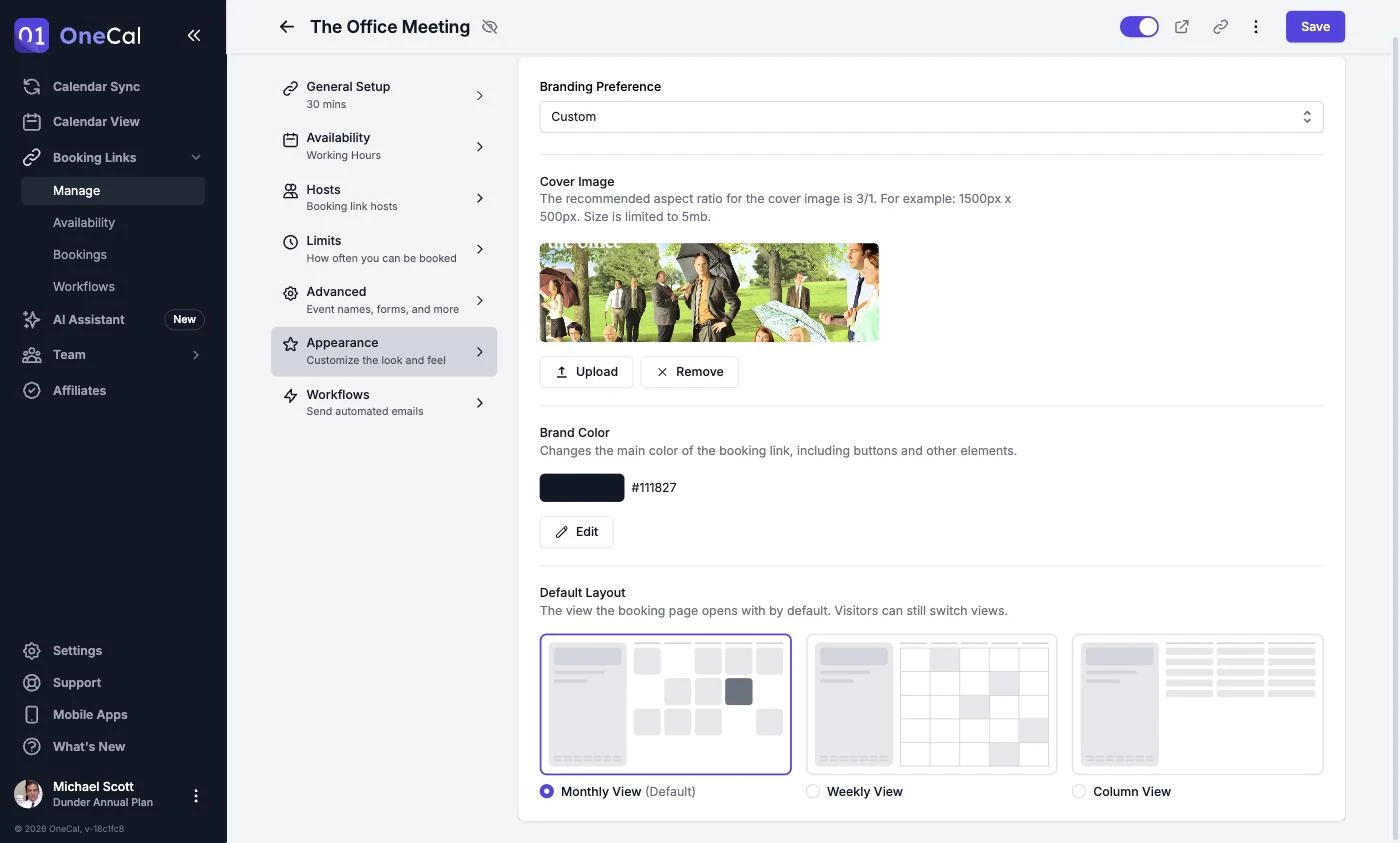
You may notice that the Branding tab is now called Appearance. Your cover image and brand color settings are still there, and the new Default Layout setting sits right below them.
If you want all your new scheduling links to start with the same layout, go to Settings → Booking Page and pick a layout under Default Layout. Every link you create after that will use it. Your existing links keep their own layout, so nothing changes on links you already shared.
Overlay my calendar
Picking a time on someone's scheduling link usually means opening your own calendar in another tab and checking each time by hand. With Overlay my calendar, you don't need to do that anymore.
When you open a OneCal scheduling link, turn on the Overlay my calendar toggle in the top right corner. OneCal reads the events from your connected calendars and marks every available time with a small dot. A green dot means you are free. A red dot means you already have something at that time. You can hover over a red dot to see which of your events is in the way.
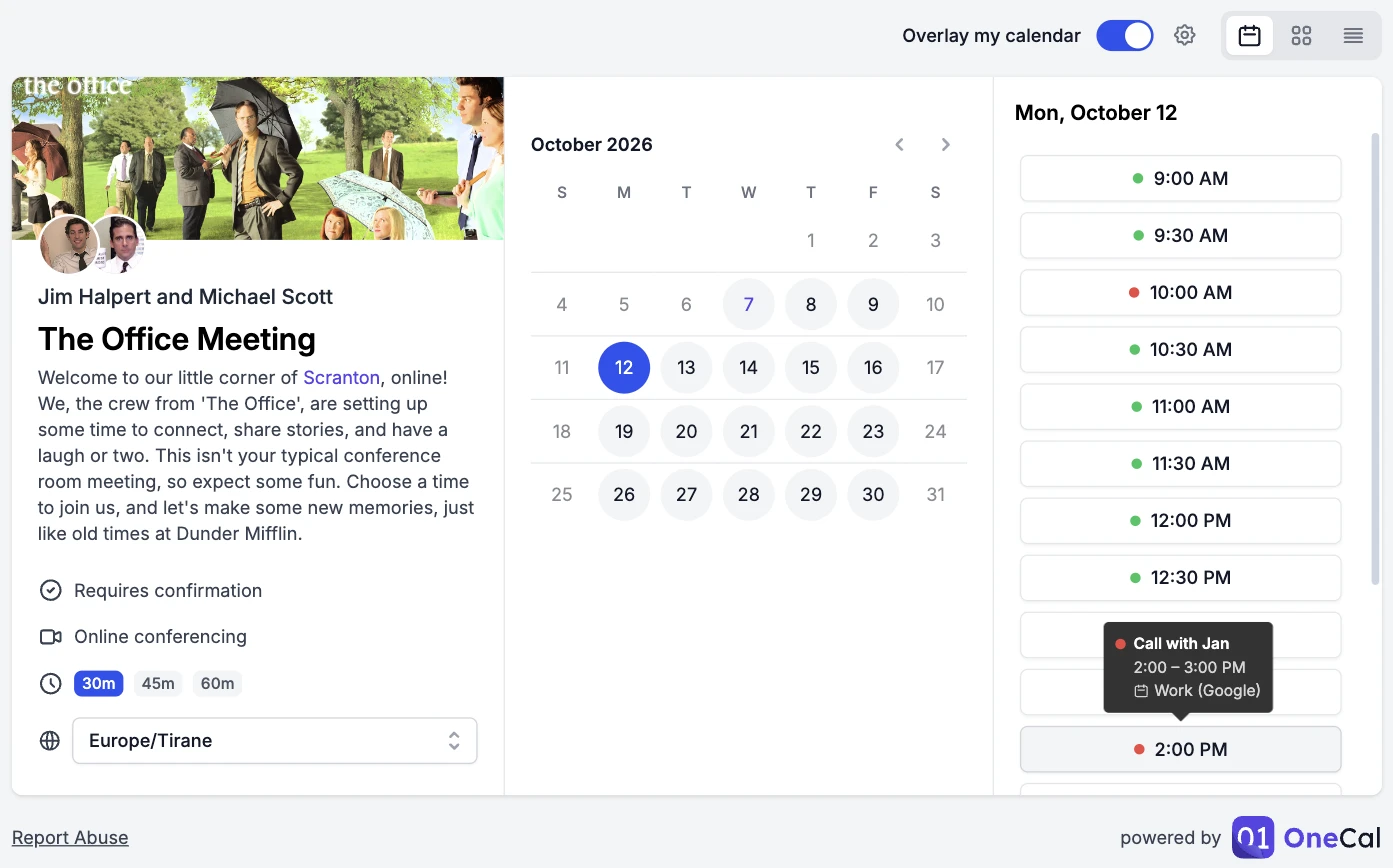
The "Overlay my Calendar" feature works in all three layouts. In the Weekly View, your own events also appear on the calendar, so you can see your whole week next to the host's available times.
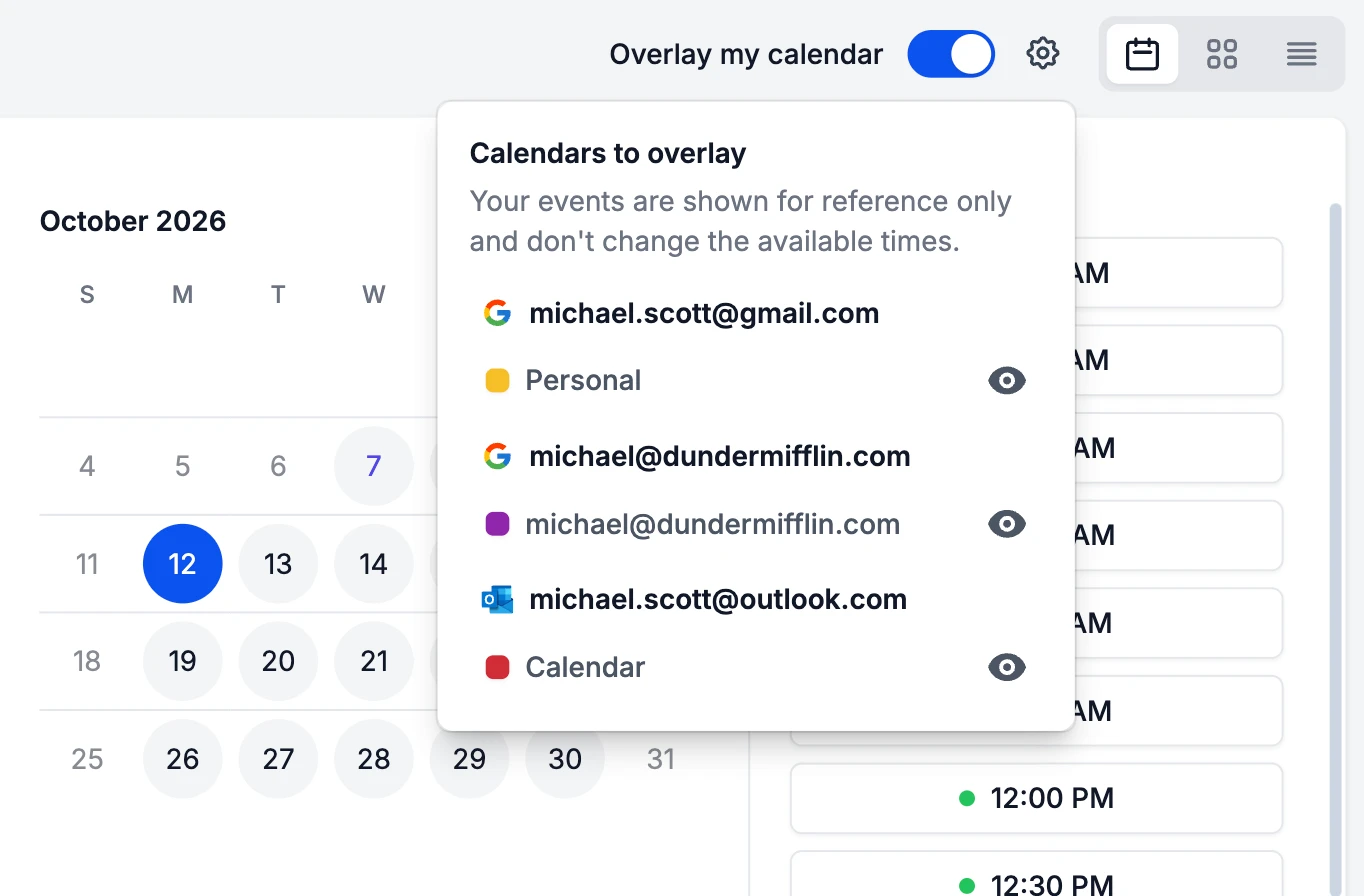
You can choose which calendars to overlay. Click the gear icon next to the toggle and hide the calendars you don't want to see. OneCal remembers your choice in your browser for the next time.
To keep the overlay useful, OneCal leaves out all-day events, events you marked as free, invitations you declined, and the clone events that OneCal creates when it syncs your calendars. This way, a time is only marked as busy when you really have something going on.
Not using OneCal yet?
If you are not signed in, turning on the toggle opens a small window that explains what the overlay does. Click Continue with OneCal, sign in or create a free account, and connect your calendars. OneCal then takes you straight back to the scheduling link, with the overlay already turned on.
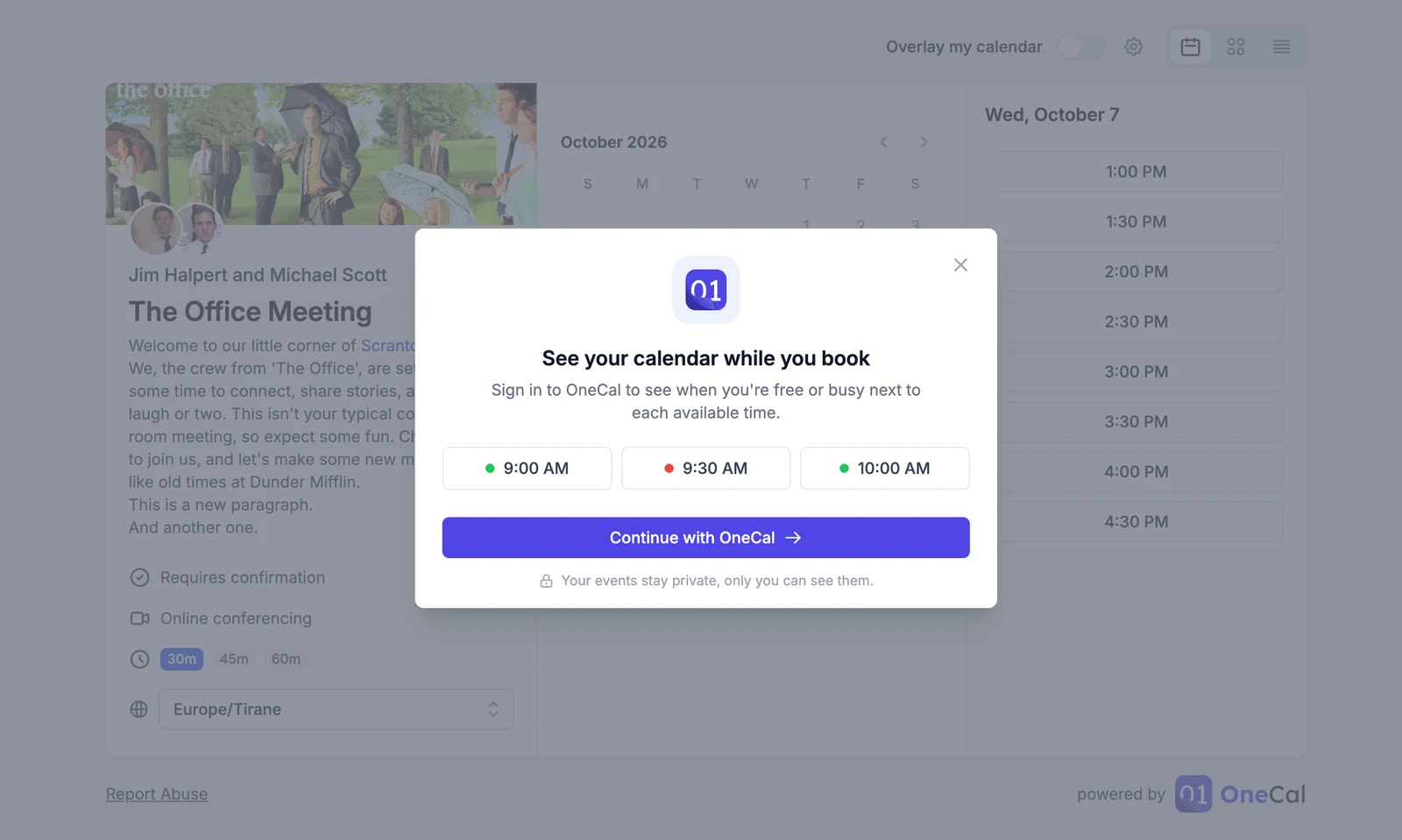
Your events stay private
The overlay is only for the person who turns it on. The host of the scheduling link never sees your events, your calendars, or whether you used the overlay at all. OneCal only reads your events to show them to you. It does not create, change or delete anything in your calendars, and your events never change the host's available times.
Know exactly why a calendar sync failed
This one is not about scheduling links, but it is one of the most important changes in this release. When a calendar sync failed in the past, OneCal showed a general error and asked you to re-run the sync. That did not tell you what went wrong, or whether re-running would even help. Now OneCal tells you the exact reason, the calendar that caused it, and what to do next.
- A clear reason for every failure: Hover over the status of a sync to see what happened. For example, the calendar was deleted, OneCal lost access to it, the account that owns it is not available, or the calendar provider was temporarily down. Each message names the calendar and tells you the next step.
- Errors on your calendars too: If a calendar is the reason a sync fails, the calendar itself now shows a tag like "Not found", "No access" or "Account unavailable" on your Calendars page. You can see which calendar needs attention without opening every sync.
- An email when a sync is paused: Some problems can't be fixed by re-running the sync, for example, when a calendar was deleted or OneCal no longer has permission to access it. When this happens, OneCal pauses the sync and sends you an email. The email names the calendar and the account it belongs to, explains the cause, and lists the steps to fix it. You get at most one email per calendar per day, so a broken calendar won't flood your inbox.
To fix a paused sync, restore access to the calendar and unpause the sync. You can also use Edit Calendars to pick another calendar, which resumes the sync right away. Temporary problems, like the provider limiting requests for a few minutes, never pause your sync.
Duplicate a calendar sync
Creating a sync that is almost the same as the existing ones mean starting from scratch. We've now added a Duplicate function to the Calendar Sync that allows you to duplicate an existing calendar sync. On the Calendar Sync page, click the three dots menu of a sync and choose Duplicate. OneCal opens the new sync form with the calendars and all the settings of the original sync already filled in. The new sync gets the same name, followed by "(copy)".
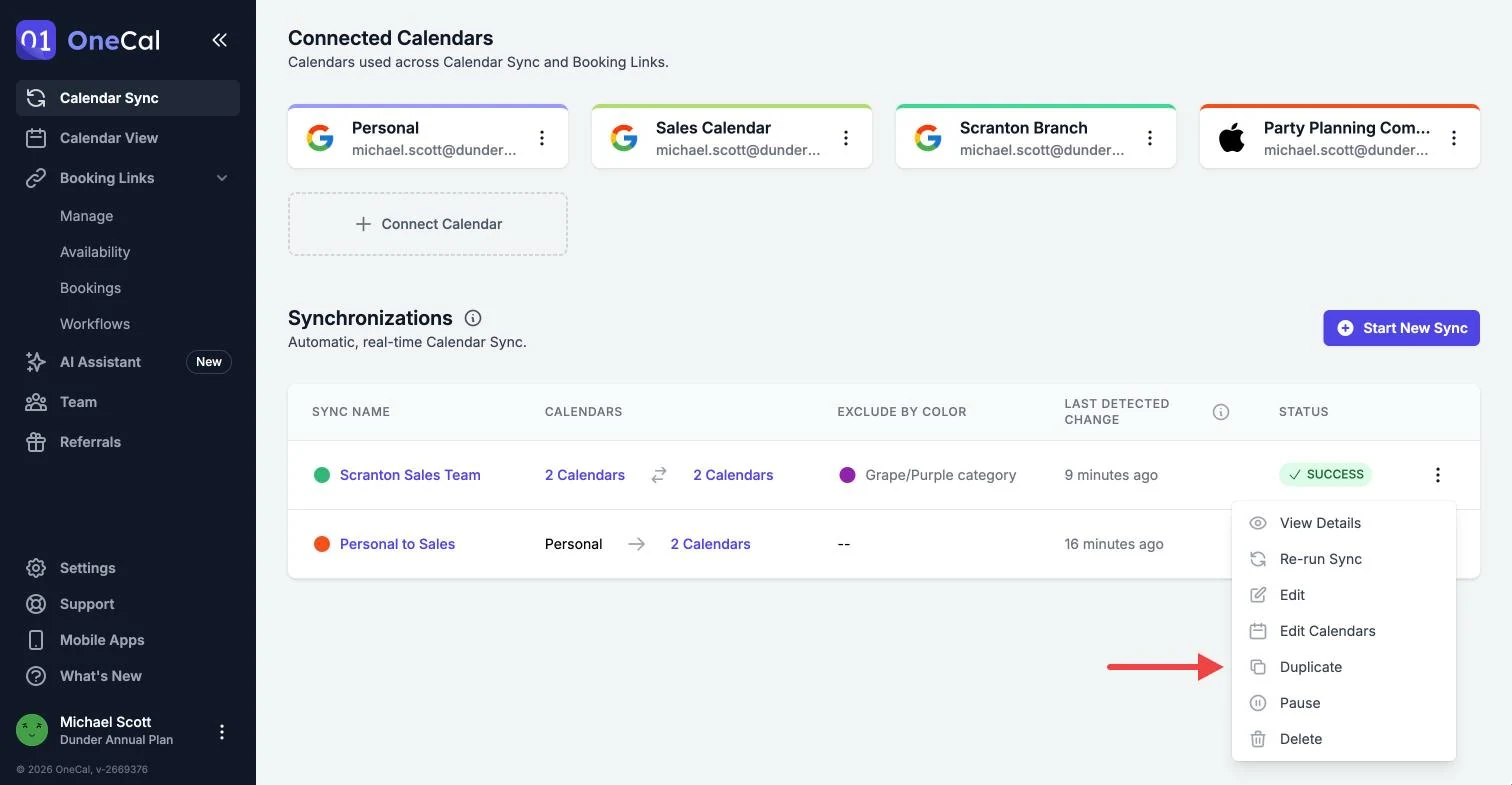
You can change anything before you start the new sync, like the name, the sync type, the calendars or the privacy settings. The original sync stays exactly as it is. If the new sync would copy events between the same calendars as an existing sync, OneCal warns you first, so you don't end up with duplicate events.
Duplicating is useful when you want a similar sync for other calendars, or when you want to turn a one-way sync into a multi-way sync. If you only want to add or remove a calendar, use Edit Calendars on the existing sync instead. To learn more, read How to duplicate a calendar sync in OneCal.
Other improvements in this release
- AI Assistant: We fixed the timeouts and network errors some of you saw in the AI Assistant chat. Answers now stream more smoothly as they are written.
- Onboarding: The onboarding flow got many small UX improvements, so getting started with OneCal is clearer and quicker.
- Audit logs: Team audit logs now include more events. You can see when a calendar connection expired, when someone reconnected a calendar account, and when a calendar account was disconnected.
Try it out
Open any of your scheduling links to try the new layouts, and set your favorite one in the Appearance tab. Then share your links as usual. The next time someone books with you, they will be able to see their own calendar right next to your available times.
To learn more, read our guides on Booking Link Layouts and Overlay My Calendar. For sync errors, see our Error Messages page. If you have feedback or ideas, we would love to hear from you at contact@onecal.io.