Public Calendar Feeds are now live in OneCal
- Authors
- Name
- Eraldo Forgoli
- Published on
Table of Contents
Ready to Sync Your Calendars?
Create a OneCal account to sync multiple Outlook, iCloud and Google Calendars, create Booking Links, and much more.
Sharing availability shouldn’t mean giving away your entire calendar.
Today we’re launching Public Calendar Feeds, a new way to share parts of your OneCal Calendar View with other people, while staying in control of what they can see.
You can create a feed, pick which calendars to include, choose whether to show full event details or only “busy” blocks, and then share it either as:
- a web link (for viewing in a browser), or
- an ICS link (for subscribing in any calendar app)
What are Public Calendar Feeds?
A Public Calendar Feed is a shareable view of a subset of your calendars in OneCal.
Instead of taking screenshots or forwarding invites, you can generate a link that stays up to date as your calendar changes. Viewers can either open it in the browser, or subscribe to it from Google Calendar, Outlook, Apple Calendar, and most other calendar apps via ICS.

💡 Good to know: Feeds are read-only for anyone you share them with, they can’t edit your events.
Why we built this
Most people need to share their calendar for one of two reasons:
- They want someone else to see when they’re available (without exposing private details).
- They want someone else to follow specific calendars (work travel, team schedule, on-call rotations, etc.).
Public Calendar Feeds are built for exactly that:
- share only the calendars you choose
- share only as much detail as you’re comfortable with
- keep everything automatically updated
What you can do with it
Here are a few examples of how people use Public Calendar Feeds:
- Share “busy-only” availability: Send a feed to a client, recruiter, or collaborator so they can see when you’re busy, without seeing titles, descriptions, or meeting links.
- Share a specific calendar (and nothing else): Have a “Travel” calendar? A “Content” calendar? A “Team” calendar? Create a feed that includes only that calendar and share it with the right people.
- Create different feeds for different audiences: Make one feed for your assistant (more detail), one for your team (busy-only), and one for external partners (busy-only + only selected calendars).
- Subscribe from any calendar app: If someone prefers living in their calendar app, they can subscribe via the ICS link and see your shared view alongside their own calendars.
Control what viewers can see
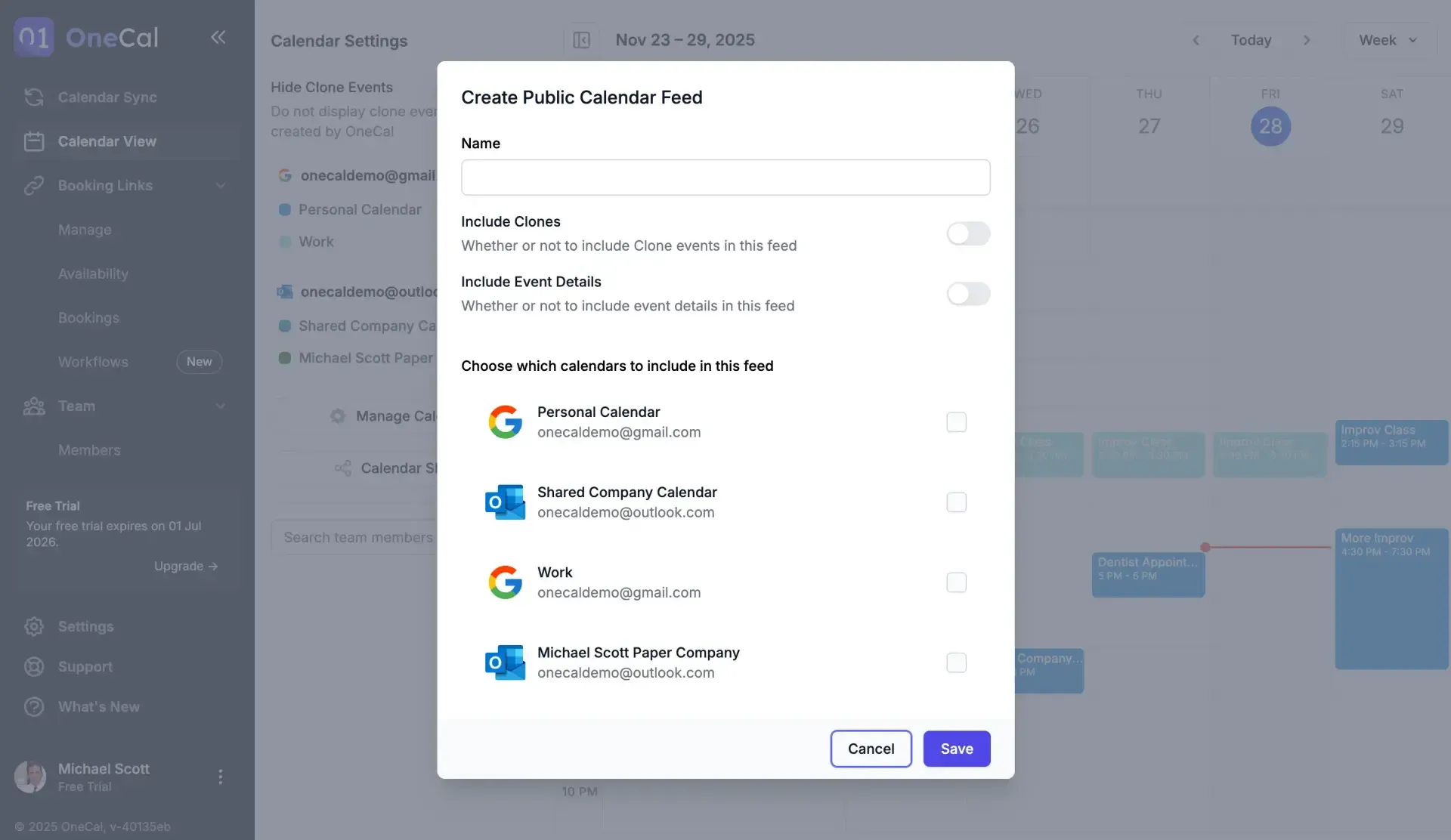
When creating a feed, you can decide:
- which calendars are included
- whether to include Clone events from your sync setup (optional)
- what level of detail is shared:
- full event details (title/description/meeting link), or
- busy-only blocks (privacy-first)
You stay in control, and you can update or revoke a feed at any time.
How to set it up
The Public Calendar Feeds feature is available within the Calendar View Feature. Simply:
- Open OneCal
- Go to Calendar View
- Open Calendar Sharing
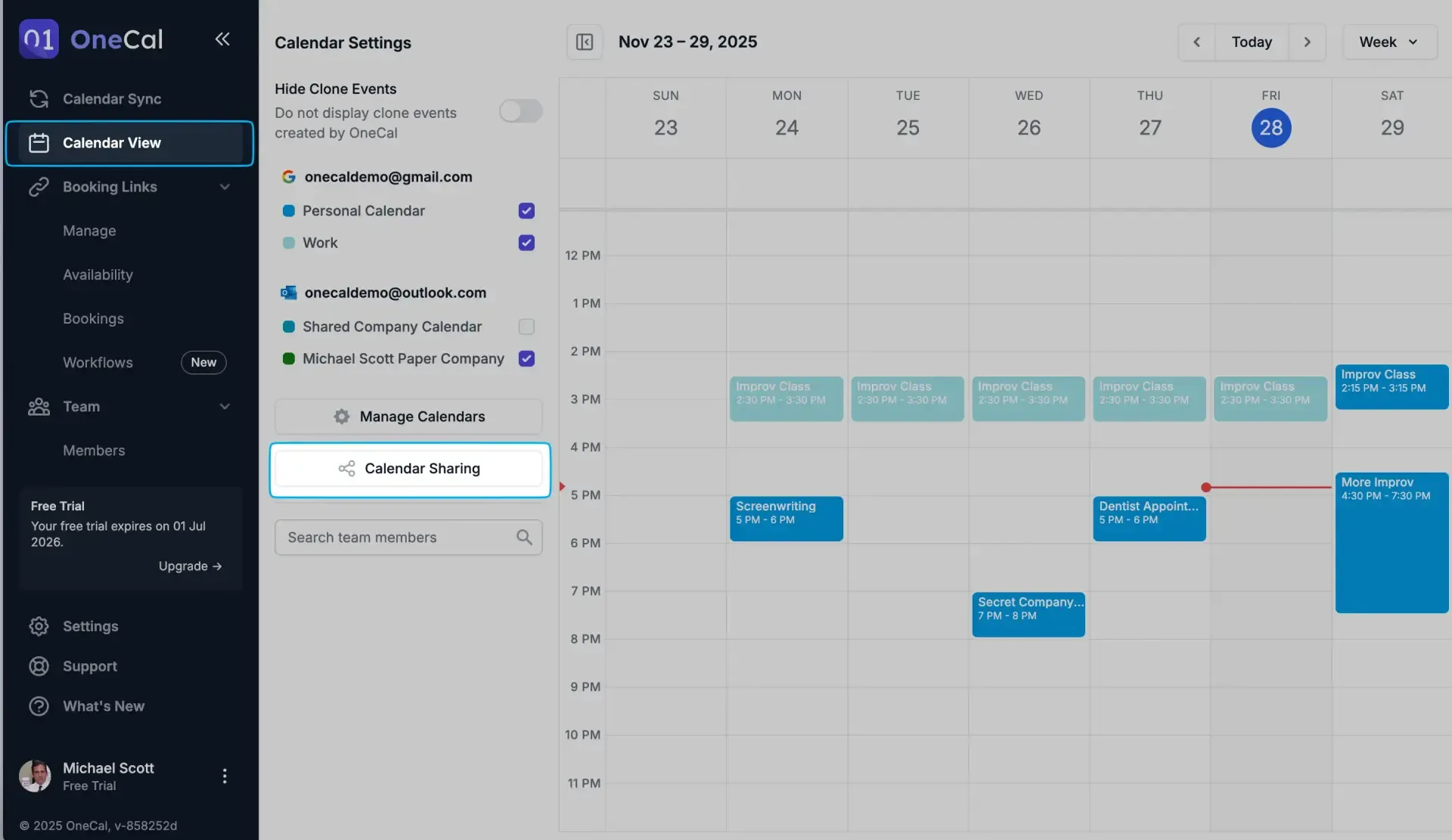
- Click New Feed
- Choose your settings (calendars + visibility)
- Share your web link or ICS link
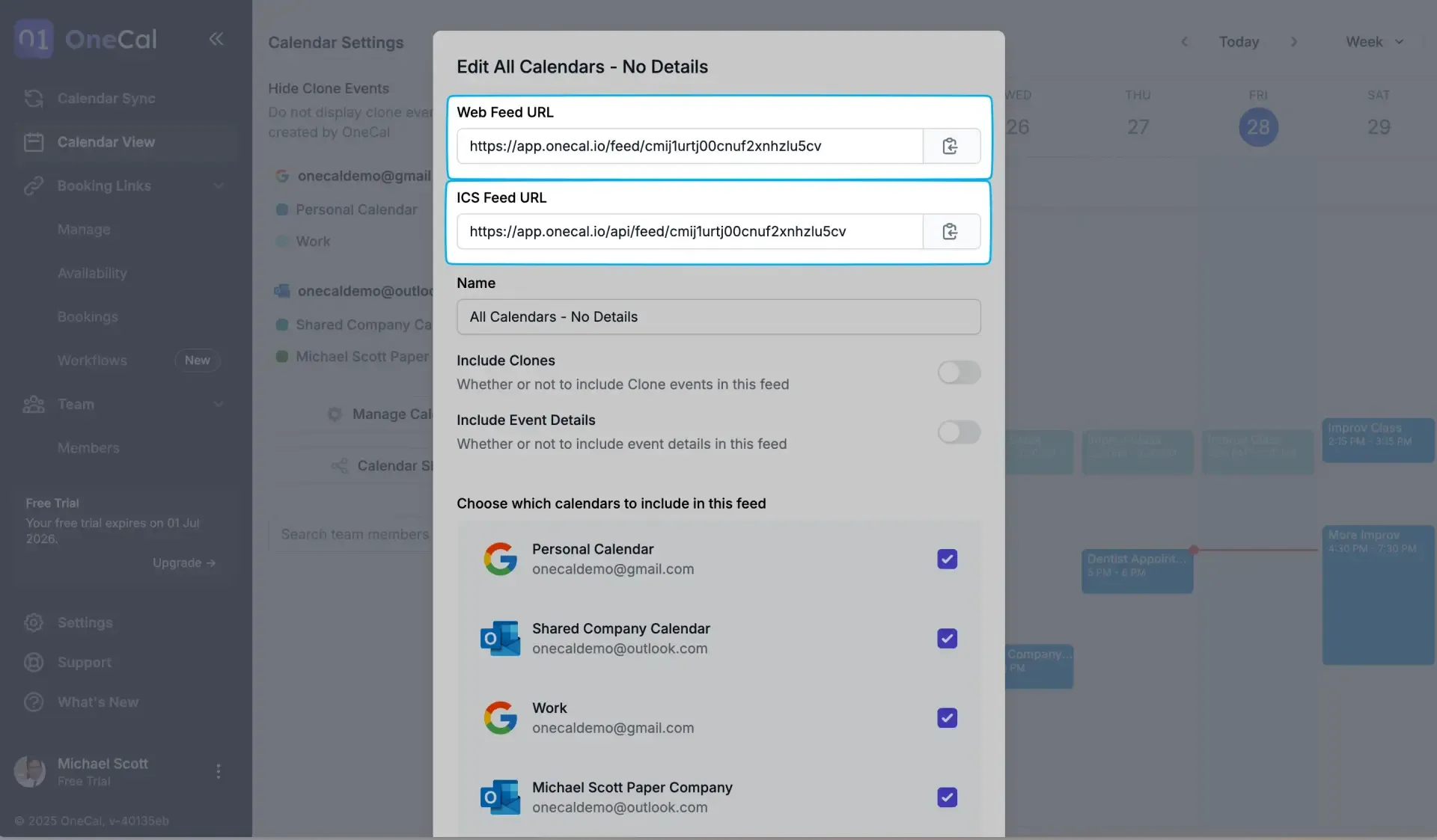
That’s it, the feed will stay up to date automatically.
Please visit our Public Calendar Feed docs for more information.
FAQ
What is a Public Calendar Feed?
A Public Calendar Feed is a shareable, read-only version of a subset of your calendars from OneCal Calendar View. You can share it as a web link or as an ICS link that others can subscribe to.
What’s the difference between the web link and the ICS link?
- Web link: Opens the feed in a browser.
- ICS link: Lets someone subscribe from a calendar app (Google Calendar, Outlook, Apple Calendar, etc.) so it appears alongside their other calendars.
Can other people edit my calendar through a feed?
No. Public Calendar Feeds are read-only.
Can I hide private details?
Yes. You can choose to share full event details or show only “busy” time blocks.
Can I choose which calendars are included?
Yes. Each feed can include only the calendars you select (so you can share a “Work” view without sharing your “Personal” calendar, for example).
Can I create multiple feeds?
Yes. Many people create different feeds for different audiences (assistant vs team vs external partners).
Will the feed update automatically?
Yes. When your calendar changes, the feed stays up to date automatically for anyone viewing or subscribed.
Does subscribing via ICS update instantly?
It depends on the calendar app. Most calendar apps refresh subscribed ICS feeds on a schedule (often every few hours), so updates may not appear immediately.
Can I turn off or revoke access later?
Yes. You can disable a feed at any time, and the links will stop working.
Can I change what’s shared after I’ve sent the link?
Yes. You can update the feed’s settings (included calendars and visibility) and the shared view will reflect the new configuration.
Does this share my OneCal account email with viewers?
No. The feed is just a shared calendar view/link, it does not expose your OneCal login email.