OneCal Product Update - Create/Edit/Delete Events on Calendar View, + Booking Links improvements
- Authors
- Name
- Eraldo Forgoli
- Published on
Table of Contents
Ready to Sync Your Calendars?
Create a OneCal account to sync multiple Outlook, iCloud and Google Calendars, create Booking Links, and much more.
The wait is finally over, you can now create, update, and delete events across all your calendars, straight from our calendar view. We've also improved our Booking Links, allowing you to share private links and embed them to your website.
Let's dive deeper into each improvement.
View events across all calendars (Outlook, iCloud Calendar, Google Calendar)
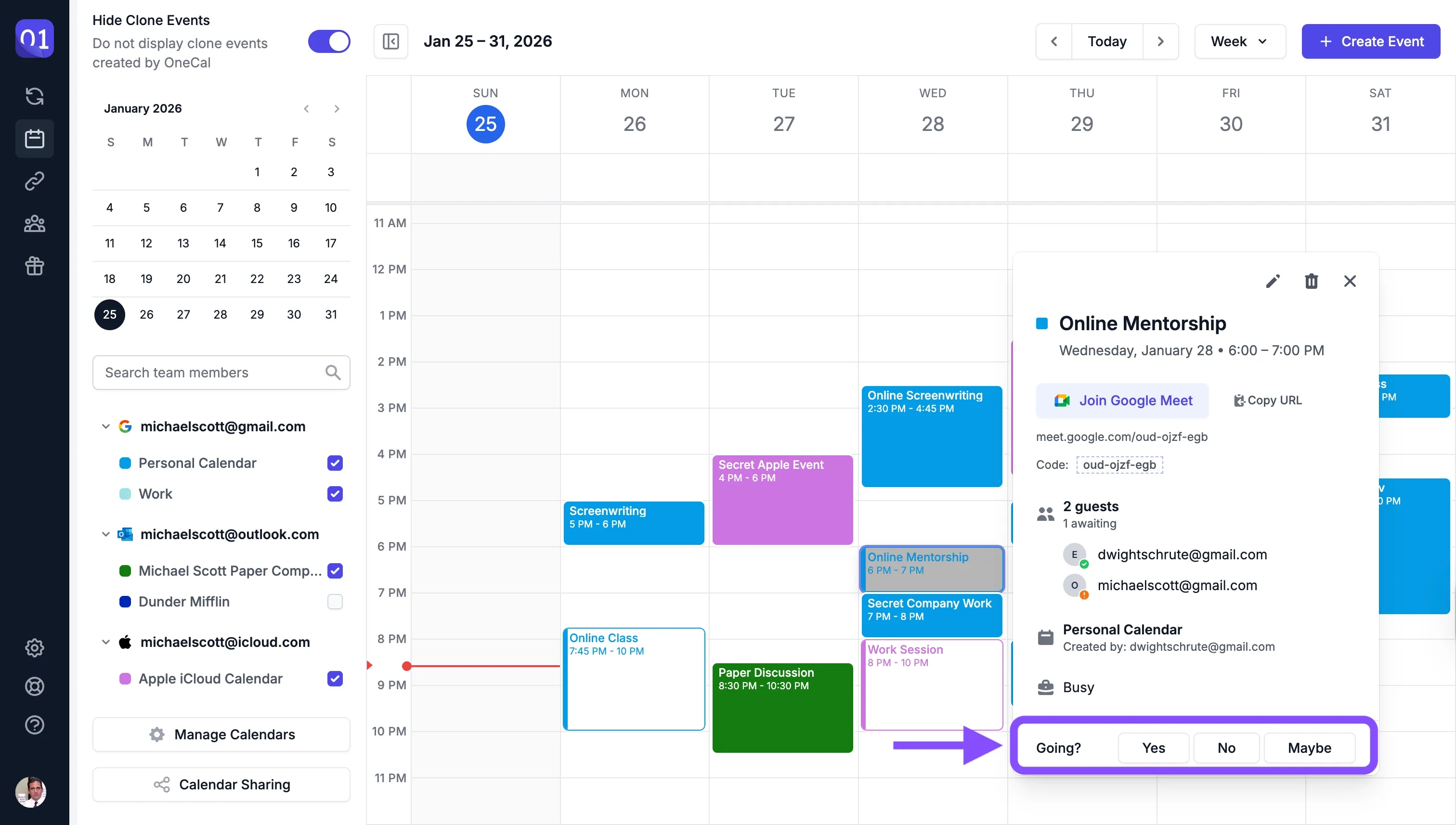
You could already view events across all your calendars using our Calendar View, but we've improved the UI and added more features, so you can now:
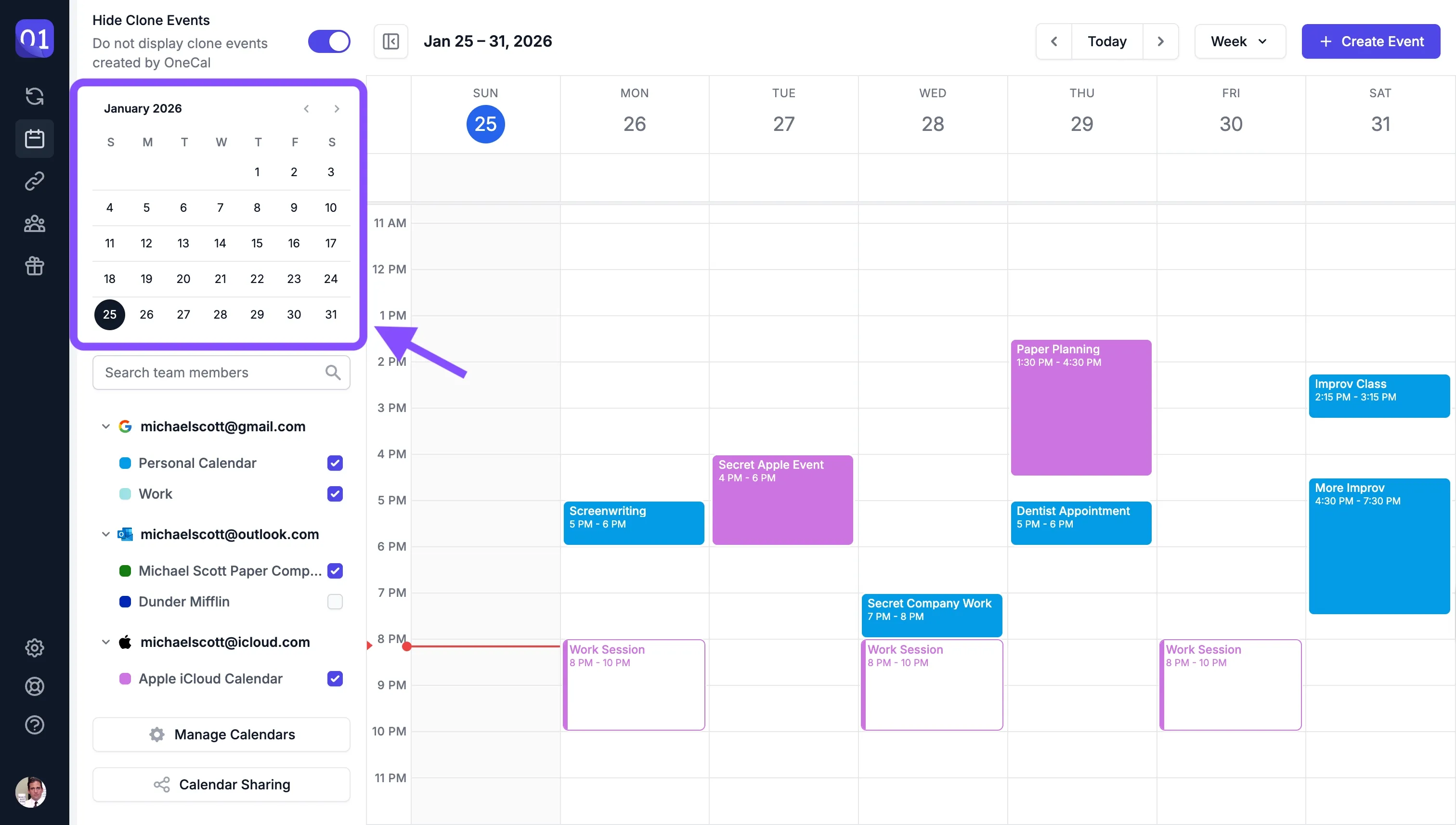
- Use the DatePicker on the calendar sidebar to quickly navigate between dates. Upon clicking a date, the calendar view adjusts the events accordingly.
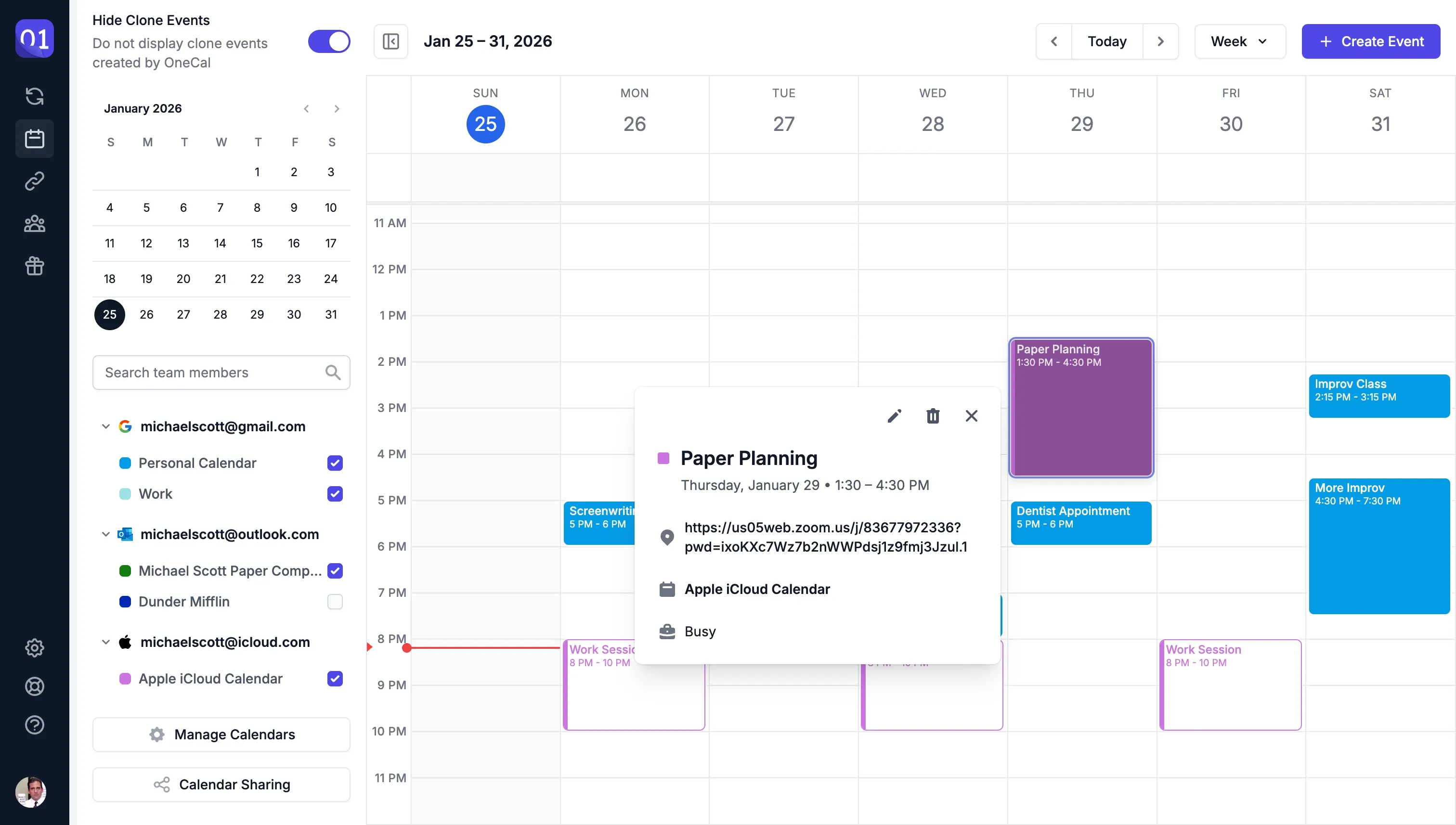
- Click on an event to see the all the important information.
 Join Meetings by clicking on the event, or quickly copy the conferencing link.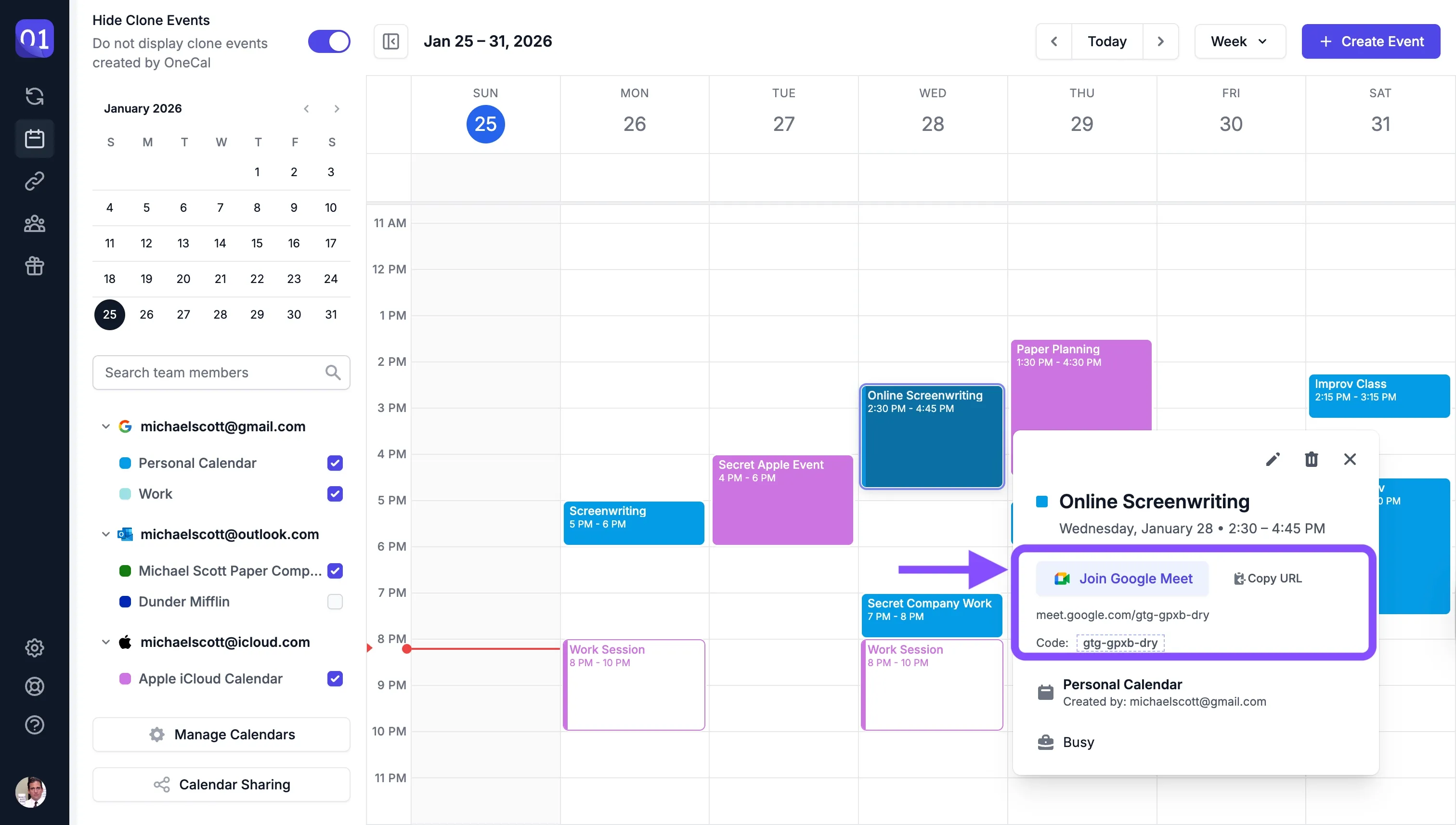
- RSVP
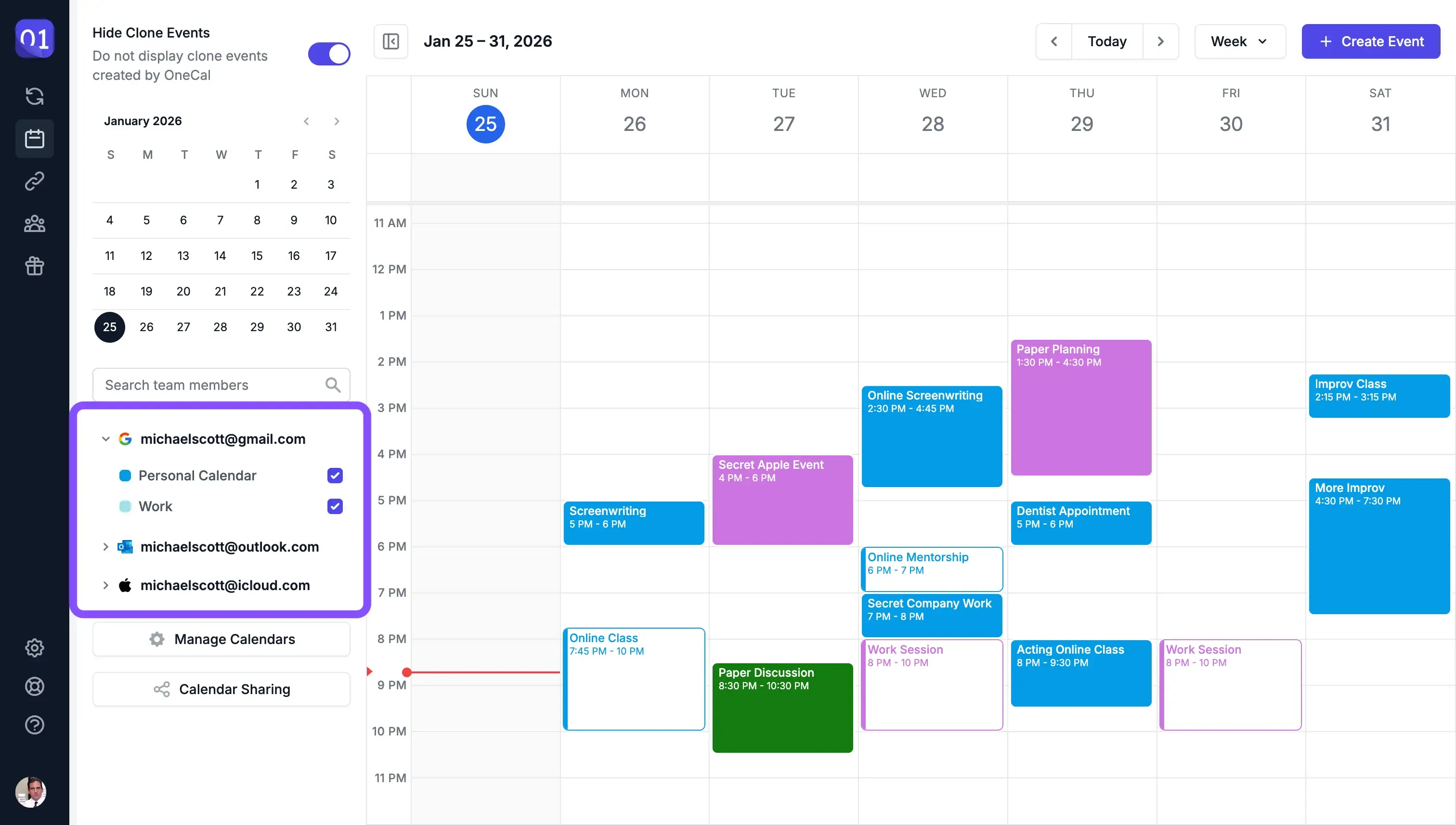
- Collapse groups of calendars so the UI is less cluttered, and you can focus on what's important.
Create events straight from the Calendar View
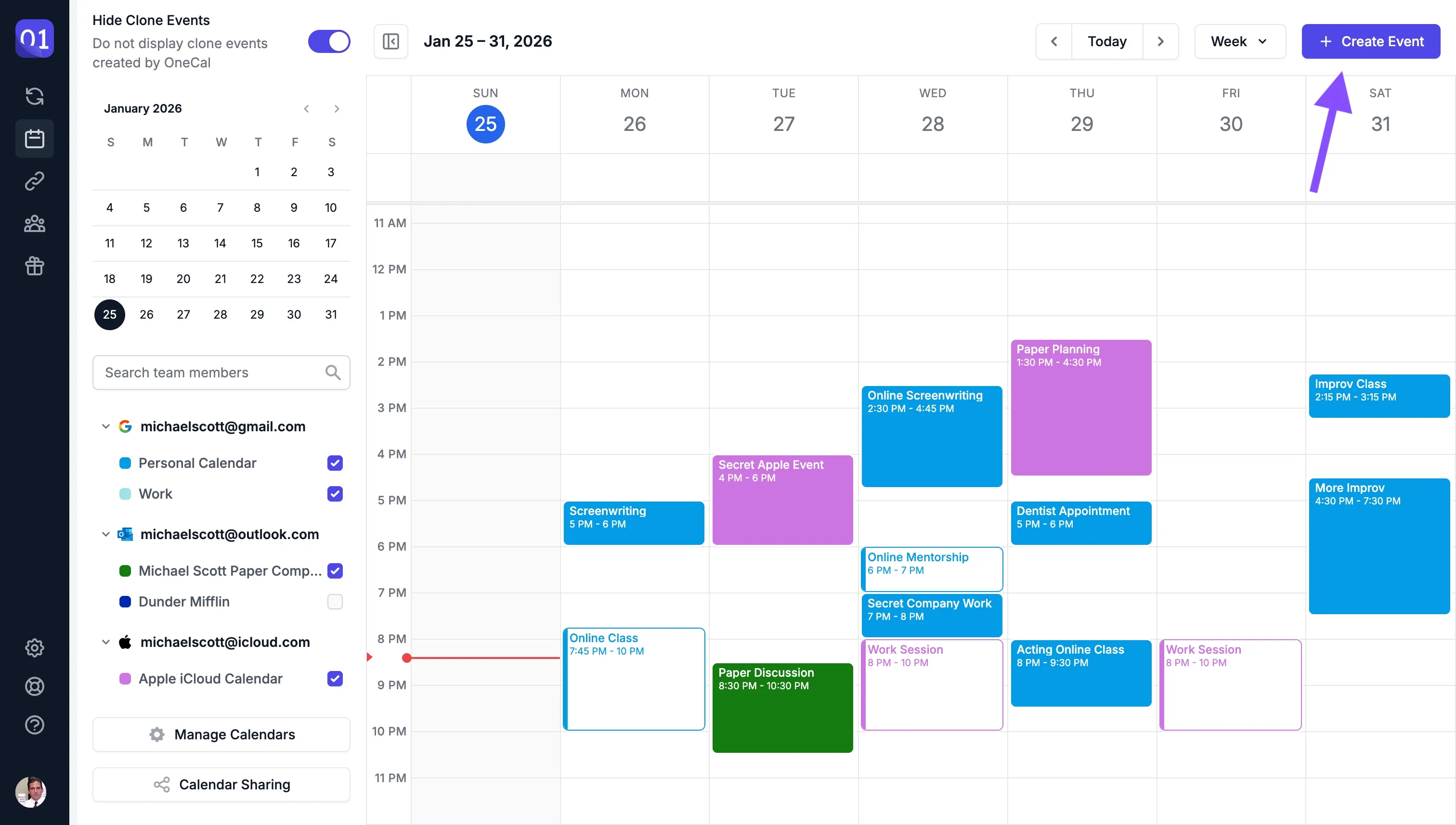
You can now create calendar events straight from the Calendar View, regardless of the calendar provider. You can do that in one of the following ways:
- Clicking the "Create Event" button on the top right of the Calendar View page.
- Clicking on a free slot in the Calendar View.
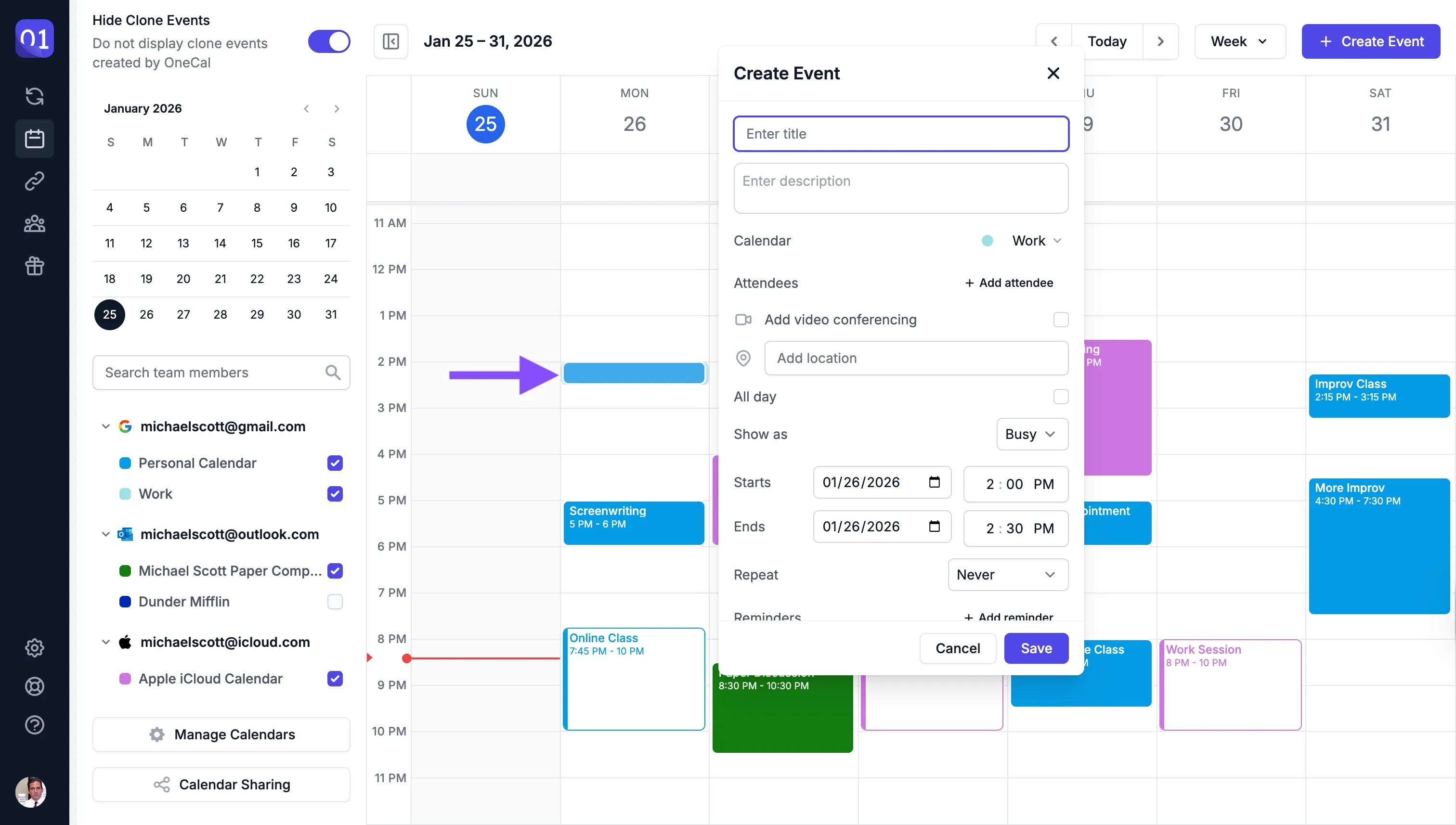
- Dragging your mouse in the Calendar View.
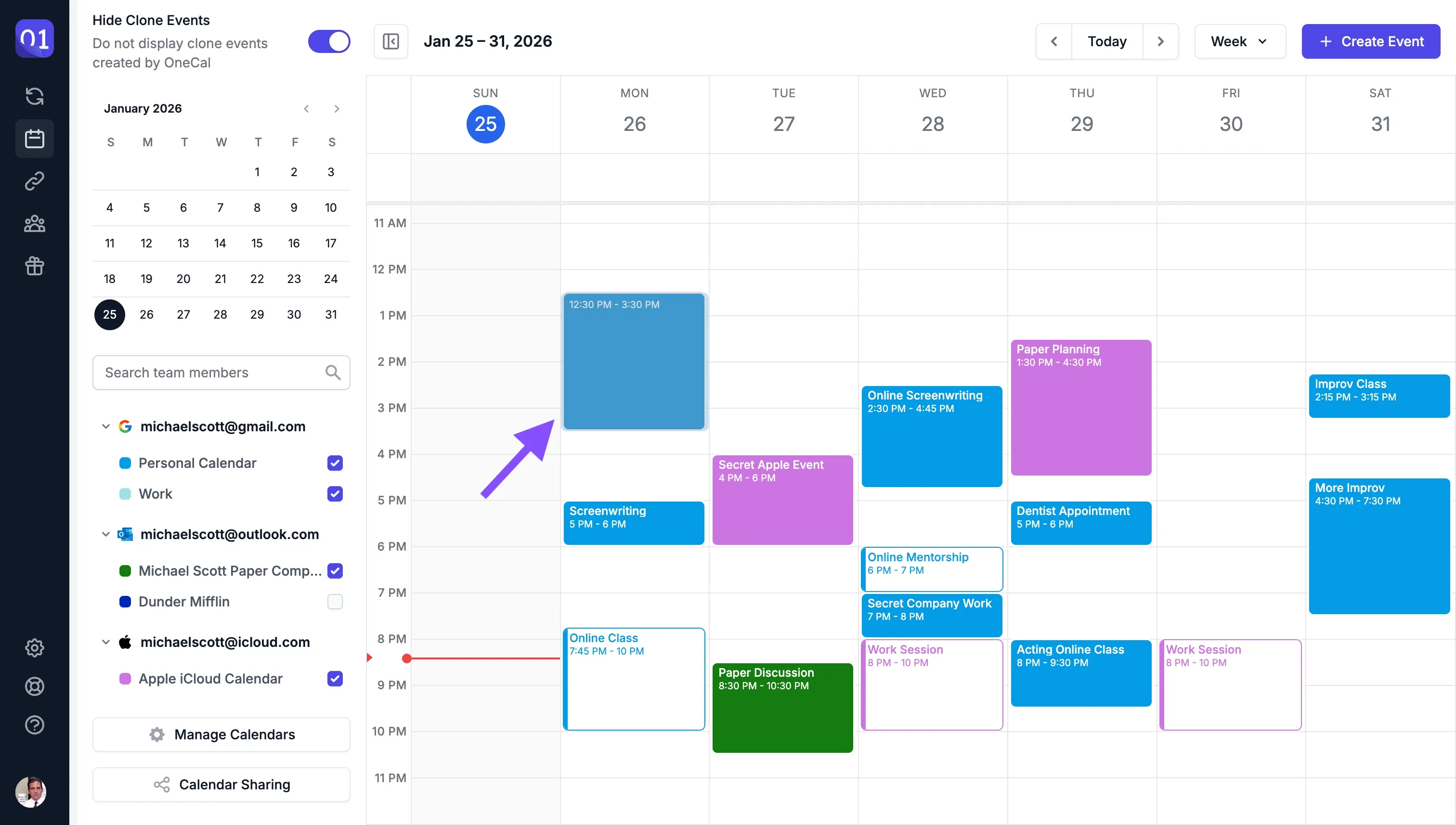
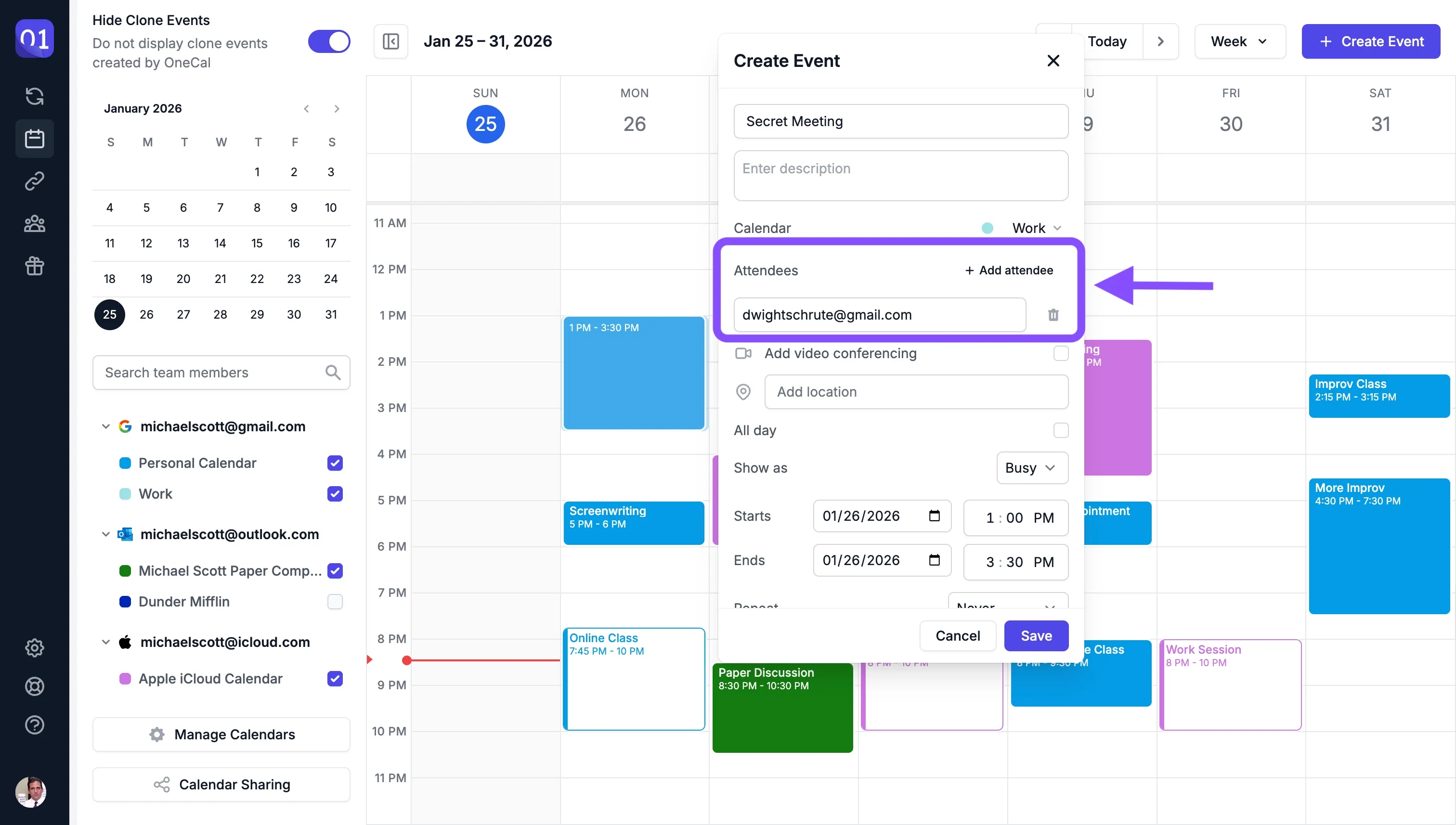
When creating an event, you can expect to see the same fields you'd see in Google Calendar or Outlook:
- Invite attendees.
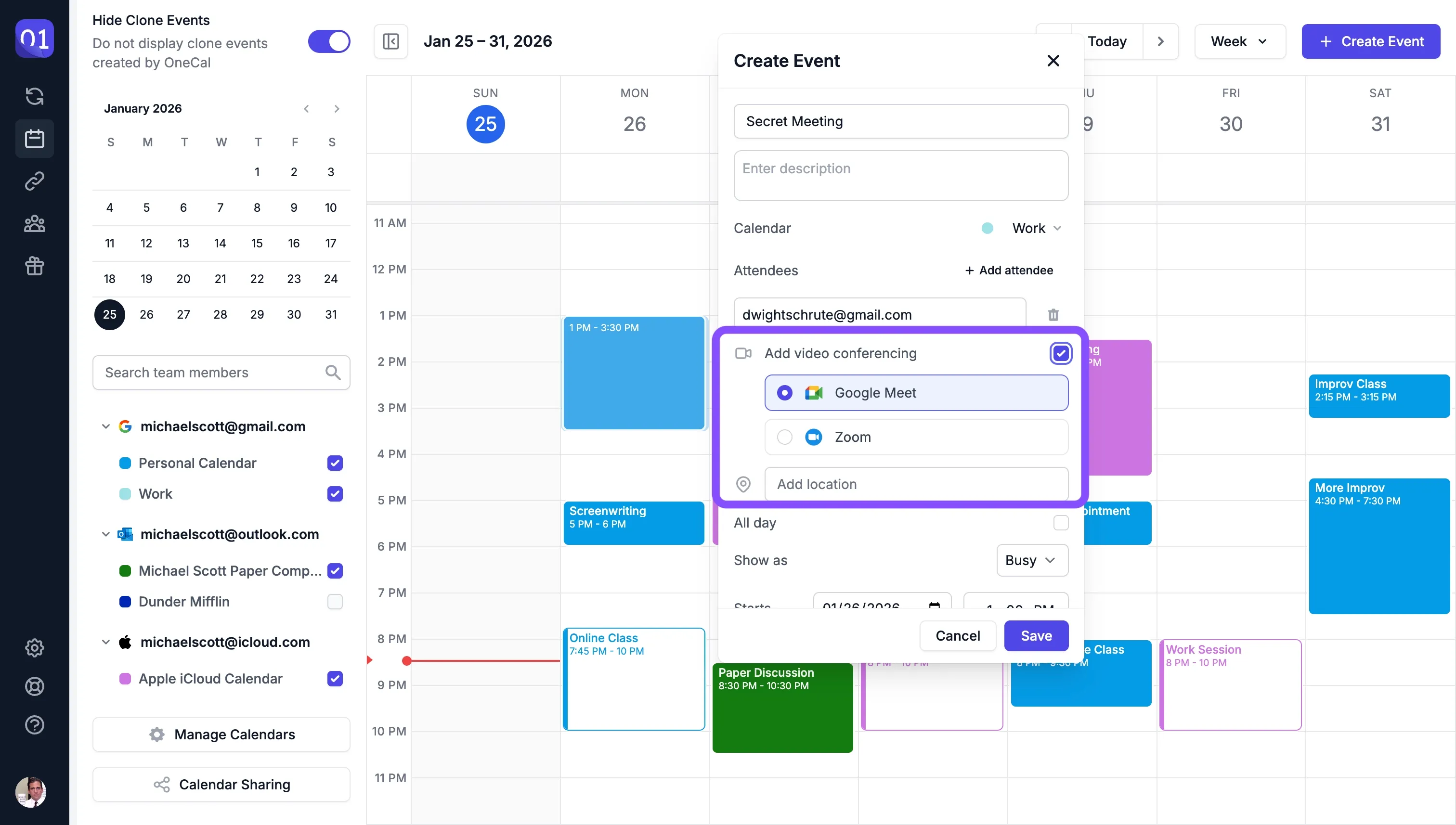
- Add video conferencing, Google Meet for Google Calendar, Microsoft Teams for Outlook. We've also added the ability to attach Zoom meetings, if you've connected it to OneCal. Click here to learn how to connect Zoom to OneCal.
- Add a Custom Location.
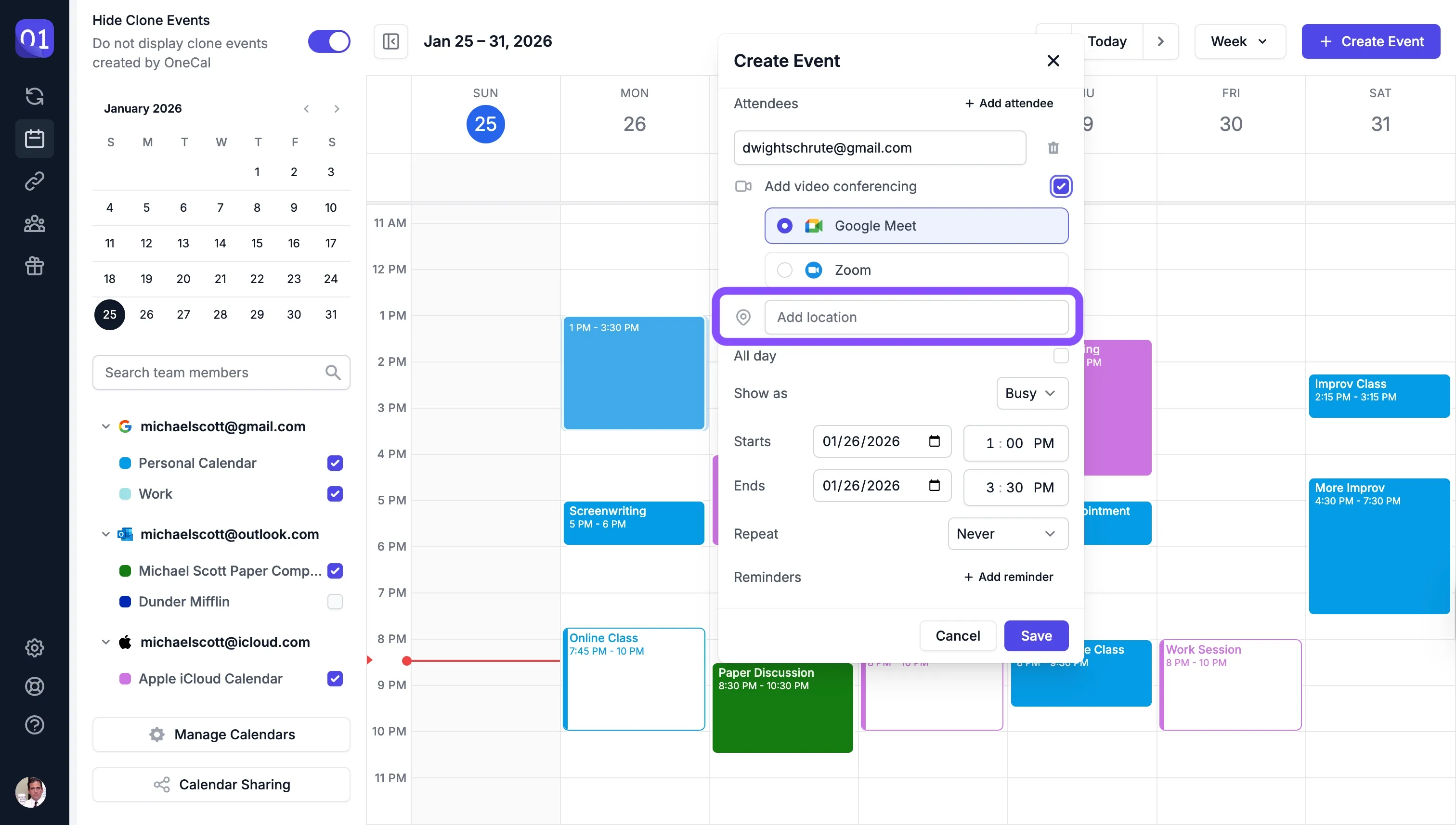
- Mark the event as All Day.
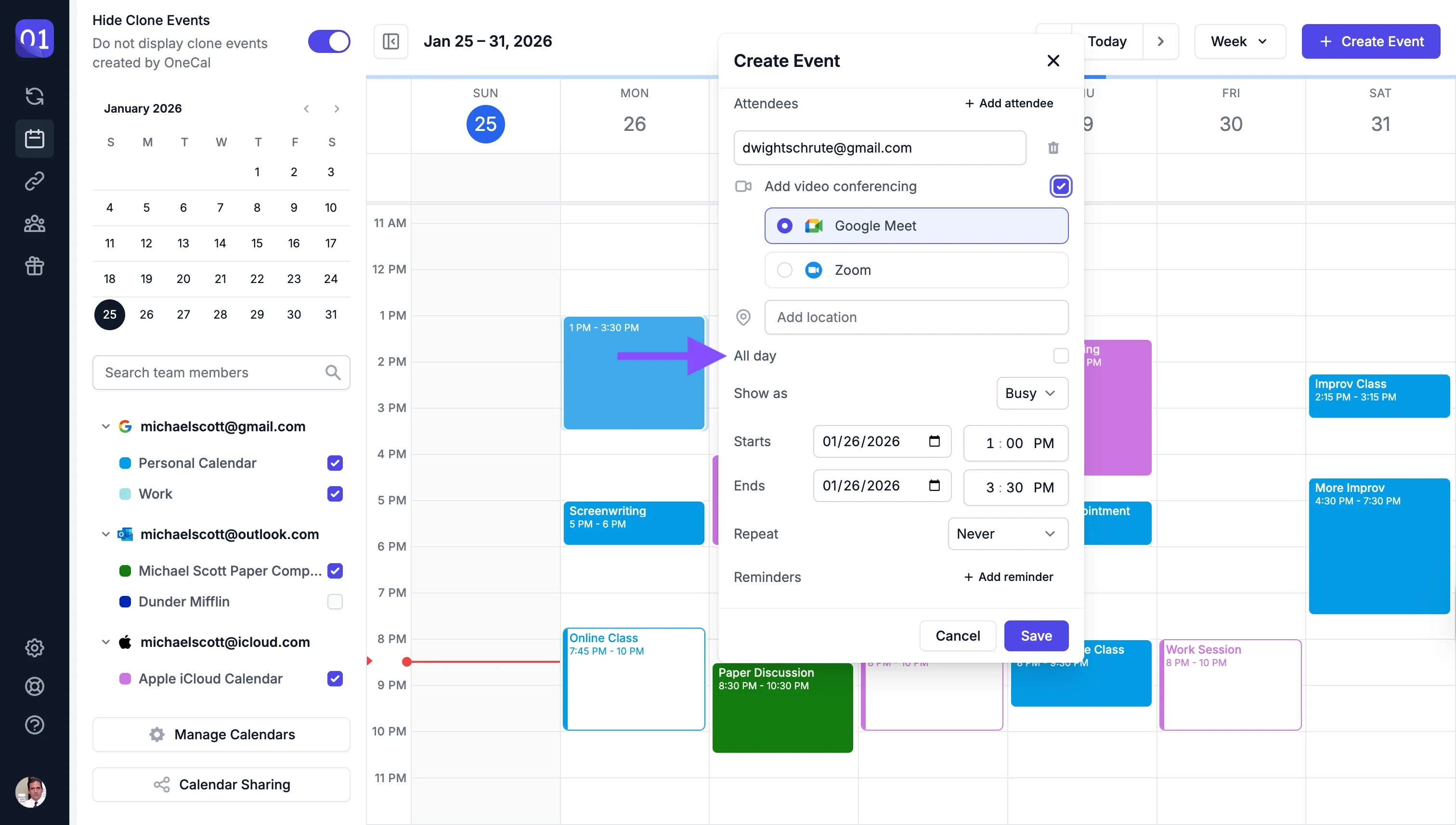
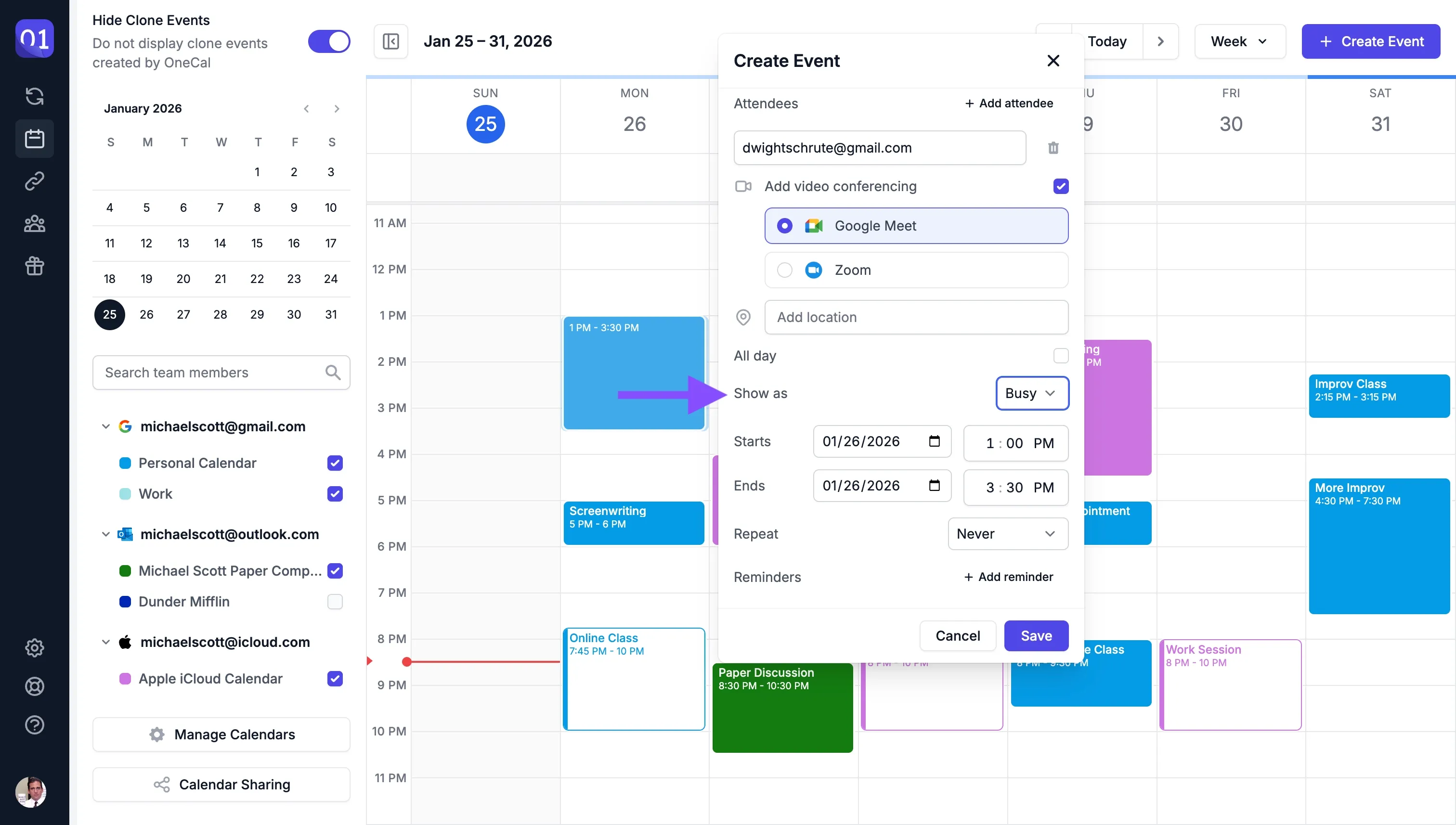
- Mark the event as Free or Busy.
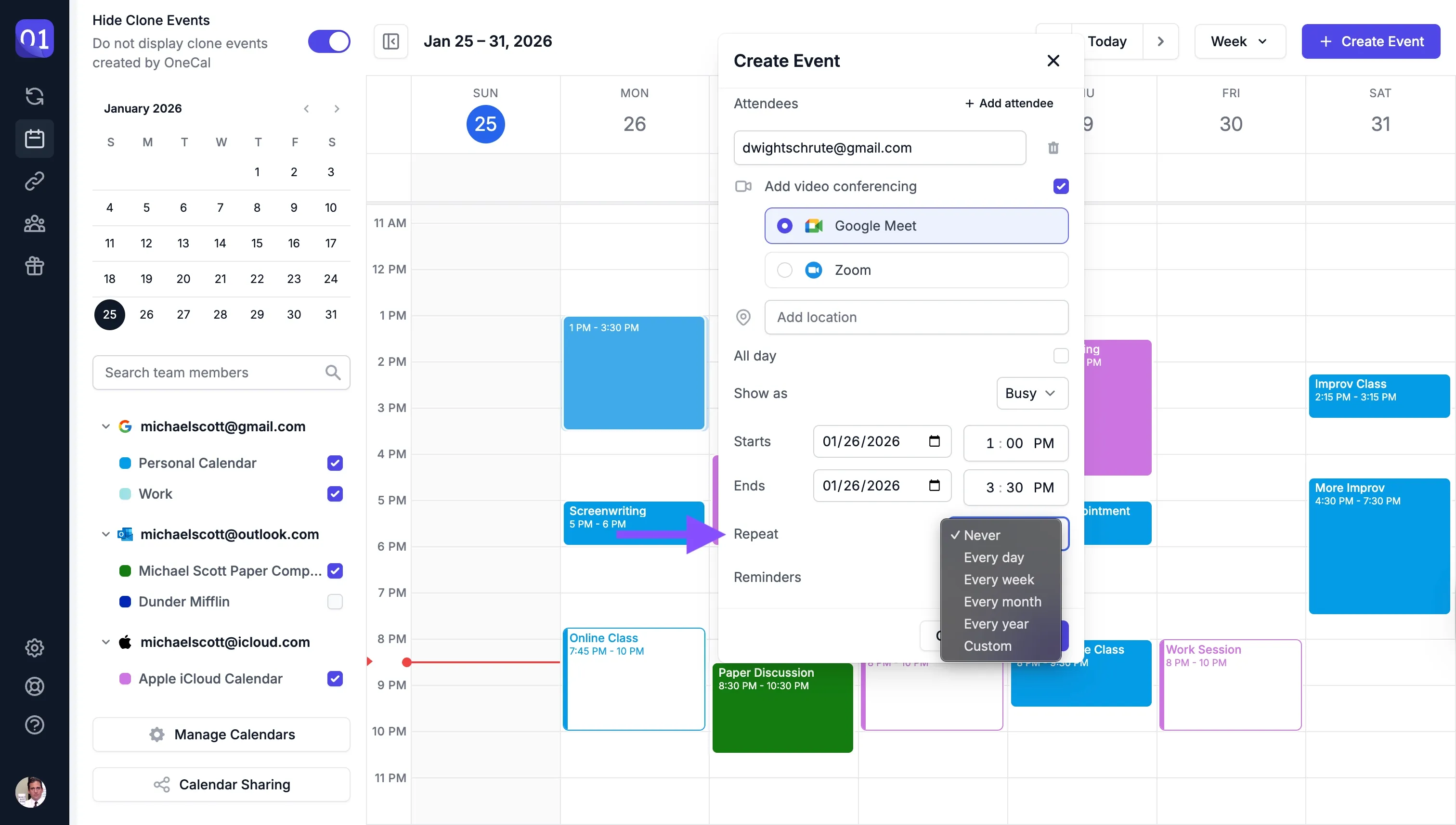
- Mark the event as recurring. We support daily, weekly, monthly, yearly, and custom recurrence.
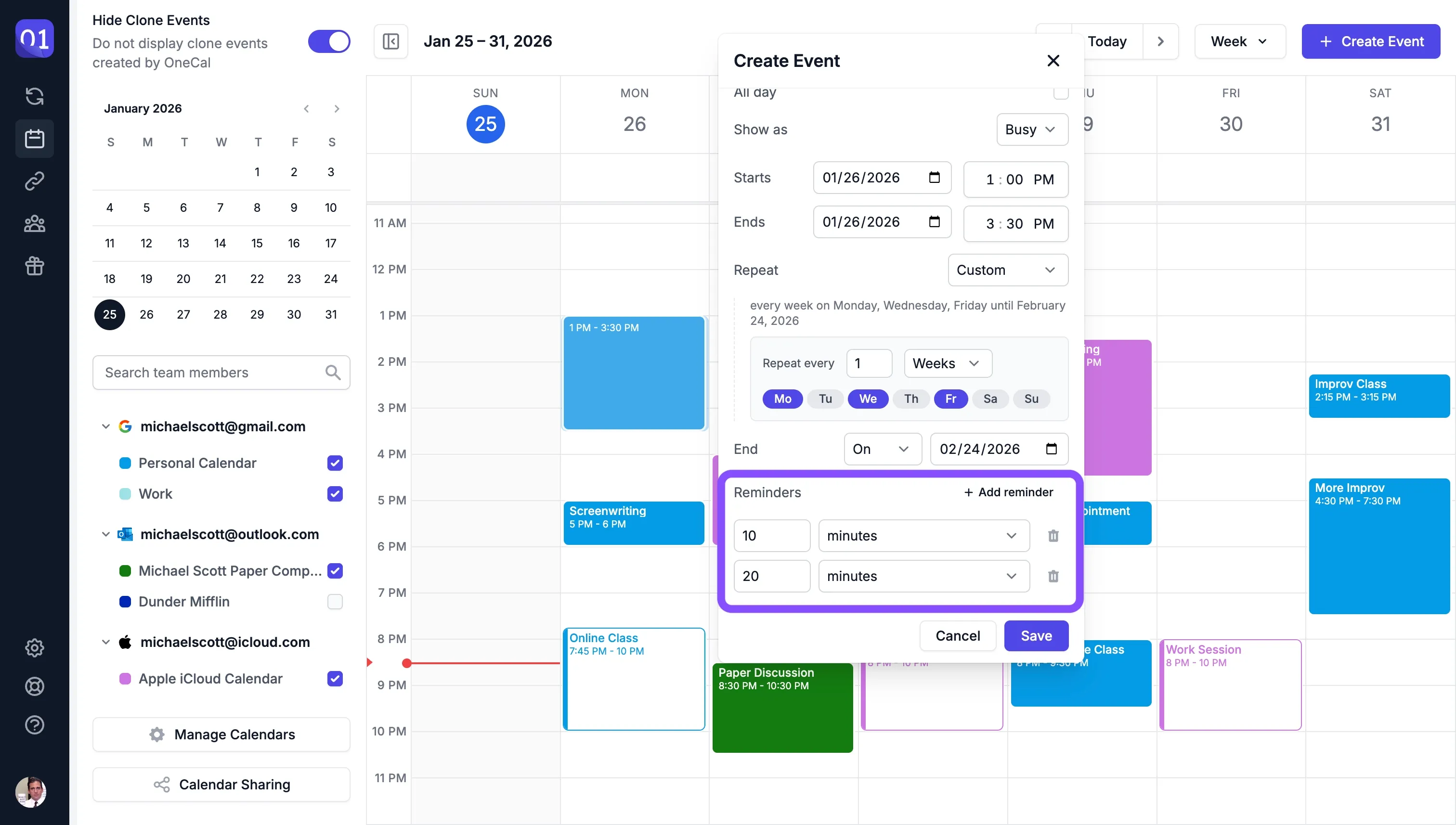
- Add multiple reminders (depending on the calendar provider).
Update events in the Calendar View
Updating events in the Calendar View feature is very easy, you just click on an event, then click the edit button (pen icon).
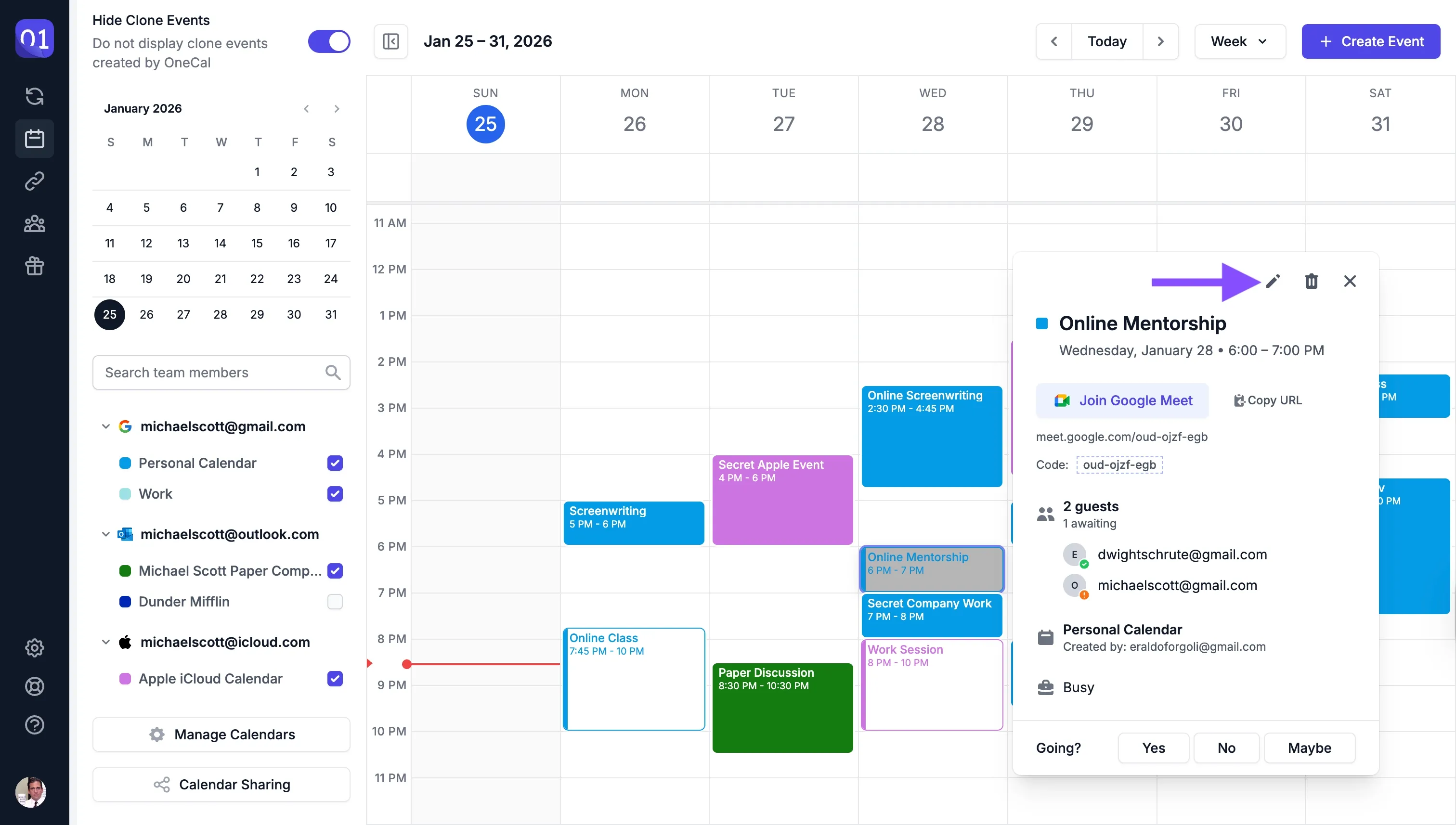
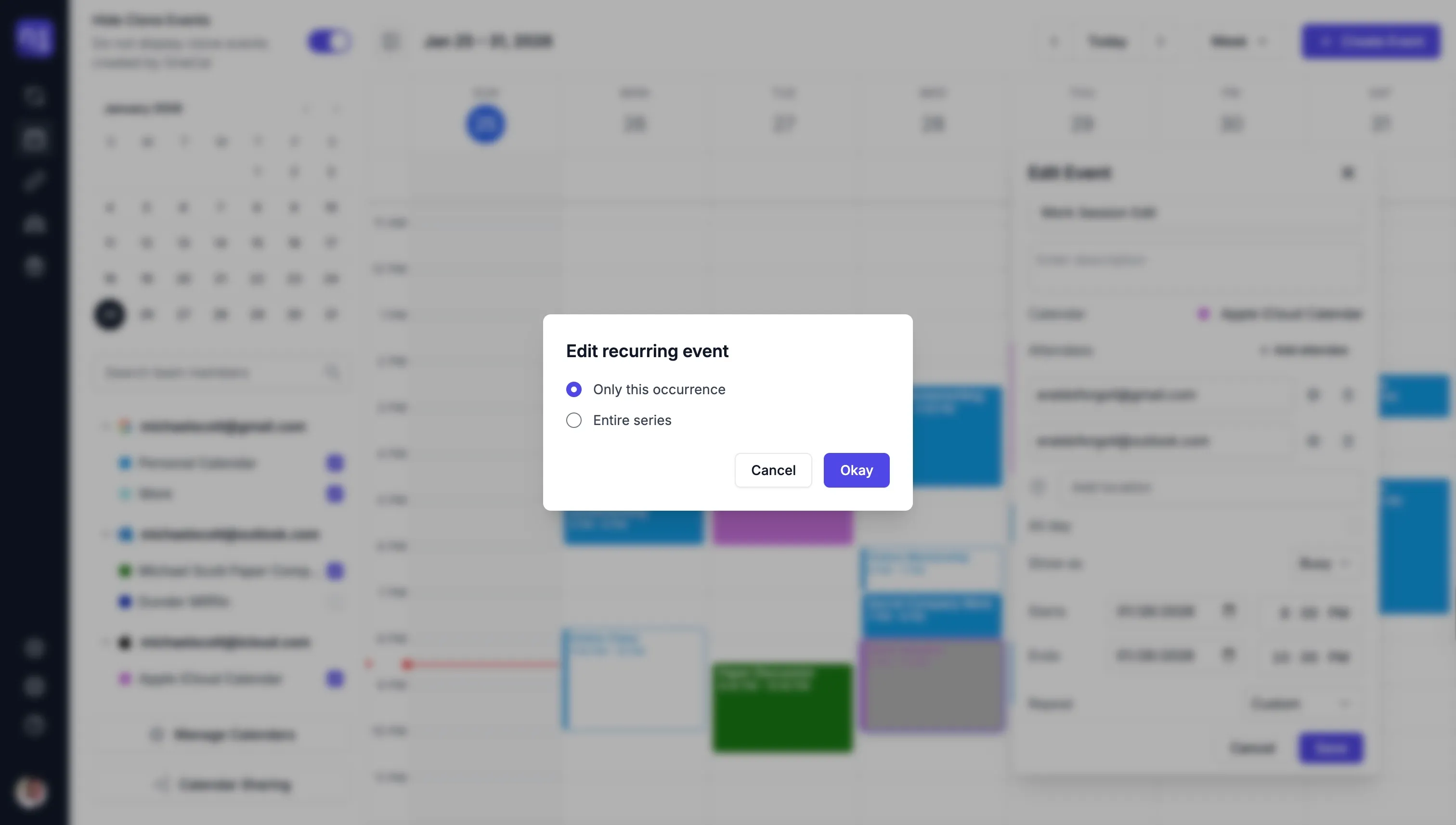
You can update single events, recurring events, and add exceptions to recurring events.
Delete events in the calendar view
To delete an event from the Calendar View, simply click on the event, then click the delete button (Trash icon).
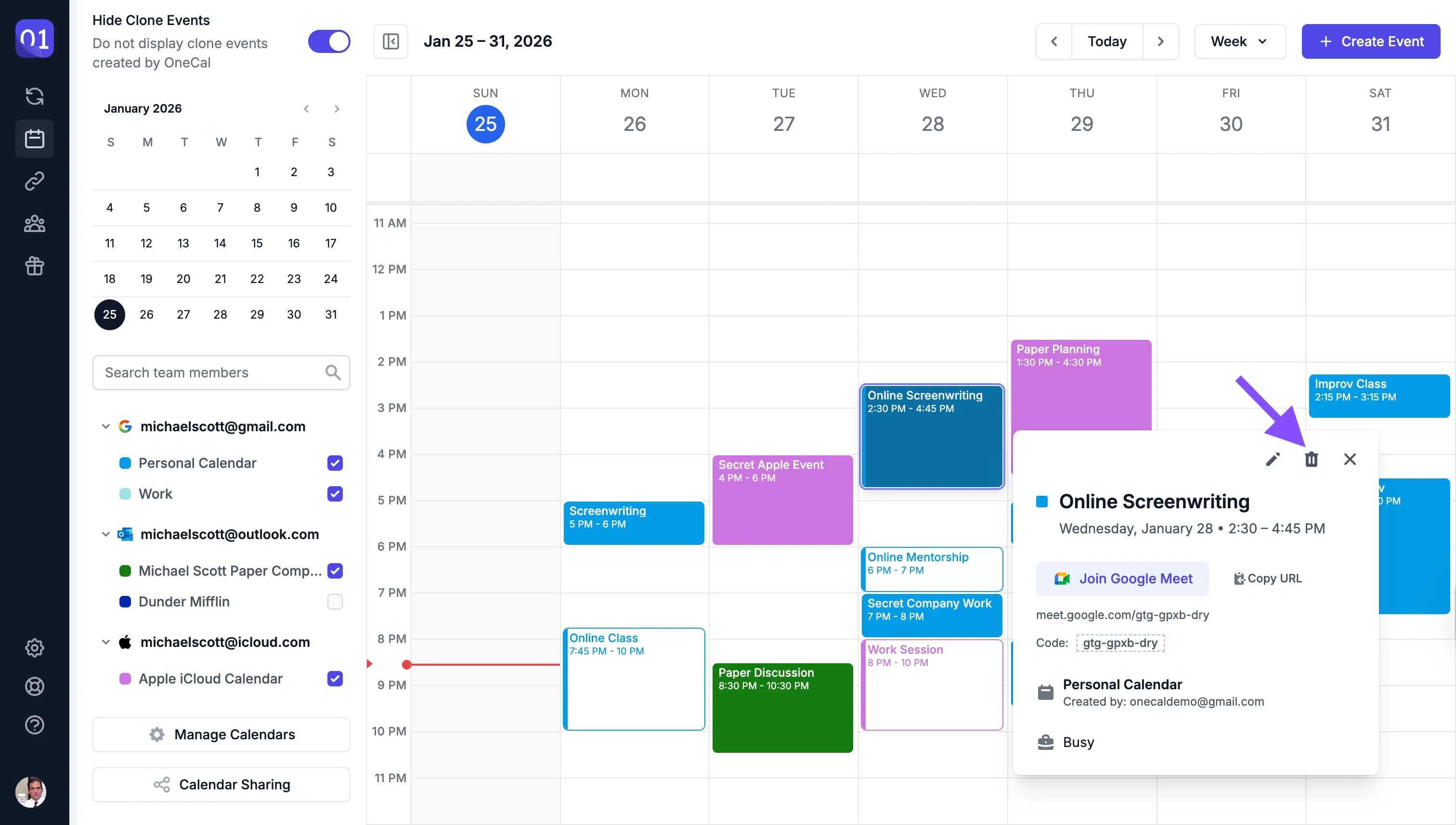
You can delete single events, recurring events, or a single event in a recurring series.
Generate Private Booking Links
The other big thing we shipped this month is the ability to generate private links that keep usernames hidden, with adjustable expiry dates and usage limits.
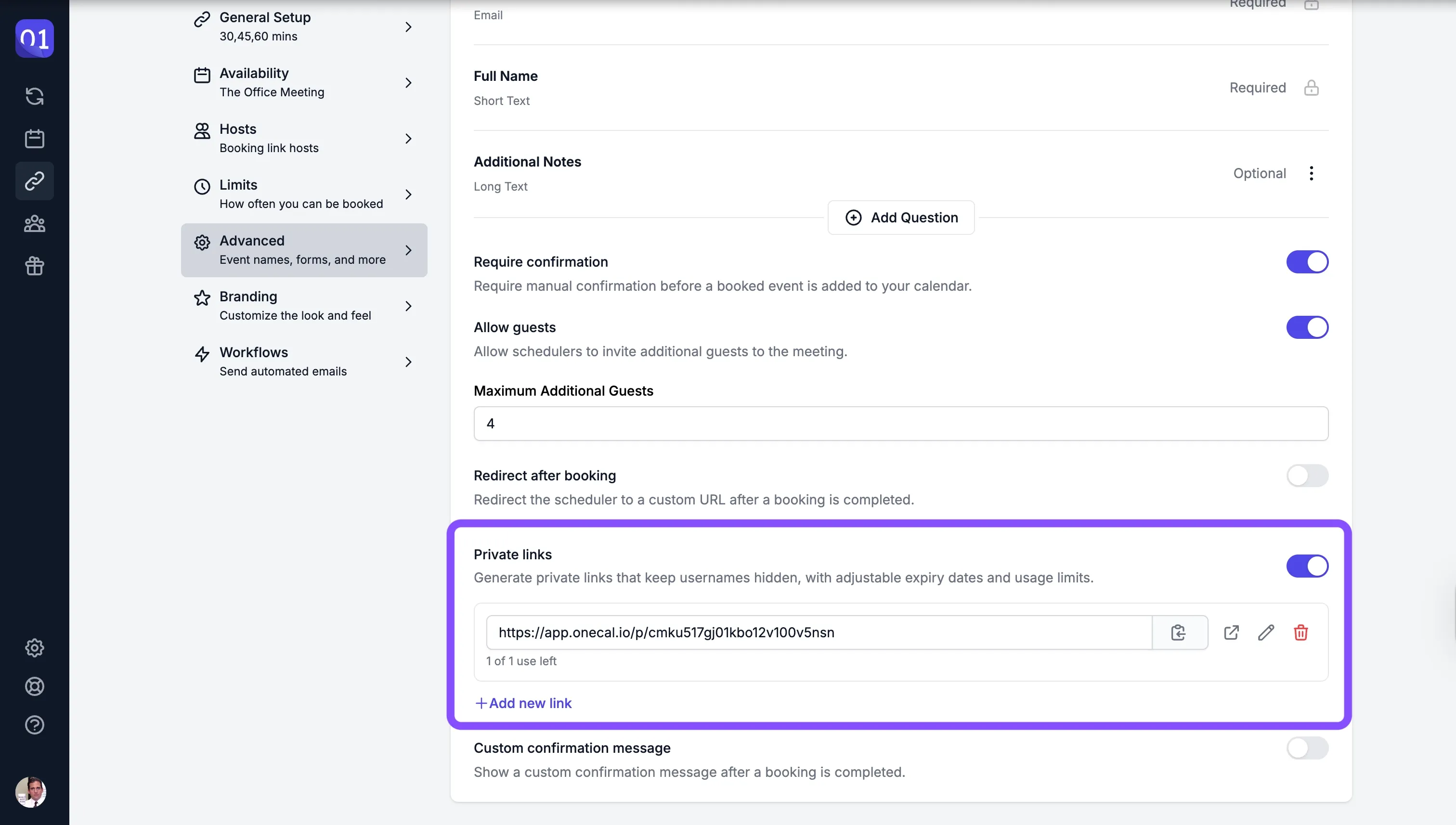
You can use the Private Booking Links as
- One-time booking links
- Links that are meant to expire after some time
- Links that are meant to be used a couple of times.
Private Booking Links can be configured to be:
- Usage-based, i.e, the link can be used for a limited number of bookings.
- Time-based expiration: The links can be configured to expire after a set date.
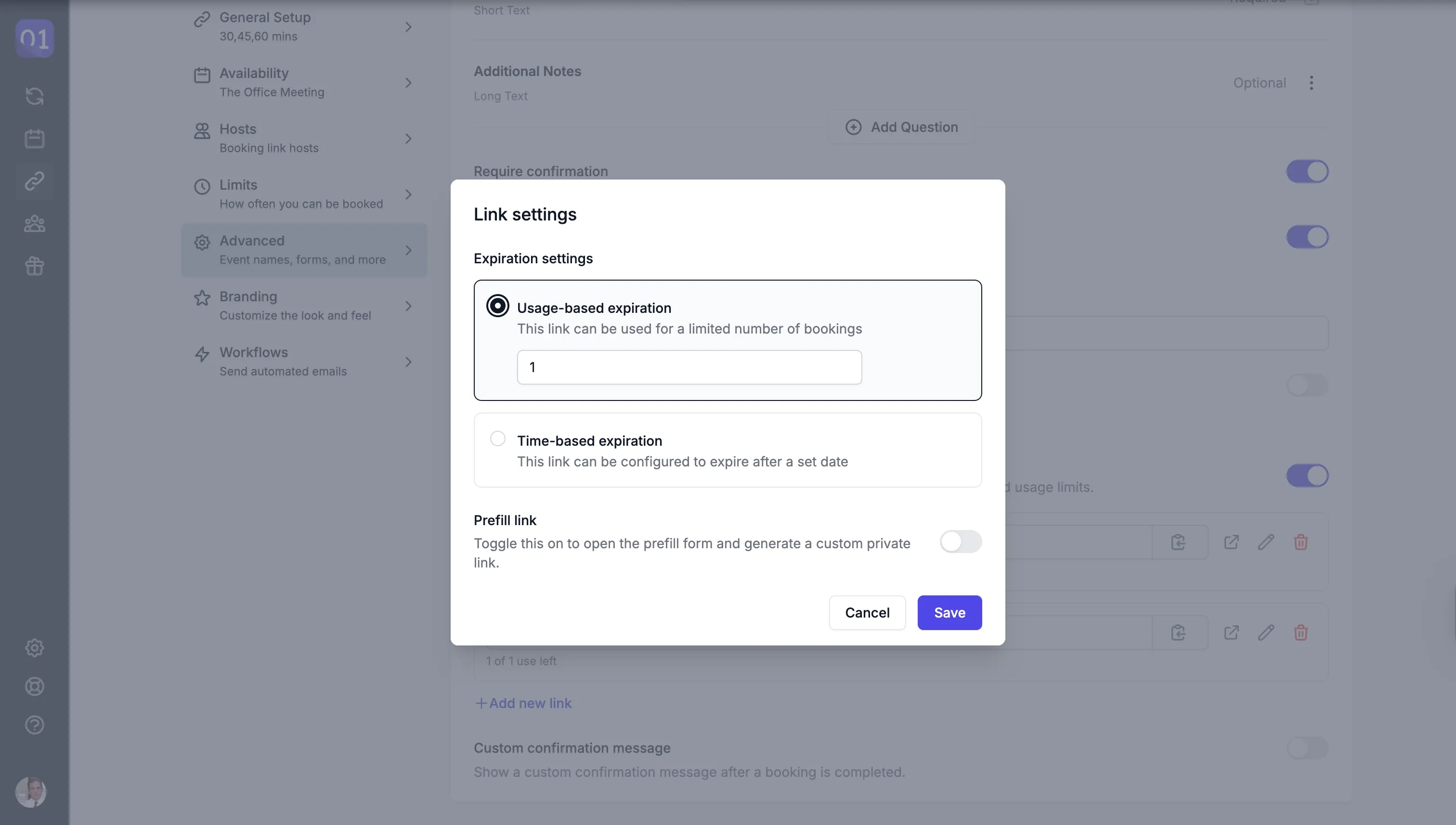
Private booking links can be prefilled, same as normal booking links.
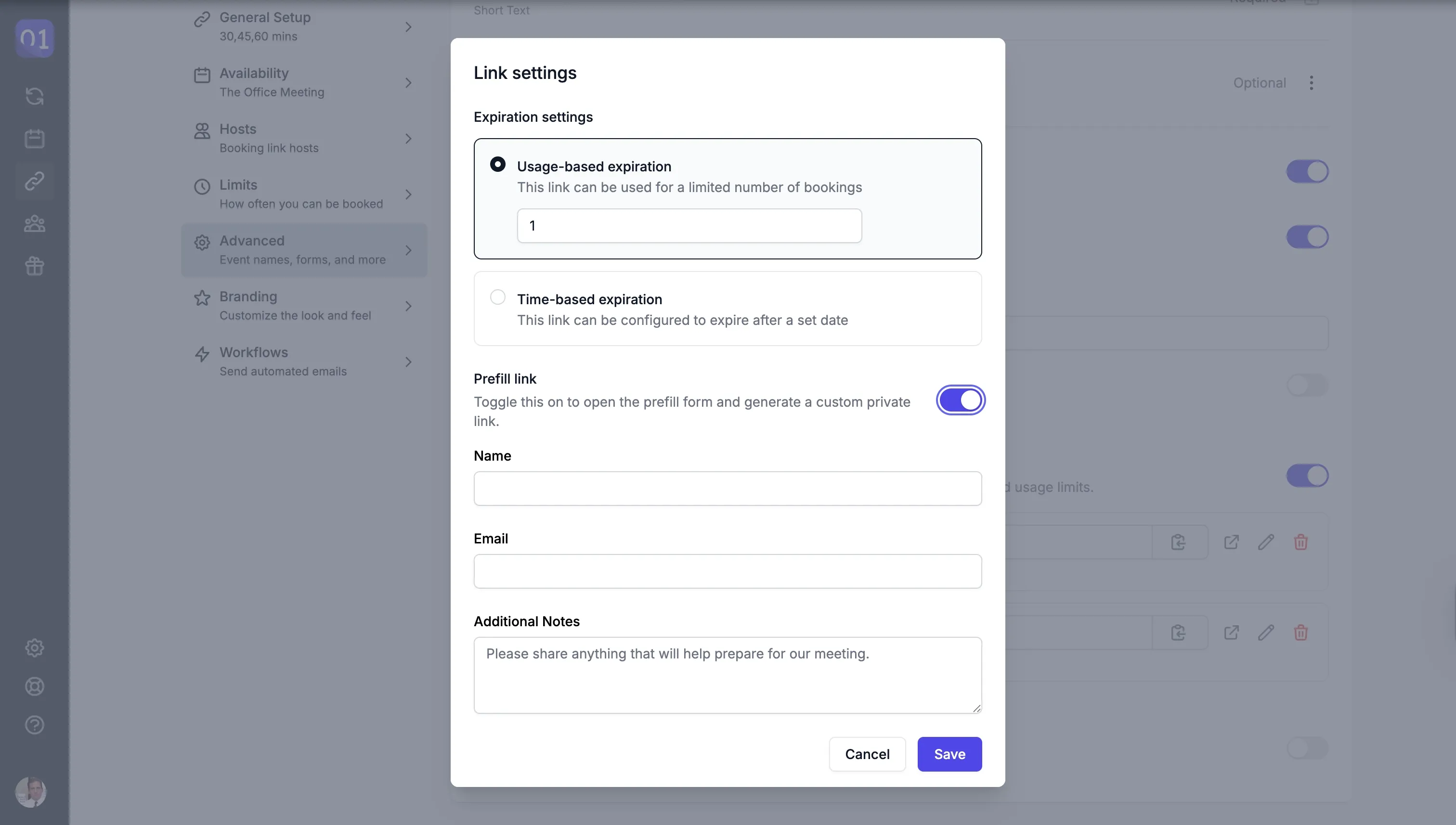
To generate a Private Booking Link, open an existing Booking Link (or create a new one), then click Advanced > Private Links.
You can also go straight to the creation section by clicking the three dots on the Booking Links list.
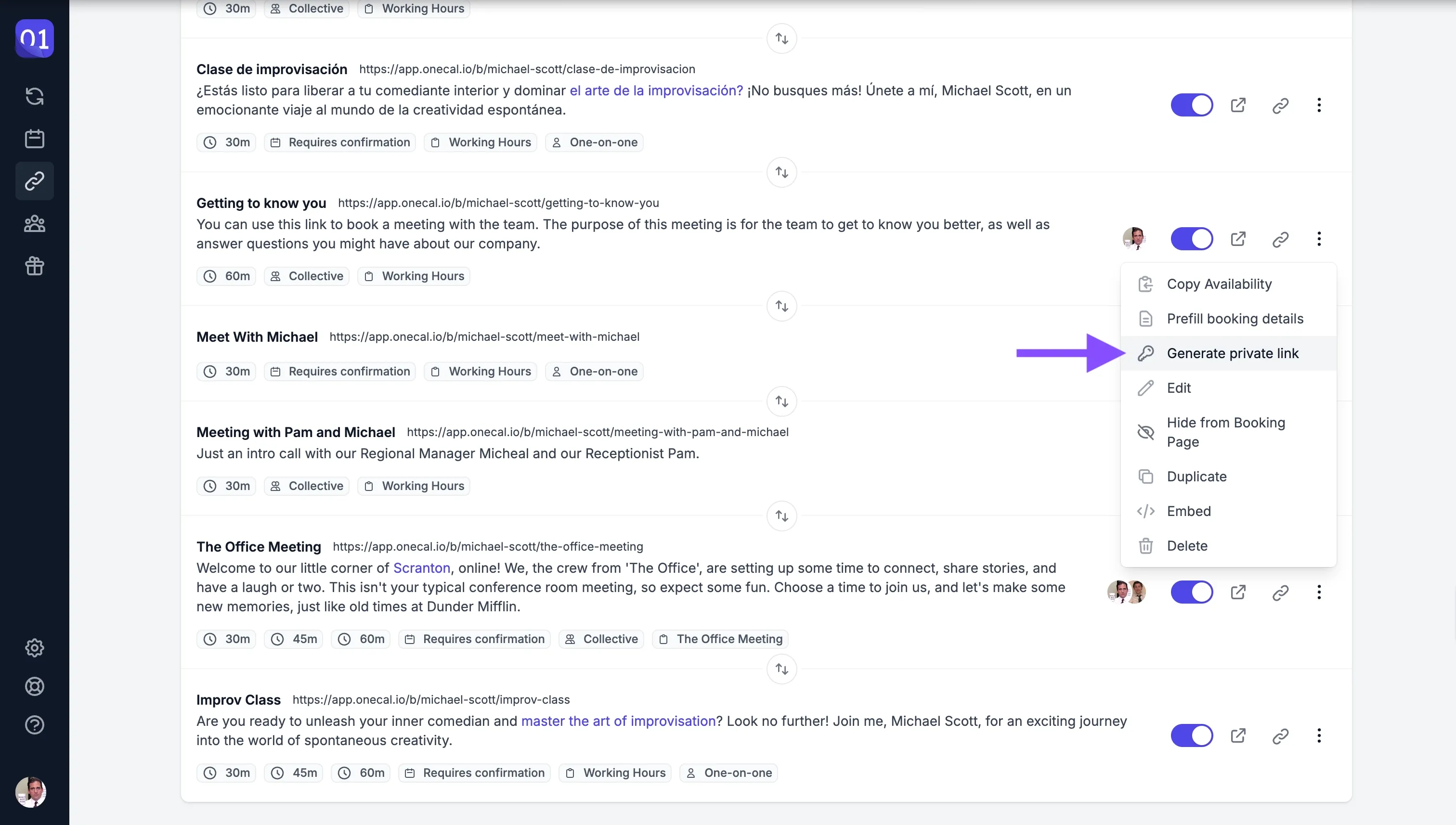
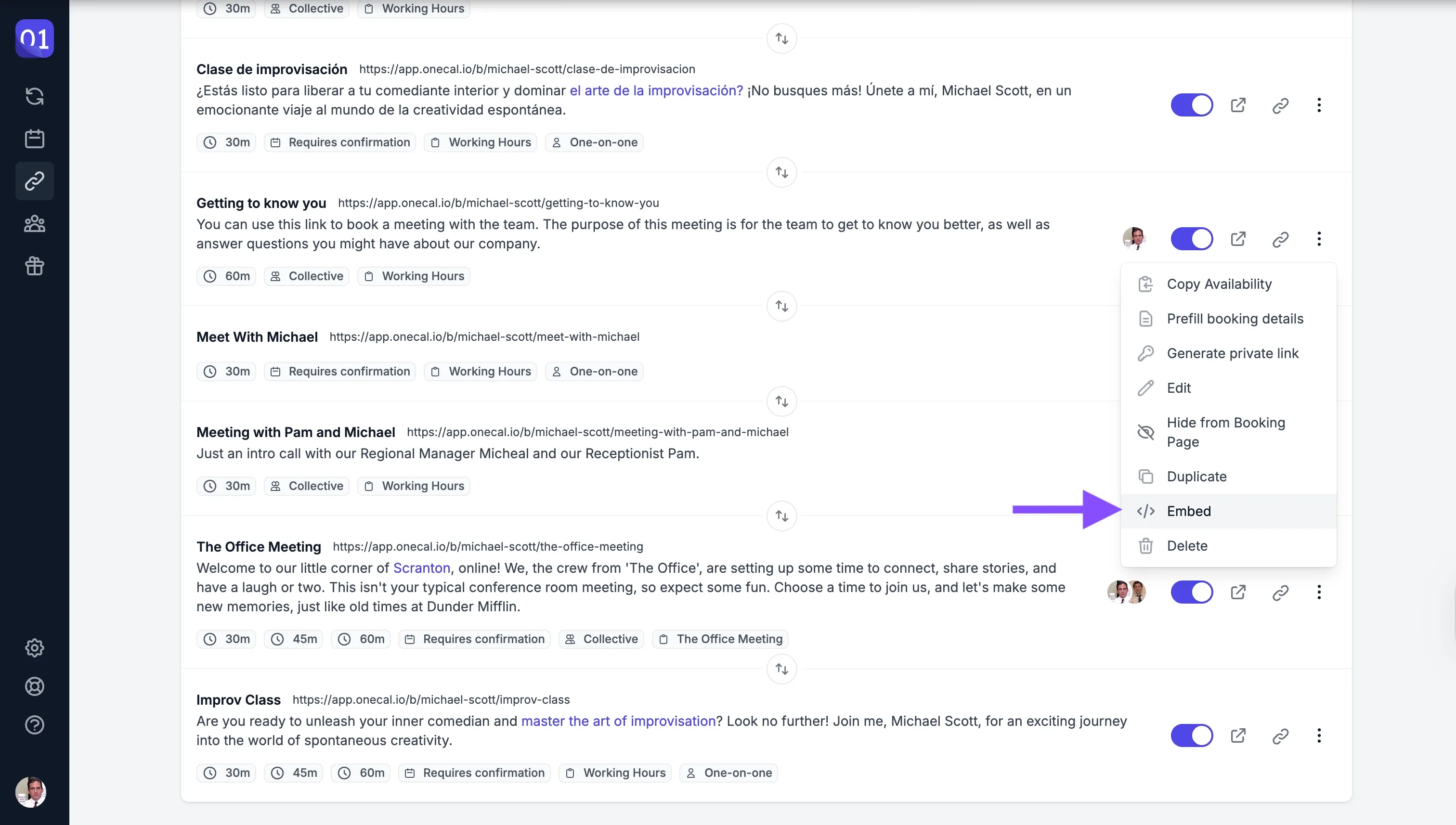
Embed Booking Links to your website
You can now copy a piece of code, paste it into your website, and voila, your Booking Link is embedded into your website. Your visitors can now book you directly from your website.
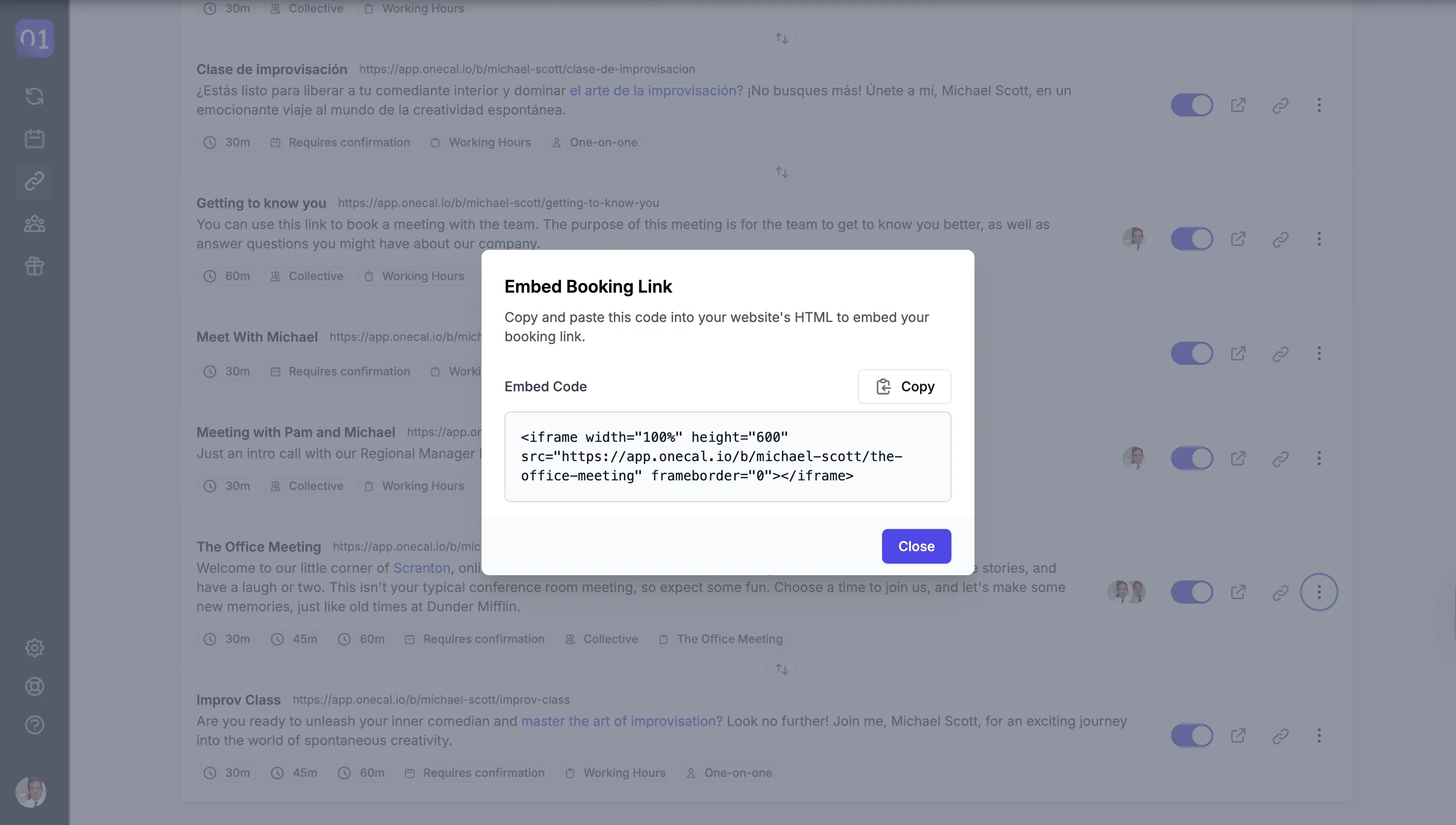
To embed a Booking Link to your website, please click the three dots on the Booking Link you want to embed, then click "Embed".