Introducing the OneCal Calendar MCP Server
Table of Contents
Ready to Sync Your Calendars?
Create a OneCal account to sync multiple Outlook, iCloud and Google Calendars, create Booking Links, and much more.
After a couple of months of testing with a select group of users, we're excited to share that the OneCal Calendar MCP Server is now available to everyone.
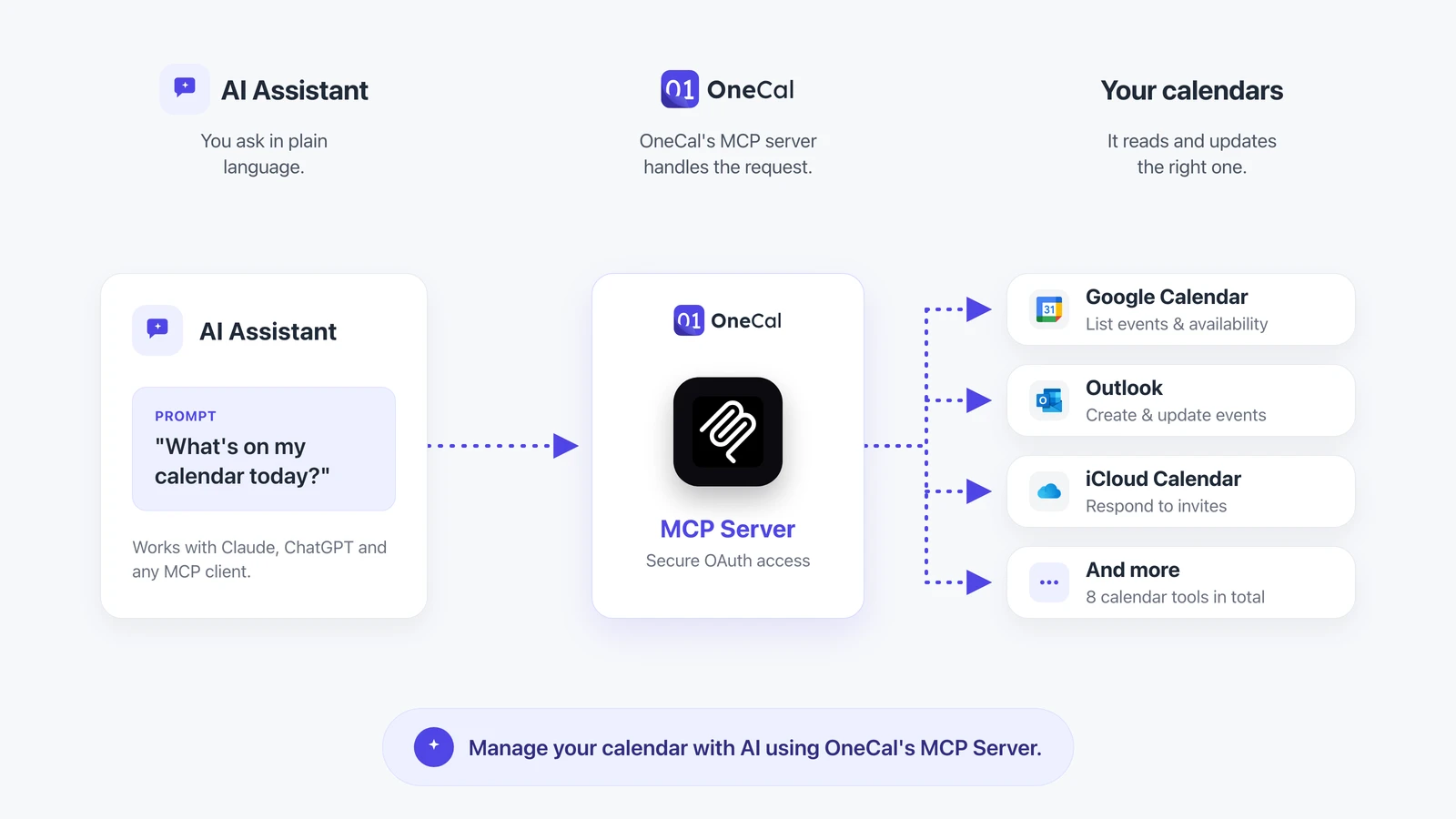
The Calendar MCP Server connects your Google, Outlook, and iCloud calendars to Claude, ChatGPT, and any other MCP client. With it connected, your AI assistant can read your schedule, check your availability across every calendar at once, and create, update, and delete events on your behalf.
What is an MCP server?
The Model Context Protocol (MCP) is an open standard that lets AI assistants connect securely to external tools and data. Instead of being limited to what it was trained on, an assistant can use MCP to reach live information and take real actions.
The OneCal Calendar MCP Server exposes your connected calendars to any MCP client, so your assistant works with your real schedule instead of guessing.
Every calendar, one server
OneCal already brings your Google, Outlook, Microsoft 365 and iCloud calendars together, and the Calendar MCP Server hands all of them to your assistant through a single connection.
Works with Claude, ChatGPT and any MCP client
The server speaks the open MCP standard, so it isn't tied to a single assistant. It works with Claude, ChatGPT and any other MCP-compatible client. Connect once, then use whichever assistant you prefer.
What your AI assistant can do
The Calendar MCP Server ships with a full set of tools, so your assistant can manage your calendar from end to end:
- Read your calendars. List your connected calendars, pull events for any date range and time zone, and open the full details of any single event.
- Check your availability. Get your busy intervals across every calendar at once, so your assistant can find time that is actually free.
- Create and update events. Add events with attendees, reminders, recurrence and video conferencing links, then change the time, title or any other detail later.
- Cancel and respond. Delete events from any connected calendar, and RSVP to invitations as accepted, declined, or tentative.
A few things you can ask
Once your calendars are connected, everyday prompts work:
- "What does my day look like?"
- "When am I free for a 30-minute call this week?"
- "Schedule a meeting with Sarah on Thursday at 2 pm and add a Zoom link."
- "Move my 3 pm to tomorrow morning."
- "Cancel my dentist appointment on Friday."
- "Find a free hour for deep work tomorrow."
Your assistant reads every connected calendar, checks your real availability, and makes the change for you, all from the chat you are already in.
How to set it up
Getting started takes just a couple of clicks:
- In OneCal, go to Settings > Apps & Integrations.
- Find the MCP Server section and click Manage.
- Connect your MCP client, whether that's Claude, ChatGPT, or any other.
You can add as many MCP clients as you want, so every assistant you use can reach the same calendars.
Secure by design
The Calendar MCP Server uses OAuth, so your AI assistant only gets the access you grant and nothing more. Connect once, and revoke that access any time from your OneCal account. Your calendars stay under your control.
Get started
The OneCal Calendar MCP Server is available now. Connect your calendars, point your assistant at the server, and let it handle the scheduling work that used to take a dozen clicks.
Start for free. No credit card required.